
My WD My Passport started beeping after I accidentally knocked it off my nightstand. No other shop would touch it. MDrepairs did a platter transplant and recovered every single photo and video - over 800GB of family memories. Incredible work.
- 4.6 319+ Google reviews
- 2M+ followers
- Serving all 50 states
Beeping Hard Drive Data Recovery
Is your hard drive beeping? Stop trying to power it on. That repetitive beeping means the spindle motor cannot spin the platters - either the read/write heads are stuck to the platter surface (stiction) or the motor itself has seized. This is fundamentally different from a clicking hard drive, which indicates a head failure.
Beeping drives require a platter transplant or motor repair inside a clean bench - there is no software fix and no DIY workaround. MDrepairs in Lincroft, NJ specializes in beeping drive recovery across all brands - Western Digital, Seagate, Toshiba, and more. Every case starts with a $100 professional diagnostic. We serve customers nationwide through our secure mail-in program. No data, no charge on the recovery.
Follow Our Work
Watch Real Hard Drive Recovery Work - 2M+ Followers
MDrepairs is not a faceless corporate lab. Joseph Montanti, our founder and lead technician, shares real data recovery cases with over two million followers across YouTube, TikTok, and Instagram. The featured clip is a dropped hard drive recovery: Joseph opens the drive, inspects damaged heads, finds a missing read head stuck to a platter, and protects the media before imaging.
A beeping hard drive can involve a stuck motor, seized spindle, stiction, or head damage, so the exact repair path depends on the diagnostic. The value of the video is the same: you can see our careful inspection process before trusting us with irreplaceable data.
- 1.1M+ YouTube Subscribers
- 400K+ TikTok Followers
- 290K+ Instagram Followers
- 470K+ Facebook Followers
What Our Customers Say
4.6
Verified reviews No data, no charge - every case earns its rating
Beeping Drives We Recover From
Beeping is especially common in portable external hard drives because they rely entirely on USB bus power - if the motor struggles even slightly, the drive beeps instead of spinning up. We recover beeping drives from all major manufacturers and models, including but not limited to the following.
-
Western Digital
- WD My Passport (1TB, 2TB, 4TB, 5TB)
- WD Elements Portable (all capacities)
- WD Elements Desktop (all capacities)
- WD My Book (3TB, 4TB, 6TB, 8TB, 10TB+)
- WD Easystore (all capacities)
-
Seagate
- Seagate Backup Plus Slim (1TB, 2TB)
- Seagate Backup Plus Portable (4TB, 5TB)
- Seagate Expansion Portable (all capacities)
- Seagate Expansion Desktop (all capacities)
- Seagate Barracuda (500GB, 1TB, 2TB, 3TB, 4TB)
- Seagate IronWolf (NAS drives, all capacities)
- Seagate Exos (enterprise, all capacities)
-
Toshiba
- Toshiba Canvio Basics (1TB, 2TB, 4TB)
- Toshiba Canvio Advance (1TB, 2TB, 4TB)
- Toshiba Canvio Flex (1TB, 2TB, 4TB)
- Toshiba MQ Series (2.5-inch internal)
- Toshiba P300 Desktop (all capacities)
-
HGST / Hitachi
- HGST Touro Mobile (all capacities)
- HGST Touro S (all capacities)
- Hitachi Travelstar (all capacities)
-
LaCie / Samsung / G-Tech
- LaCie Rugged (all models)
- LaCie Mobile Drive (all capacities)
- Samsung M3 Portable (all capacities)
- Samsung D3 Station (all capacities)
- G-Technology G-Drive (all models)
-
Other Brands
- Maxtor M3 Portable (all capacities)
- Buffalo MiniStation (all capacities)
- Transcend StoreJet (all capacities)
- Silicon Power Armor (all capacities)
- Fantom Drives (all models)
$100 diagnostic · No data, no charge · Free shipping
Why Hard Drives Beep
A beeping drive is a mechanical failure - the spindle motor cannot bring the platters up to speed. These are the failure modes we diagnose most often in our Lincroft, NJ lab.
-
Stiction (Heads Stuck to Platters)
The most common cause of beeping in 2.5-inch drives. When the drive powers down improperly or sits unused for extended periods, the read/write heads can bond to the platter surface through molecular adhesion. When the motor tries to spin, it cannot overcome the friction of the stuck heads, so the drive beeps repeatedly as the motor stalls.
-
Seized Spindle Motor
The spindle motor that rotates the platters can seize due to bearing failure, corrosion, or physical impact. When the motor cannot turn, the drive produces a beeping or buzzing sound as the motor controller repeatedly attempts to spin the platters and fails. This requires a full platter transplant into a working donor chassis.
-
Insufficient USB Power
Many external drives - especially portable 2.5-inch models - draw all their power from the USB port. If the USB port cannot supply adequate current (common with older USB 2.0 ports, hubs, or front panel connectors), the motor cannot achieve full spin speed and beeps. This is the one scenario where the drive itself may not be damaged.
-
Weak or Degrading Motor
Over time, spindle motor windings degrade and lose torque. A motor that can no longer generate sufficient rotational force to spin heavy platters (especially multi-platter drives) will stall and produce a beeping sound. The motor starts, struggles against the resistance of the platters and fluid bearing, and fails to reach operating speed.
-
PCB / Power Delivery Failure
A damaged or degraded PCB (printed circuit board) can fail to deliver proper voltage and current to the spindle motor. Blown TVS diodes, failed motor driver chips, or damaged power regulators can all result in the motor receiving insufficient power - producing the characteristic beeping pattern even though the motor itself is functional.
-
Damaged Motor Bearings
Modern hard drives use fluid dynamic bearings (FDB) in the spindle motor. If the bearing fluid leaks or degrades - from heat, age, or impact - friction increases dramatically. The motor cannot overcome this friction to spin the platters at the required speed, resulting in repeated beeping as the motor stalls with each spin attempt.
-
Frozen Motor (Temperature)
Drives stored in cold environments or shipped during winter can experience temporary motor seizure as lubricants thicken in low temperatures. While some drives recover as they warm up, others may suffer permanent bearing damage from the thermal stress. If warming the drive to room temperature does not resolve the beeping, professional recovery is required.
-
Physical Impact Damage
Dropping a hard drive can bend the spindle shaft, crack the motor hub, or dislodge a platter from its stack. Any of these conditions prevents the platters from spinning freely, causing the motor to stall and beep. Impact-damaged drives often have multiple co-existing failures - a bent spindle may also score platters, compounding the damage.
How We Recover Your Data
Every beeping drive follows the same transparent, no-obligation path - from intake to verified data return.
-
Free Quote & Intake
Ship your beeping drive to our Lincroft, NJ lab or drop it off in person. We provide free insured shipping labels for mail-in cases. Tell us when the beeping started and what happened - drops, power outages, and storage conditions all help us plan the diagnosis.
-
$100 Diagnostic Assessment
We open the drive in our clean bench environment to identify the exact cause of the beeping - stiction, seized motor, bearing damage, or PCB failure. We assess platter condition, test the motor, and determine what procedure is required. You receive a detailed diagnosis and fixed-price quote.
-
Approve or Decline - No Obligation
Review the quote and decide whether to proceed. If you decline, you pay only the $100 diagnostic fee and we return your drive. No pressure, no upsells. The $100 diagnostic fee is applied toward the total recovery cost if you approve.
-
Clean Bench Recovery
Depending on the diagnosis, we perform a platter transplant, motor swap, stiction release, or PCB repair inside our particle-controlled clean bench. The platters are then imaged sector by sector using the PC-3000, capturing every recoverable byte of data from the magnetic surfaces.
-
Data Verification & Return
Once imaging is complete, we compile a full file listing and verify data integrity. You review the recovered files before final payment. We return your data on a new external drive shipped with full insurance. Your original drive is returned as well.
Beeping Drive Recovery Pricing
Beeping hard drives almost always require clean bench work - either a platter transplant, motor swap, or stiction release. Every case starts with a $100 diagnostic that is applied toward the total cost. Most beeping drive cases fall in the Mechanical or Severe tiers depending on complexity and platter condition.
-
Logical / Firmware Recovery
$650 - $1,200
PCB repair, power delivery fix, or firmware-level motor issues. Drive spins after repair and data is accessible through standard imaging.
- PCB component replacement
- Motor driver chip repair
- Firmware module recovery
- Full sector-by-sector imaging
- Data returned on new external drive
- Most Common
Head Swap / Mechanical Recovery
$1,000 - $2,000
Stiction release, motor swap, or platter transplant into a donor chassis. The most common tier for beeping drives.
- Clean bench platter transplant
- Spindle motor replacement
- Stiction release procedure
- PC-3000 imaging of all surfaces
- Data returned on new external drive
-
Platter / Severe Damage Recovery
$999 - $2,500+
Multi-platter transplant with platter damage, scored surfaces from stiction, or impact damage requiring surface-level recovery.
- Multi-platter alignment transplant
- Scored platter surface recovery
- Head-platter contact damage repair
- Extended PC-3000 imaging sessions
- Data returned on new external drive
All pricing includes the $100 diagnostic fee. No data, no charge. If we can't recover your target files, you only pay the diagnostic fee.
How Long Does Hard Drive Data Recovery Take?
Diagnostic turnaround depends on your selected service tier. Rush options are available when you need answers faster. Recovery time is quoted after diagnostics are complete - the tiers below are how soon we begin, not the full recovery time.
-
4 - 5 weeks
Standard
No surcharge
Full assessment with recovery options and pricing. The typical wait before your drive reaches our bench in the standard queue, measured from receipt.
-
5 - 7 days
Priority Rush
+$250
Your drive jumps to the front of the queue. Ideal for business-critical data where a few days matter.
-
1 - 2 days
Urgent Rush
+$500
Dedicated technician for time-sensitive cases, with expedited handling from the moment it lands.
-
Same Day
Emergency
+$1,000
Immediate start. Highest priority, mission-critical situations that can’t wait.
The times above are how soon we begin diagnosing your drive - not the full turnaround. Recovery time is quoted after diagnostics, and depends on the failure (see below). Mail-in adds free 2nd-Day-Air UPS each way (USA, excluding islands).
What Affects Hard Drive Recovery Time?
Once work starts, the failure type sets how long the recovery itself takes
-
Logical & Firmware
FastestAccidental deletion, formatting, corrupted partitions, and Seagate F3 / service-area faults. No mechanical intervention - typically the quickest turnaround once on the bench.
-
Electronic / PCB
ModerateBurned or shorted controller boards from power surges. We repair the PCB and transfer the unique ROM - quicker than a head swap, slower than a clean logical case.
-
Mechanical / Head Swap
LongestClicking drives, crashed heads, seized motors, and scratched-platter cases need matched donor parts, controlled-environment work, and careful imaging. Parts for Seagate, WD, Toshiba and Hitachi are typically in stock.
-
Shipping Time
Free · 2nd-day airMail-in ships free 2nd-Day-Air UPS both ways (USA, excluding islands) - you print the prepaid label right on the mail-in form. Local New Jersey customers who drop off at our Lincroft lab skip transit entirely.
Beeping Hard Drive Recovery Cases
See how our lab handles real data recovery cases - from initial diagnosis through final data delivery.
-
Beeping WD My Passport - Stiction Recovery
DriveWestern Digital My Passport (2TB portable)
FailureDrive beeping after sitting in a desk drawer for over 14 months. Classic stiction - read/write heads bonded to platter surface through molecular adhesion. The low-torque USB motor could not break the adhesion bond, producing continuous rapid beeping on every power attempt.
RecoveryClean bench stiction release using specialized separation tools. Heads carefully freed from platter surface without additional scoring. Platters transplanted into matched donor WD chassis. PC-3000 imaging recovered 100% of sectors. Full data recovery - 1.8TB of design files.
-
Bent Chassis Recovery - Internal Structural Damage
DriveWestern Digital WD10JMVW (1TB portable)
FailurePhysical impact bent the internal chassis, causing head-to-platter misalignment that can lead to progressive platter scratching if the drive is powered on. Another lab declared this unrecoverable.
RecoveryWe transplanted the platter stack into a matched donor chassis to restore proper head alignment before any further surface damage occurred. Nearly all data recovered.
-
Stiction Recovery - Head Bonded to Platter Surface
DriveSeagate Rosewood (portable)
FailureThe drive was disconnected while actively reading, causing the heads to land on the spinning platters and bond through stiction. If forced to spin, the heads would have scratched across the platter surface, destroying data tracks.
RecoveryWe carefully separated each head slider from the platter surface under magnification without scoring the magnetic coating. After reassembly with verified head clearance, we imaged the drive completely. All data recovered - no platter scratching occurred.
-
Clicking Drive - Preventing Platter Damage from Failed Heads
DriveWestern Digital My Passport (5TB portable)
FailureFailed read/write heads clicking repeatedly against the platters. Every power cycle risks the degraded heads scraping the platter surface, turning a head swap into a far more expensive scratched platter recovery.
RecoveryWe performed a head stack swap immediately without further power cycles, preventing platter surface damage. Clean imaging completed with full data recovery - acting quickly saved this from becoming a scratched platter case.
Drive beeping? Stop the spin attempts - $100 diagnostic credited, free insured shipping, no data, no charge.
Secure Mail-In Hard Drive Recovery from Anywhere
Free 2nd-Day-Air prepaid labels to all 50 states - the same in-house cleanroom expertise as our in-person service, with real-time status updates. Your drive is typically in our Lincroft, New Jersey lab within 2 - 3 business days, and return shipping is free too.
- Free prepaid label, both ways
- Fully insured, 2nd-Day-Air UPS
- Real-time status updates
Free 2nd-Day-Air UPS shipping covers the USA, excluding islands.
How Mail-In Works
- 1
Contact Us
Request a free quote and we’ll send you a prepaid, insured shipping label - printed right on the mail-in form.
- 2
Ship Your Drive
Pack your drive securely and drop it at any UPS location. Shipping is free both ways - free 2nd-Day-Air UPS, fully insured.
- 3
We Recover Your Data
Your drive is diagnosed and recovered by our lead technician Joseph Montanti using PC-3000 and DeepSpar tools in our professional clean-bench environment.
- 4
Data Returned
Your recovered data ships back on a new drive - free 2nd-Day-Air UPS, insured, and verified before it leaves our lab.
Data Privacy & Chain of Custody
Your data is handled under strict chain-of-custody procedures from intake to secure destruction.
-
Intake Logging
Every drive is photographed and logged with a unique case number, serial, model, and condition on arrival.
-
Restricted Access
Only your assigned technician handles your drive. No shared workstations, no exceptions.
-
No Browsing Data
We never open or view your files. Integrity is verified through checksums and file structure only.
-
Secure Delivery
Data is transferred to a new drive and shipped back to you. All copies are purged after confirmation.
-
Drive Return
Your new drive is returned with your recovered data.
What You Receive After Recovery
-
Your Recovered Data
Your files are delivered on a new external hard drive shipped directly to you, or we send you a password-protected download link for secure retrieval. We include a file listing so you can verify everything before we purge our copies.
-
Your Original Drive
After recovery is complete, you choose what happens to your original drive - we can return it to you, hold it for a specified period, or securely destroy it. All copies of your data on our systems are purged after you confirm receipt.
-
Ongoing Support
Need help accessing your recovered files, transferring data to a new device, or setting up backups to prevent future data loss? Our team is available after delivery to help you get back on track.
Understanding Beeping Hard Drives
The science behind the sound, the failure modes, and what recovery actually involves - everything we have learned recovering beeping drives every day.
The Science
Why Hard Drives Beep: The Science Behind the Sound
When a hard drive beeps, the sound is not coming from a speaker or an alarm circuit. The beeping originates from the spindle motor itself. Every hard drive contains a brushless DC motor at its center that spins the platters at a precise, constant speed - typically 5,400 RPM for portable drives or 7,200 RPM for desktop models. This motor uses electromagnetic coils arranged around a central hub to generate rotational force through alternating magnetic fields.
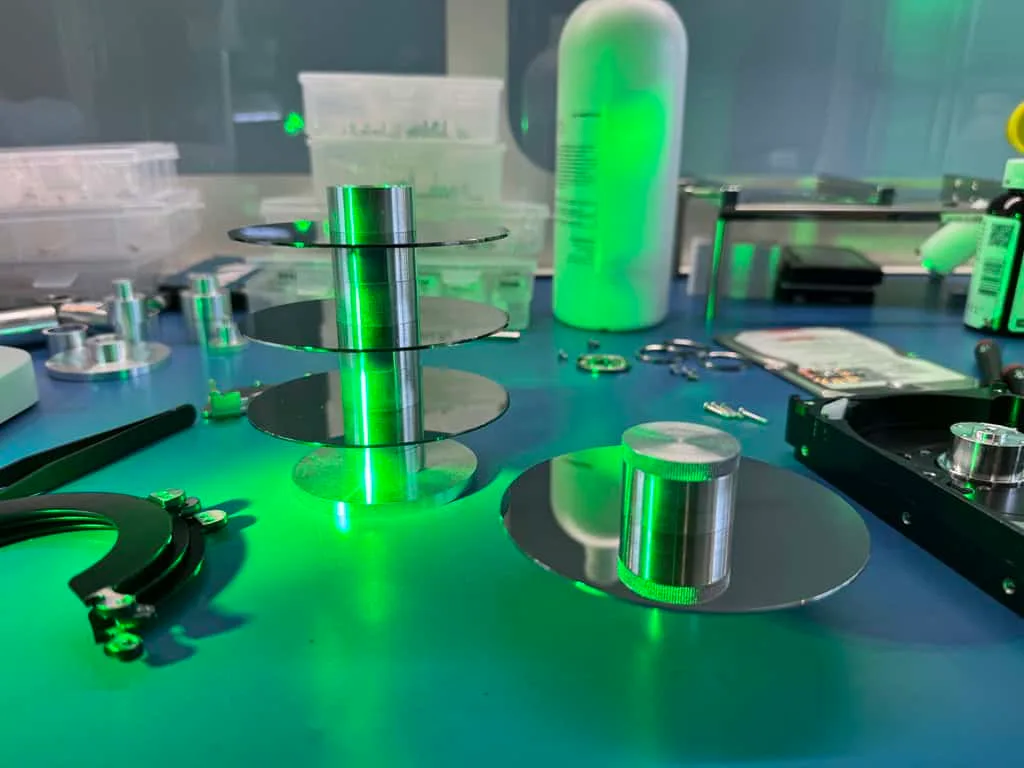
When the motor controller on the PCB sends current to these coils, it expects the motor to begin spinning immediately. If something is preventing the platters from rotating - seized bearings, heads stuck to the surface, a bent spindle shaft, or any other mechanical obstruction - the motor stalls. The motor controller detects the stall (because it is not receiving the expected back-EMF signal from the spinning magnets) and cuts power briefly before attempting again. This rapid cycle of power-attempt-stall-reset is what produces the beeping sound. Each beep corresponds to one failed spin attempt.
The frequency and pattern of the beeping can actually tell an experienced technician quite a bit about the failure. Rapid, high-pitched beeping (several beeps per second) usually indicates stiction, where the heads are stuck to the platter surface and the motor is straining against them. Slower, lower-pitched beeping or buzzing often indicates a seized spindle motor where the motor cannot turn at all. Intermittent beeping that sometimes results in a brief spin-up followed by another stall may indicate weak or degrading motor bearings that provide just enough friction to prevent sustained operation.
Understanding this mechanism is critical because it explains why software-based solutions are completely useless for beeping drives. The drive cannot spin its platters, which means the heads cannot read any data, which means no computer, cable, or software program can communicate with the drive's storage media. The problem is entirely mechanical and exists below the level where any electronic or software intervention can reach.
This also explains why continued power cycling is dangerous. Each failed spin attempt generates heat in the motor coils and applies torque stress to whatever is preventing rotation. If heads are stuck to the platter, repeated motor torque can tear the magnetic coating from the platter surface, converting a $1,200 stiction recovery into a $2,500+ scratched platter recovery. If the motor is seized, repeated attempts generate heat that can further damage the fluid dynamic bearings and potentially warp the motor shaft.
Beeping vs Clicking
Beeping vs. Clicking: Two Different Failures, Two Different Solutions
One of the most common points of confusion in hard drive data recovery is the difference between a beeping drive and a clicking drive. While both are serious mechanical failures that require professional recovery, they originate from entirely different components and require completely different repair procedures.
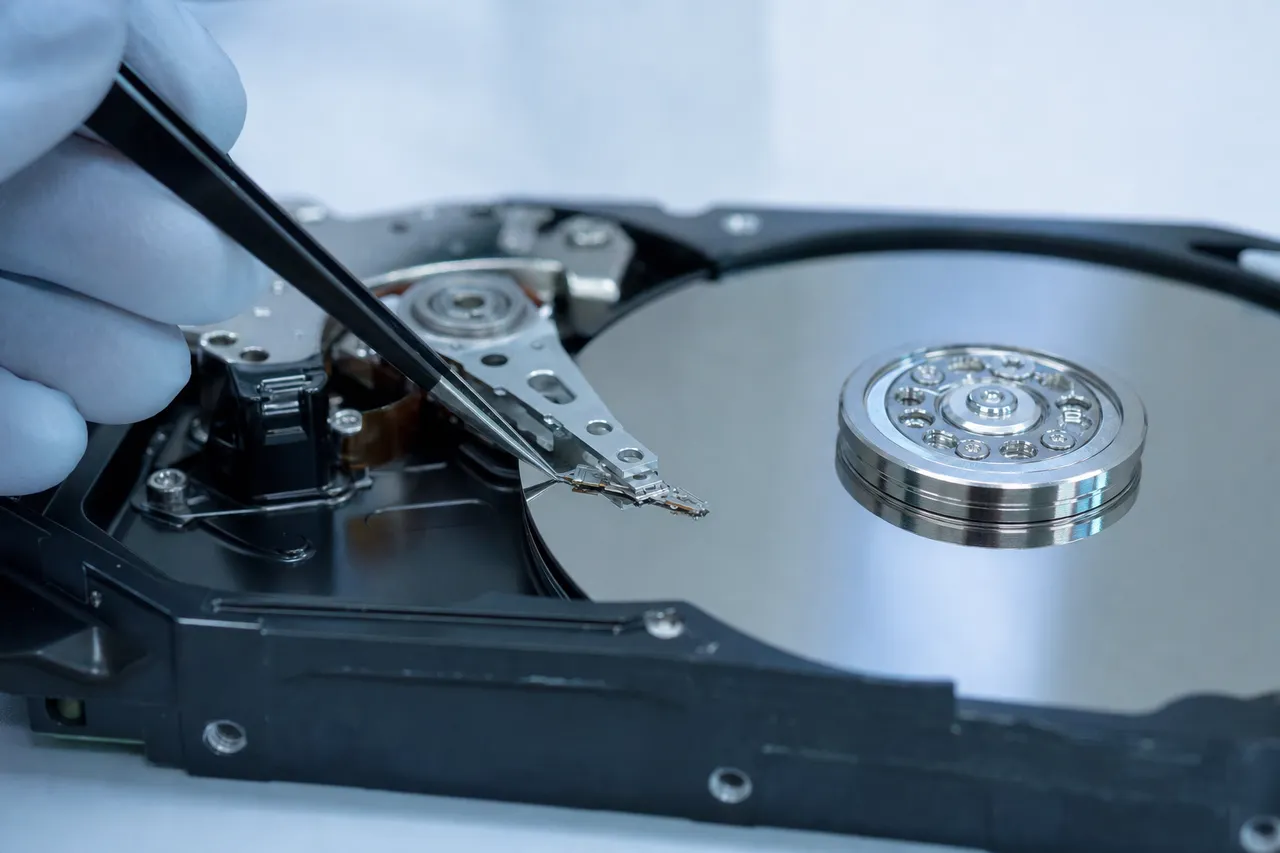
Clicking occurs when the read/write heads are failing. The heads can still move on their actuator arm, and the platters are still spinning, but the heads cannot read the servo information they need to position themselves over data tracks. The head actuator moves to a position, fails to read, retracts to the parking ramp, and tries again - producing the repetitive click-click-click pattern. Clicking drives require a head swap: the failed head stack assembly is replaced with a compatible donor head stack inside a clean bench environment.
Beeping occurs when the platters cannot spin at all. The heads may be perfectly healthy, but it does not matter because the platters are stationary. The motor controller keeps attempting to spin the motor, and each failed attempt produces a beep. Beeping drives typically require a platter transplant: the platters are removed from the failed chassis and transplanted into a donor drive with a working motor, or the motor itself is repaired.
Here is a practical way to tell the difference. If you power on the drive and hear a rhythmic beep-beep-beep with no spinning or whirring sound whatsoever, you have a beeping drive. If you hear the platters spin up (a soft whirring) followed by click-click-click or tick-tick-tick patterns, you have a clicking drive. Some drives may exhibit both symptoms sequentially - a brief beep followed by a spin-up and then clicking - which can indicate a weak motor that eventually overcomes an obstruction but then has failing heads. These compound failures require multiple repair steps.
The distinction matters for recovery planning and cost. Clicking drives require donor heads matched to the exact firmware revision and head map of the patient drive. Beeping drives require a compatible donor chassis with a working motor, and the platters must be transplanted with precise angular alignment to preserve the servo timing. Both procedures are performed on a clean bench, but the tooling, technique, and donor requirements are completely different.
From a cost perspective, straightforward head swaps for clicking drives and platter transplants for beeping drives are often in a similar price range ($1,000 to $2,000). However, beeping drives can become significantly more expensive if stiction has damaged the platter surface where the heads were stuck, or if a seized motor has caused the platters to shift out of alignment on the spindle hub. In these cases, the recovery enters scratched-platter territory with corresponding cost increases.
Stiction
Stiction: When Read/Write Heads Bond to Platter Surfaces
Stiction - a portmanteau of "static" and "friction" - is the single most common cause of beeping in 2.5-inch portable hard drives, and understanding why it happens requires knowing how read/write heads interact with platter surfaces during normal operation.
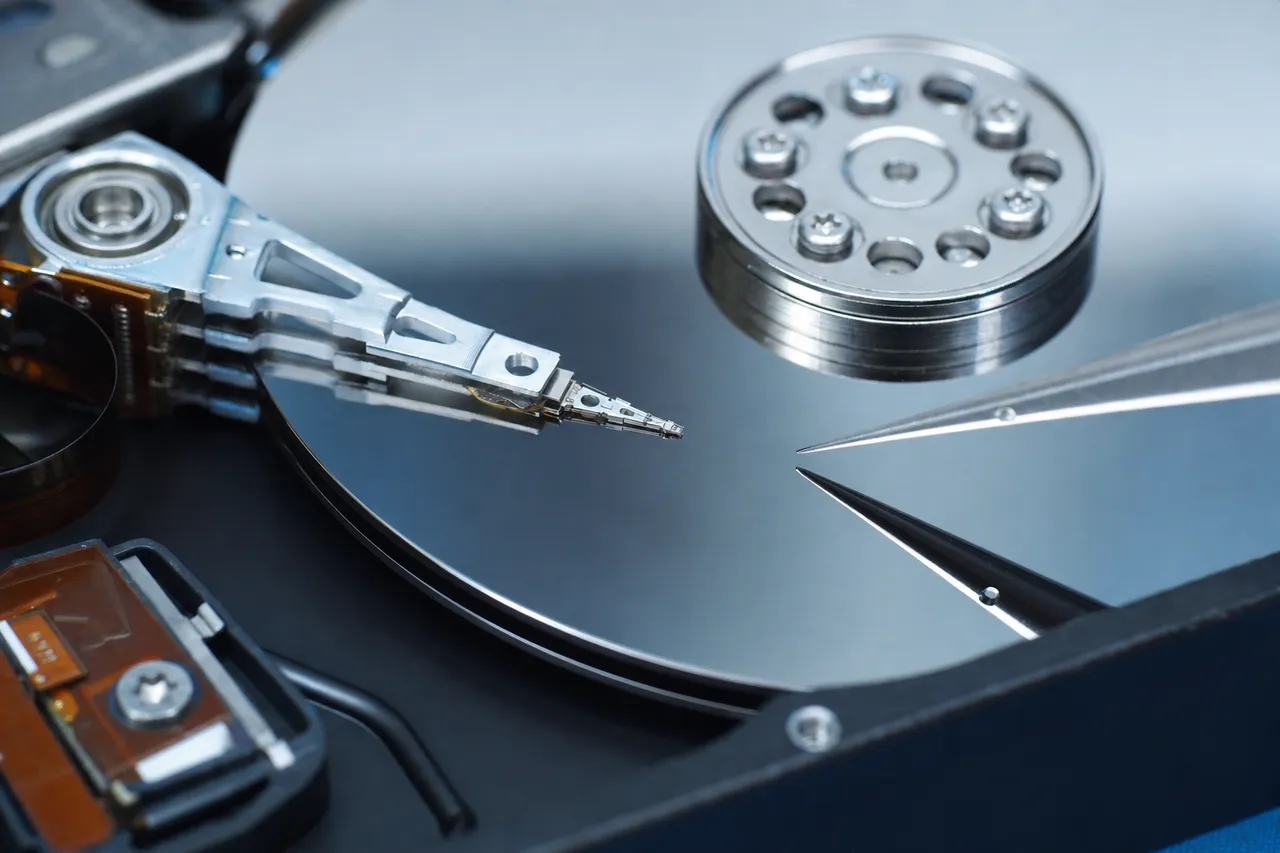
Modern hard drive heads do not actually touch the platter surface during normal reading and writing. They float on a microscopic cushion of air (called the air bearing) generated by the spinning platters, hovering just 5 to 10 nanometers above the magnetic coating. For context, a human hair is approximately 70,000 nanometers wide. The clearance between a read/write head and a platter surface is less than the wavelength of visible light.
When the drive powers down normally, the heads are parked - they slide off the platter surface onto a plastic ramp at the edge of the platter stack (in modern drives) or retract to a dedicated landing zone on the inner diameter of the platter. This parking procedure ensures the heads are not resting on the active data area when the platters stop spinning.
Stiction occurs when this parking procedure fails or when conditions allow the heads to migrate back onto the platter surface after parking. This can happen due to several scenarios. An unexpected power loss (pulling the USB cable while the drive is writing, a power outage, or a laptop battery dying) can catch the heads over the data area with no time to park. If the drive sits unused for weeks or months, temperature and humidity fluctuations can cause microscopic condensation between the head slider and the platter surface, creating a molecular bond. Drives stored in humid environments are particularly susceptible.
Once the heads are stuck to the platter surface, the molecular adhesion force can be surprisingly strong relative to the motor's torque. The spindle motor in a 2.5-inch portable drive is small - it needs to be energy-efficient because it runs entirely on USB bus power (typically 900mA at 5V for USB 3.0). This small motor simply does not have enough torque to break the adhesion bond between the head sliders and the smooth platter surface, so it stalls and beeps.
Interestingly, 3.5-inch desktop drives experience stiction far less frequently. Their motors are significantly more powerful (they run on 12V power from a wall adapter or PSU) and can often break a mild stiction bond through sheer torque. However, when 3.5-inch drives do experience stiction, the greater motor torque can tear the magnetic coating from the platter surface before the motor stalls, causing immediate platter damage. So while 3.5-inch drives beep less often from stiction, when they do have stiction, the prognosis is often worse.
The recovery procedure for stiction involves opening the drive on a clean bench, carefully inserting a thin tool between the head slider and the platter surface to break the adhesion bond, and then either returning the heads to their parking ramp or removing the head stack entirely. The platters are then either imaged in the original drive (if the heads and motor are otherwise healthy) or transplanted into a donor chassis. The area where the heads were stuck must be carefully inspected for damage - in many cases, a small ring of damaged magnetic coating is visible where the head was bonded, and this area will have unrecoverable sectors.
At MDrepairs, we see stiction cases almost daily. The most common culprits are WD My Passport drives that have sat unused in drawers or luggage for several months, and Seagate Backup Plus Slim drives that experienced unexpected power loss during file transfers. The recovery rate for stiction cases where the drive was not repeatedly power-cycled before coming to us is very high - typically above 95% of sectors recoverable.
Seized Motor
Seized Spindle Motor Recovery
When the spindle motor itself fails - rather than being obstructed by stuck heads - the recovery approach changes significantly. A seized spindle motor means the mechanical rotation system of the drive has broken down at a fundamental level, and the only path forward is transplanting the platters into a different drive body with a working motor.
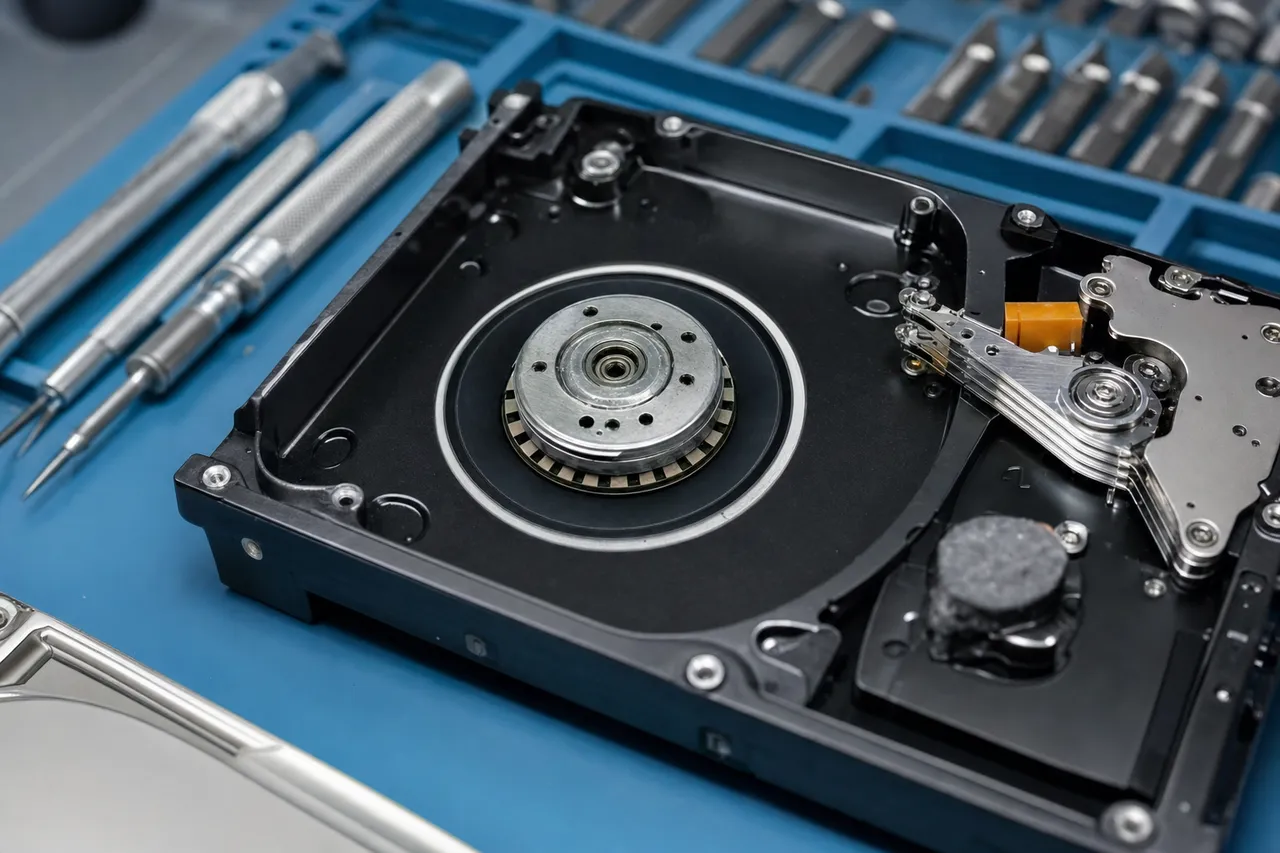
Modern hard drive spindle motors use fluid dynamic bearings (FDB) rather than the older ball-bearing designs. In an FDB motor, the spindle shaft rotates inside a sleeve filled with a thin layer of specialized oil. This oil film keeps the shaft centered and provides nearly frictionless rotation at operating speed. FDB motors are quieter, more durable, and more precise than ball bearings - but they have a critical weakness. If the bearing fluid degrades, leaks, or becomes contaminated, friction increases dramatically and the motor can seize.
Common causes of spindle motor seizure include age-related fluid degradation (the bearing oil breaks down over years of thermal cycling), physical impact that damages the bearing surfaces or displaces the fluid, manufacturing defects in the bearing tolerances, and contamination from particles entering the bearing assembly. Drives that have been stored in extremely cold or extremely hot environments are also at higher risk, as thermal extremes accelerate fluid degradation.
The platter transplant procedure for a seized motor case is one of the most challenging operations in data recovery. Here is what it involves at our Lincroft, NJ lab:
Step 1: Donor Selection. We identify a compatible donor drive with matching model number, firmware revision, and head map. For the motor transplant, the critical compatibility factor is the spindle hub design - the platters must physically fit the donor motor's hub with the same clamping system and height spacing. Different manufacturing revisions of the same model number sometimes have different spindle designs, so we maintain an extensive donor inventory.
Step 2: Platter Removal. On our clean bench, we remove the top clamp ring and carefully extract each platter from the seized spindle hub. Multi-platter drives (2, 3, or more platters) are significantly more complex because the platters must maintain their relative angular alignment. Each platter has servo timing marks written at the factory, and if the platters rotate relative to each other during transplant, the servo timing will be misaligned and the heads in the donor will be unable to track properly. We use specialized platter alignment tools and fixtures to maintain rotational registration.
Step 3: Donor Preparation. We open the donor drive on the clean bench, remove and discard the donor's platters, and prepare the working motor hub to receive the patient's platters. The donor heads are typically left in place if they are compatible with the patient's firmware, or replaced with heads matched to the patient's head map.
Step 4: Transplant and Assembly. The patient's platters are transferred to the donor chassis one at a time, maintaining angular alignment using our alignment fixtures. The clamp ring is torqued to specification (over-tightening can warp platters; under-tightening allows them to slip). The head stack is positioned, and the drive is sealed.
Step 5: Imaging. The reconstructed drive is connected to the PC-3000 for firmware adaptation and sector-by-sector imaging. The PC-3000 can compensate for minor alignment variations and read sectors that a standard computer would fail to access. Imaging speed depends on platter condition - a clean transplant may image at 80+ MB/s, while a case with some surface degradation may require slow, careful multi-pass imaging over several days.
The success rate for platter transplants varies significantly based on the condition of the platters themselves. If the seizure was purely mechanical (bearing failure, no head-platter contact), success rates are excellent - typically 95% or higher. If the seizure caused the platters to rub against the motor housing or top cover, some surface damage is likely, and recovery percentages may be lower.
USB Power vs Failure
External Hard Drives That Beep: USB Power Issues vs. Real Failure
A significant percentage of the beeping drive cases we receive at MDrepairs involve external hard drives - particularly portable 2.5-inch models that draw power exclusively from the USB connection. Before shipping your drive for professional recovery, it is worth understanding the distinction between a USB power problem (which you may be able to resolve yourself) and a genuine mechanical failure (which requires professional intervention).
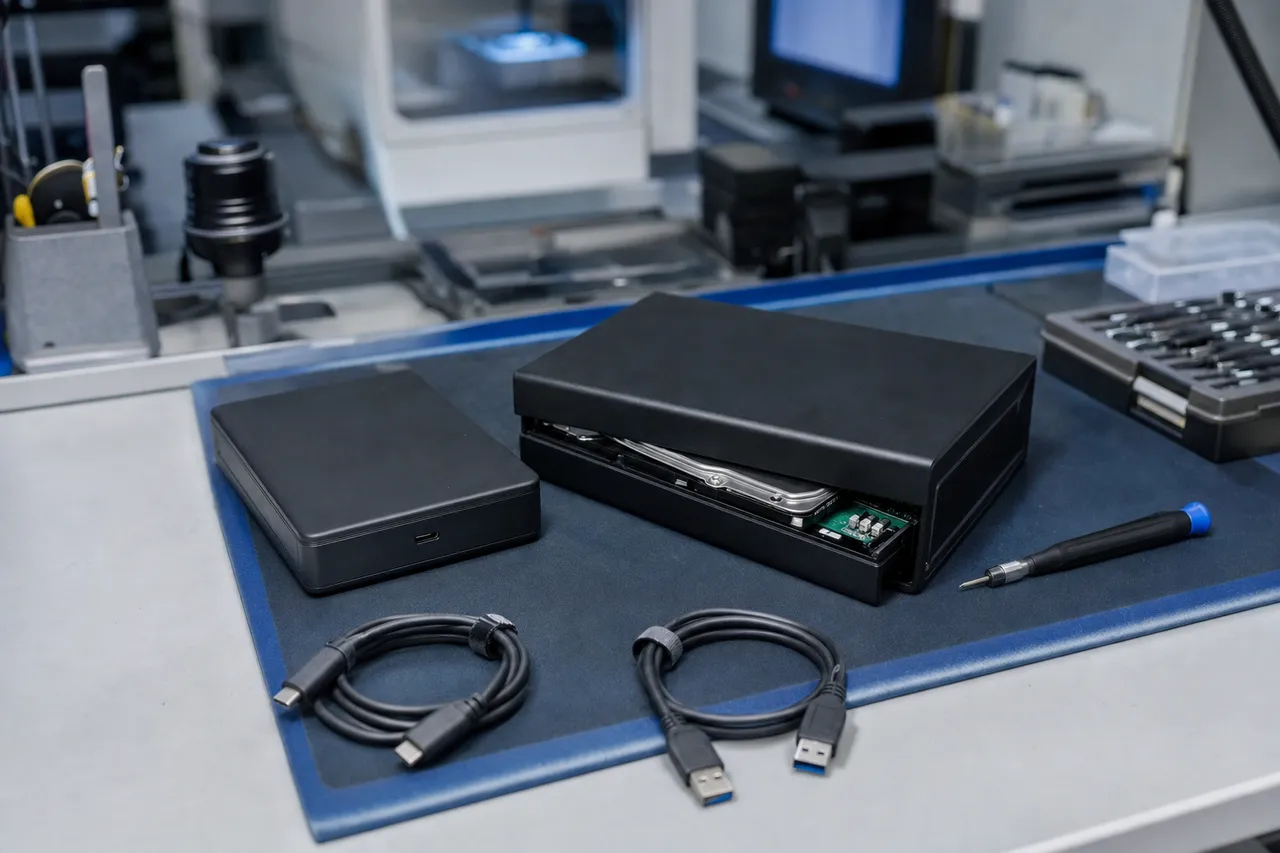
USB Power Problems. Portable external hard drives like the WD My Passport, Seagate Backup Plus Slim, and Toshiba Canvio series are designed to operate on the power provided by a single USB port - typically 900mA at 5V for USB 3.0 (4.5 watts) or just 500mA at 5V for USB 2.0 (2.5 watts). The spindle motor in these drives requires a burst of higher current during spin-up, then settles to a lower operating current once at speed. If the USB port cannot provide adequate current, the motor will attempt to spin, stall due to insufficient power, and beep.
This can happen in several scenarios: the drive is connected to a USB hub that is splitting power among multiple devices; the drive is connected to a front-panel USB port with longer internal cabling and higher resistance; the USB cable itself is damaged, corroded, or is a low-quality charge-only cable without proper data and power conductors; the computer's USB controller is throttling power due to other connected devices; or the drive is connected to an older USB 2.0 port that provides only 500mA.
How to Test for USB Power Issues. Before concluding that your drive has a mechanical failure, try these steps in order. First, try a different known-good USB cable - ideally the original cable that came with the drive or a certified USB 3.0 cable from a reputable manufacturer. Second, connect the drive directly to a rear USB 3.0 port on a desktop computer (rear ports connect directly to the motherboard with shorter traces and more reliable power). Third, try a USB Y-cable if your drive has one - these cables draw power from two USB ports simultaneously. Fourth, test on a completely different computer. Fifth, if the drive has a USB Micro-B or USB-C to SATA bridge board, and you are technically comfortable, you can try removing the drive from its enclosure and connecting it directly to a SATA port inside a desktop computer (which provides full 5V and 12V power from the PSU).
If the drive spins up normally and is recognized when connected to a different port, cable, or computer, you have a USB power issue - not a mechanical failure. Your data is fine, and you just need a better power source.
When It Is a Real Failure. If the drive beeps consistently regardless of the cable, port, or computer you use, and especially if it beeps when connected directly to SATA power inside a desktop, you have a genuine mechanical failure - stiction, seized motor, or another issue described on this page. At this point, further power cycling is counterproductive and potentially harmful. Power the drive off and contact MDrepairs for a $100 diagnostic. We especially encourage you to stop testing if the drive previously worked fine with the same cable and port setup and has only recently started beeping.
One important note about WD My Passport and WD Elements drives specifically: these drives use a USB-only PCB that does not have a standard SATA connector. You cannot simply remove them from their enclosure and connect to SATA. Recovery of these drives requires either a PCB conversion (adding a SATA interface) or direct head/platter work. This is one of the reasons WD portable drives are among the most common beeping drive cases we handle.
Seagate Notes
Seagate Drives That Beep: Model-Specific Recovery Notes
Seagate hard drives account for a significant portion of the beeping drive cases we process at MDrepairs. Different Seagate product lines have distinct failure patterns, motor designs, and recovery considerations. Here is what we see in our lab for each major Seagate family.
Seagate Backup Plus Slim. The Backup Plus Slim is one of the most common beeping drives we encounter. These are thin 2.5-inch drives using a single platter, housed in a slim aluminum enclosure. The slim form factor means the motor is smaller than in standard 2.5-inch drives, with less torque available to overcome resistance. Stiction is the primary cause of beeping in these drives - the low-profile head design uses a very small air bearing surface, which increases the contact pressure when heads stick to platters. Recovery typically involves a stiction release followed by platter transplant if the heads or motor are damaged during the stiction event. Recovery rates are generally high because single-platter drives avoid the alignment challenges of multi-platter transplants.
Seagate Backup Plus Portable (4TB and 5TB). The higher-capacity Backup Plus Portable drives use two platters, which significantly complicates transplant procedures. These drives draw more current during spin-up than their single-platter counterparts, making them more susceptible to USB power issues (test with a Y-cable before assuming failure). When genuine motor seizure occurs, the dual-platter transplant requires careful angular alignment to preserve servo timing. We use specialized alignment tools for Seagate dual-platter portables that maintain rotational registration during the transfer.
Seagate Expansion Portable and Desktop. The Expansion line covers both portable (2.5-inch, USB-powered) and desktop (3.5-inch, wall-adapter-powered) models. Portable Expansion drives share the same Seagate mobile platform as the Backup Plus line and exhibit similar stiction and motor failure patterns. Desktop Expansion drives use Seagate Barracuda mechanisms and are significantly less likely to beep from stiction (the 12V motor has enough torque to break mild adhesion). When desktop Expansion drives do beep, it is usually a seized motor or PCB failure - and the greater motor torque means stiction events often cause platter surface damage before the motor stalls.
Seagate Barracuda (Internal Desktop). Seagate Barracuda internal drives (3.5-inch, 7200 RPM) rarely beep compared to portable models. When they do, the cause is almost always a seized spindle motor or damaged fluid dynamic bearings. These are multi-platter drives (2 to 4 platters depending on capacity), and platter transplants require extremely precise alignment. The 7200 RPM operating speed and heavier platters generate more centrifugal force, making alignment even more critical.
Seagate IronWolf and Exos (NAS and Enterprise). Enterprise and NAS-grade Seagate drives are built to higher reliability standards and rarely develop stiction or motor seizure under normal operating conditions. When they do beep, it is usually after extreme events - extended power outages, physical impact, or flood/fire damage. These drives use helium-filled enclosures in higher capacities, adding another layer of complexity: opening a helium drive releases the helium atmosphere, altering the air bearing characteristics. Recovery of helium Seagate drives requires specialized donor preparation and is priced accordingly.
Western Digital Notes
Western Digital Drives That Beep: Model-Specific Recovery Notes
Western Digital portable drives - particularly the My Passport and Elements families - are the single most common beeping drives we see at MDrepairs. WD has some unique engineering characteristics that make their portable drives both more prone to beeping and more complex to recover than competing brands.
WD My Passport. The WD My Passport is by far the most frequent beeping drive case in our lab. Several factors contribute to this. First, WD My Passport drives use a proprietary USB-to-SATA bridge that is integrated directly onto the drive's PCB - there is no standard SATA connector. This means you cannot simply remove the drive from its enclosure and connect it to a SATA port for testing. It also means that recovery requires either a PCB conversion (soldering on a SATA interface) or working with the USB interface directly on the PC-3000, which has dedicated WD USB modules for this purpose. Second, WD My Passport drives use hardware encryption by default on all units manufactured after approximately 2014. Even if the user never set a password, the data on the platters is encrypted by a key stored on the PCB. This means the platters cannot simply be moved to any compatible donor - the original PCB (or at minimum, the encryption ROM from the original PCB) must be used to decrypt the data. Third, the My Passport's slim form factor uses a very compact motor with limited torque, making it highly susceptible to stiction. These drives are often carried in bags, stored in drawers, and subjected to the exact conditions that promote stiction.
WD Elements. The WD Elements line is functionally similar to the My Passport but with a simpler plastic enclosure and slightly different PCB configuration. Elements drives share the same USB-only PCB design and hardware encryption as the My Passport, so the recovery process is essentially identical. One notable difference: the Elements enclosure tends to provide slightly less shock protection than the My Passport's rubberized design, so we see more impact-related motor damage in Elements drives.
WD My Book. The WD My Book is a desktop external drive (3.5-inch mechanism) with its own power adapter. Because it runs on wall power rather than USB bus power, the "USB power issue" scenario does not apply - if a My Book is beeping, it has a genuine mechanical failure. My Book drives also use hardware encryption, and later models use a USB-only bridge board that complicates recovery similarly to the portable models. My Book drives use standard WD desktop mechanisms and have more powerful motors than their portable counterparts. Beeping in My Book drives is usually caused by seized spindle motors rather than stiction.
WD Easystore. The Easystore line is WD's retail-exclusive (Best Buy) external drive line. These drives are essentially rebranded My Passport (portable) or My Book (desktop) units with identical internal mechanisms and the same PCB designs. All recovery considerations for My Passport and My Book apply equally to their Easystore equivalents.
Key WD Recovery Consideration: Encryption. The most important thing to understand about WD drive recovery - whether it is a My Passport, Elements, My Book, or Easystore - is the hardware encryption. If your drive's PCB is damaged in addition to having a motor problem, we need to salvage the encryption key from the original PCB before we can access any data on the transplanted platters. This is why we strongly recommend against any DIY attempts on WD drives: damaging the PCB during disassembly can make the encryption key unrecoverable, turning a routine platter transplant into an impossible case.
Platter Transplant
The Platter Transplant Procedure for Beeping Drives
A platter transplant is the most common procedure for recovering data from a beeping hard drive, and it is one of the most technically demanding operations in all of data recovery. This section provides a detailed look at what the procedure involves, why it requires professional tools and environment, and what factors influence the outcome.
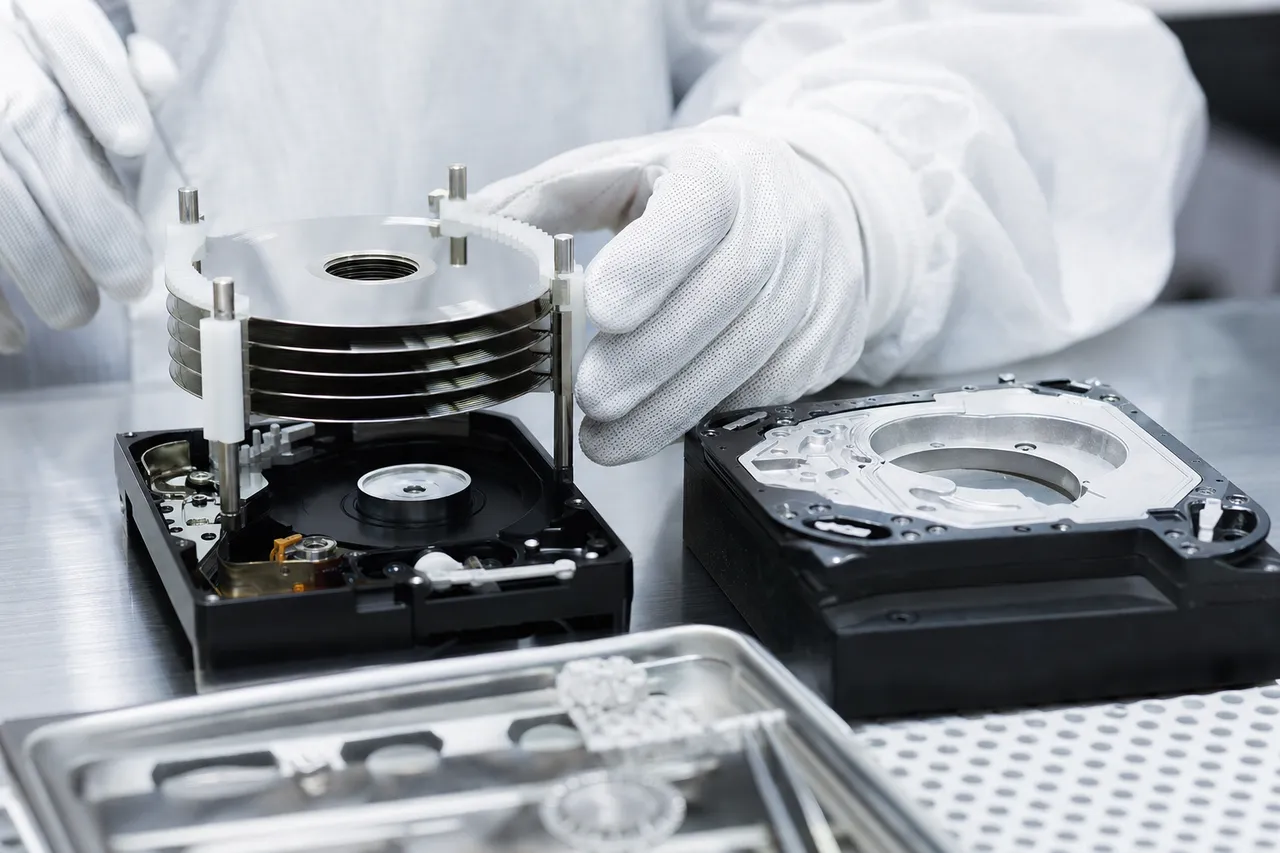
Why Platter Transplants Are Necessary. When a hard drive beeps because the spindle motor has seized, the platters containing your data are physically trapped inside a drive body with a non-functional motor. The data is magnetically encoded on the platter surfaces and is completely intact - it is simply inaccessible because the platters cannot spin. The solution is to move the platters from the broken drive body into a working donor drive body that has a functional motor, compatible head stack, and matching firmware.
Clean Bench Environment. Platter transplants must be performed in a particle-controlled clean bench environment. Hard drive platters have a data-storage surface that is microscopically smooth, and the read/write heads fly at a clearance of approximately 5 nanometers. A single dust particle on the platter surface is like a boulder on a runway - it can cause a head crash that destroys the magnetic coating in a ring around the platter. Our clean bench at MDrepairs in Lincroft provides laminar airflow that continuously sweeps particles away from the work area, maintaining conditions suitable for platter handling.
This is the primary reason DIY platter transplants fail. Opening a hard drive in a normal room, garage, or even a "clean" home office introduces thousands of particles onto the platter surface. Even if the transplant is mechanically successful, the contamination causes head crashes during imaging that destroy data. We see drives that arrive at our lab after failed DIY transplant attempts, and the contamination is visible to the naked eye - fingerprints, dust, and hair fibers on the platter surface.
Single-Platter Transplants. Single-platter drives (typically 500GB and 1TB 2.5-inch drives) are the simplest transplants. There is only one platter to move, so angular alignment is not a concern. The procedure involves removing the clamp ring, lifting the platter off the seized motor hub using a platter removal tool (never touching the data surface), transferring it to the donor motor hub, and securing the clamp ring. The primary risks are contamination and physical damage during handling - but in experienced hands with proper tools, single-platter transplants have very high success rates.
Multi-Platter Transplants. Multi-platter drives (2TB and above) are significantly more complex. The challenge is angular alignment: each platter in a multi-platter drive has servo timing marks that were written at the factory with all platters spinning together on the same motor. If the platters rotate relative to each other during transplant, the servo timing between platters will be misaligned, and the head for each platter will be unable to follow the servo tracks accurately.
To maintain angular alignment during multi-platter transplants, we use platter alignment combs - thin, precisely machined tools that slide between the platters and lock their rotational position relative to each other. With the combs in place, the entire platter stack can be lifted as a unit and transferred to the donor hub without any relative rotation. Three-platter and four-platter drives (common in 4TB, 6TB, and 8TB desktop drives) are the most challenging because the greater number of platters increases the accumulated alignment error, and the heavier platter stack is more difficult to handle. These transplants require the most experienced technicians and have a slight reduction in success rate compared to single-platter cases - typically 90 to 95% versus 95% or higher for single-platter drives.
After the Transplant: Imaging with PC-3000. Once the platters are installed in the donor chassis, the reconstructed drive is connected to our PC-3000 system for imaging. The PC-3000 is a professional data recovery platform that can handle the challenges unique to transplanted drives - minor servo misalignment, adaptive parameter differences between the original and donor drives, and head compatibility issues. The system images the platters sector by sector, reading each physical location on the platter surface and writing the recovered data to a separate target drive. Imaging speed varies widely depending on platter condition. A clean transplant with no surface damage may image at 50 to 100 MB/s. A transplant with some stiction-related surface damage may require multi-pass imaging at much lower speeds, with the PC-3000 making multiple attempts at problematic sectors from different head angles. Complex cases may take 24 to 72 hours of continuous imaging.
Why DIY Fails
Why DIY Tricks Do Not Work on Beeping Hard Drives
The internet is full of advice for fixing beeping hard drives at home. Freezer tricks, tapping the drive, spinning it by hand, using compressed air - these suggestions appear in forums, YouTube comments, and even some supposedly reputable tech blogs. At MDrepairs, we regularly receive drives that have been damaged by these attempts. Here is why each common DIY trick fails and what damage it causes.
The Freezer Trick. The theory behind the freezer trick is that cooling the drive will cause metal components to contract, potentially freeing a seized motor or unsticking heads from the platter surface. The reality: the freezer trick was marginally useful for some old ball-bearing drives from the 1990s and early 2000s. For modern drives with fluid dynamic bearings, the freezer trick is actively harmful. Cooling the drive causes the bearing fluid to thicken dramatically, increasing friction rather than decreasing it. The thick, cold fluid makes the motor work harder, not easier. Additionally, removing a cold drive from the freezer causes immediate condensation on all internal surfaces - including the platters. This condensation deposits water droplets directly onto the data surface, which can cause corrosion of the magnetic coating and head crashes. We have received drives at our lab with visible corrosion rings on the platter surface from freezer-induced condensation. Data in these areas is permanently destroyed. What might have been a routine $1,200 stiction recovery becomes a $2,000+ partial recovery with permanent data loss.
Tapping or Hitting the Drive. The theory here is that a sharp impact might free stuck heads or jolt a seized motor into spinning. The reality: in a very small number of stiction cases, a gentle tap can break the adhesion bond. However, the risk-reward ratio is terrible. A tap that is even slightly too hard can dislodge a platter from the spindle hub, crack a platter (glass platters in many modern drives are brittle), damage the head actuator bearing, or bend the spindle shaft. Any of these outcomes converts a recoverable case into a significantly more expensive or potentially unrecoverable case. Glass platters deserve special mention. Many modern 2.5-inch drives (especially Seagate and HGST/WD models) use glass-ceramic platters instead of aluminum. Glass platters are thinner, smoother, and allow higher data density - but they are fragile. A sharp impact can crack or shatter a glass platter, and shattered platter fragments destroy everything inside the drive.
Spinning the Drive by Hand. Some guides suggest manually spinning the platters through the motor access hole on the bottom of the drive PCB. The reality: this can work in rare cases of very mild motor seizure, but it introduces serious risks. Without proper tools and technique, you can scratch the platter surface with the tool, apply uneven force that damages the bearing, or spin the platters off their angular alignment (critical in multi-platter drives). If the motor is seized due to bearing damage rather than minor friction, forcing it to spin can score the bearing surfaces and cause metal particles to contaminate the drive interior.
Compressed Air. Spraying compressed air into the drive through ventilation holes to "clear debris" or "cool the motor." The reality: consumer-grade compressed air canisters contain propellant chemicals that leave residue on any surface they contact. Spraying this into a hard drive deposits chemical residue directly onto the platters, which is far worse than the dust it was meant to clear. Compressed air also does nothing to address the actual causes of beeping - stiction, motor seizure, or bearing failure.
Opening the Drive at Home. Some users attempt to open their beeping drive to visually inspect or manually free the heads. This is the most damaging DIY attempt because it introduces catastrophic particle contamination. Even in a seemingly clean room, the ambient particle count is millions of times higher than what a hard drive can tolerate. Opening the drive also breaks the air filtration seal, meaning the drive can never be safely sealed and operated again without a complete platter transplant into a clean donor chassis.
The bottom line: every DIY trick for beeping drives carries a high risk of converting a recoverable case into a partially recoverable or unrecoverable case. The money saved by not paying for professional recovery is gambled against the permanent loss of irreplaceable data. At MDrepairs, our $100 diagnostic provides a definitive answer about what is wrong and what it costs to fix - before you risk making it worse.
Emergency Steps
Emergency Steps When Your Drive Starts Beeping
If your hard drive just started beeping, the actions you take in the next few minutes can significantly impact the chances of a successful data recovery. Here is exactly what to do and what not to do, in order of priority.
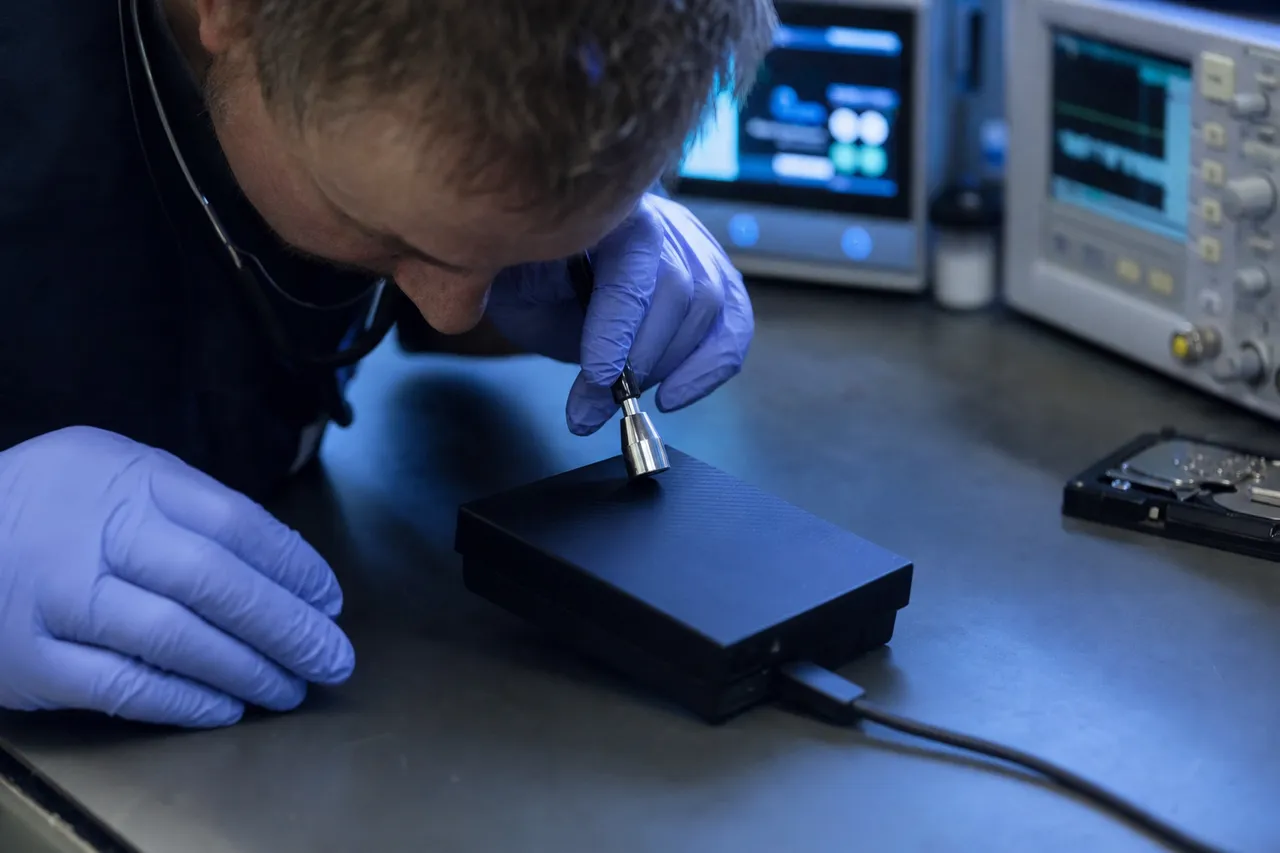
Step 1: Stop Powering It On - Immediately. The single most important thing you can do is stop trying to power on the drive. Every time you plug in a beeping drive, the motor controller sends current to the motor coils in an attempt to spin the platters. If the beeping is caused by stiction (heads stuck to platters), each spin attempt applies torque that pulls on the heads and the platter surface. Repeated attempts can tear the magnetic coating from the platter, destroying data permanently. If the beeping is caused by a seized motor, repeated attempts generate heat and can further damage the bearings. Unplug the drive now. Do not try one more time. Do not try a different cable. Do not try a different computer.
Step 2: Note What Happened. Write down everything you remember about the circumstances. When did the beeping start? Was the drive dropped, bumped, or jostled? Was it connected during a power outage? Has it been sitting unused for a long time? Was it exposed to extreme heat, cold, or humidity? Were you in the middle of transferring files when it stopped working? This information helps our technicians prioritize the most likely failure mode during diagnosis.
Step 3: Do NOT Open the Drive. Do not open the drive's enclosure (if it is an external drive in a case) and do not remove any screws from the drive itself. Opening the drive outside a clean bench environment introduces particle contamination that can cause additional damage during recovery. Leave the drive exactly as it is.
Step 4: Do NOT Try DIY Tricks. Do not put the drive in the freezer. Do not tap it, shake it, or hit it. Do not spin the platters manually. Do not spray compressed air into any openings. These tricks are myths that cause real damage.
Step 5: Store the Drive Safely. Place the drive in an anti-static bag if you have one, or wrap it in a soft cloth. Store it at room temperature in a dry location. Avoid extreme heat, direct sunlight, and high humidity. Do not stack anything on top of it. The goal is to keep the drive in exactly the condition it is in right now - no better, no worse - until a professional can examine it.
Step 6: Contact MDrepairs. Call us at 732-933-7717 or visit our mail-in page to start the process. We provide free insured shipping labels for mail-in cases. Our $100 diagnostic will identify exactly what is causing the beeping and provide you with a fixed-price quote for recovery. The diagnostic is typically completed within 1 to 2 business days of receiving your drive. If you decline the recovery, you pay only the $100 diagnostic fee and we return your drive.
What About Backups? If your beeping drive is an external backup and the original data still exists on your computer's internal drive, you are in a much better position. Before spending money on recovery, verify that the data you need is still accessible on the original device. If it is, you may not need to recover the beeping backup at all. However, if the beeping drive is your only copy of the data - or if it contains files that are not on the original device - professional recovery is your path forward.
What It Costs
The Cost of Beeping Hard Drive Recovery: What Determines the Price
Data recovery pricing is not arbitrary. The cost of recovering a beeping hard drive is determined by the specific procedure required, the complexity of the donor matching process, the number of platters involved, and whether any secondary damage exists on the platter surfaces. Understanding these factors helps you evaluate quotes and avoid overpaying.
Procedure Type. The simplest beeping drive recoveries involve PCB repair - replacing a failed motor driver chip or TVS diode that was preventing the motor from receiving proper power. These fall into our Logical/Firmware tier ($650 to $1,200) because no clean bench work is required beyond the diagnostic inspection. The drive spins normally after the PCB repair, and standard imaging proceeds without complications. Stiction releases and motor swaps are the most common procedures for beeping drives and fall into our Mechanical tier ($1,000 to $2,000). The most expensive beeping drive recoveries involve multi-platter transplants with secondary platter damage and fall into our Severe tier ($999 to $2,500+).
Number of Platters. Single-platter transplants are faster, less risky, and less expensive than multi-platter transplants. A single-platter WD My Passport transplant is a routine procedure. A three-platter Seagate Barracuda 4TB transplant requires alignment tools, more donor matching precision, and significantly more technician time. The number of platters directly influences where within a pricing tier your case falls.
Donor Drive Cost. Every platter transplant requires a compatible donor drive. Common models (WD My Passport, Seagate Backup Plus) have readily available donors from our inventory. Less common models (older HGST drives, certain Toshiba enterprise models, helium-filled drives) may require sourcing specific donor units, which can increase the cost. The donor drive's cost is included in the recovery quote - you do not pay separately for donor hardware.
Secondary Damage. This is the biggest variable in beeping drive recovery pricing. A beeping drive that was powered off immediately after the first beep and shipped to us promptly will almost certainly cost less than a drive that was power-cycled dozens of times, subjected to the freezer trick, and tapped against a desk before arriving at our lab. Secondary damage from DIY attempts, repeated power cycling, or delayed professional attention directly increases the complexity and cost of recovery.
MDrepairs Pricing Transparency. At MDrepairs, you receive a fixed-price quote after the $100 diagnostic. The quote does not change after you approve it. There are no hidden fees, parts charges, or surprise surcharges. The $100 diagnostic fee is applied toward the total recovery cost if you proceed. If we cannot recover your data, you do not pay the recovery fee - only the $100 diagnostic. This no data, no charge policy means you never pay for a failed recovery attempt.
Comparing Quotes. If you are evaluating quotes from multiple recovery labs, pay attention to what is included. Some labs quote a low base price but add charges for donor drives, parts, shipping, media, or "clean room" fees. At MDrepairs, the quoted price includes everything: the procedure, donor hardware, clean bench work, PC-3000 imaging, a new external drive with your recovered data, and insured return shipping. Our quote is the total out-the-door price.
Beep Patterns
Common Beeping Patterns and What They Mean
Not all beeping sounds are identical. The pattern, frequency, and duration of the beeping can provide diagnostic clues about the underlying failure. While only a professional diagnosis in a clean bench can confirm the exact cause, understanding these patterns helps you communicate more effectively with your recovery technician and set accurate expectations.
Rapid Continuous Beeping (Multiple Beeps Per Second). This is the most common pattern in portable 2.5-inch drives with stiction. The motor controller is attempting to spin the platters very rapidly - trying, failing, resetting, and trying again multiple times per second. In stiction cases, the motor builds up slight torque, the friction of the stuck heads prevents rotation, and the motor stalls - all within a fraction of a second. The beeping sounds almost like a continuous buzzing or humming at high frequency.
Slow Rhythmic Beeping (One Beep Every 1-2 Seconds). This pattern is more common in drives with seized spindle motors or severely damaged bearings. The motor controller attempts a spin, detects the complete failure, waits a defined interval before retrying, and repeats. The longer interval between beeps suggests the motor controller is performing a more thorough reset between attempts, which typically indicates a more severe obstruction. This pattern often has a more mechanical, clicking quality to the beep rather than the buzzing tone of stiction.
Single Beep Followed by Silence. A single beep followed by several seconds of silence before the drive spins down completely can indicate a PCB or power delivery issue. The motor receives a brief power pulse, attempts to spin, and then the power supply circuit shuts down (either due to a protective TVS diode triggering or a thermal protection circuit activating). This pattern sometimes occurs in drives with partially shorted motor windings that draw too much current.
Beep-Spin-Beep Pattern. Some drives produce a beep, then audibly spin up briefly (you can hear the platters rotating), and then beep again as the motor stalls. This intermittent pattern suggests a weak motor or degrading bearings - the motor has enough torque to overcome the initial resistance and begin spinning, but cannot maintain sufficient speed. As the platters slow below the minimum operating RPM, the motor controller detects the speed drop and attempts to restart.
Buzzing Without Distinct Beeps. A continuous buzzing or humming sound without distinct individual beeps often indicates a motor that is receiving continuous power but is completely locked. The motor is energized but cannot rotate at all - no partial spin, no stuttering. This is common in severe motor seizures where the bearing has completely frozen, or in cases where the platters are physically contacting the drive housing (from a bent spindle after an impact). The continuous buzzing can generate significant heat in the motor coils, so this pattern should be treated as especially urgent - power the drive off immediately to prevent thermal damage.
Why Patterns Matter for Recovery. These patterns are diagnostic aids, not definitive diagnoses. A drive that exhibits rapid beeping could have stiction or a different motor issue. The pattern helps our technicians form an initial hypothesis before opening the drive, which guides the diagnostic approach and ensures we are prepared with the appropriate tools, donor drives, and procedures. When you contact MDrepairs, describing the beeping pattern - fast versus slow, buzzing versus distinct beeps, intermittent versus constant - gives us a head start on your case.
Prevention
Preventing Motor and Stiction Failures in Hard Drives
While hard drive motor failures and stiction cannot be completely prevented - all mechanical devices eventually fail - there are practical steps that significantly reduce the risk of your drive developing a beeping problem. These apply to both external portable drives and internal desktop drives.
Use Your Drive Regularly. Stiction is most common in drives that sit unused for extended periods. When a drive is powered on regularly, the heads park on the ramp (modern drives) or landing zone (older drives) during each power cycle, and the lubricants on the motor bearings stay distributed. Drives that sit in drawers for months allow the bearing lubricant to settle and the heads to migrate onto the platter surface due to temperature-induced expansion and contraction of the head suspension. If you have a backup drive that you only update monthly or quarterly, consider powering it on briefly (even without writing new data) at least once every two to three weeks. This keeps the motor exercised, the bearing fluid distributed, and the heads cycling through their park-unpark routine.
Eject Before Disconnecting. Always properly eject your external drive before disconnecting the USB cable. The eject process tells the drive's firmware to park the heads in their safe position before spindown. If you simply yank the cable while the drive is active, the heads may not park properly and could remain resting on the platter surface - setting the stage for stiction during the next storage period. This is especially important for macOS users, as macOS can keep drives active with background indexing (Spotlight) even when you are not actively using them.
Avoid Extreme Temperatures. Store your drives at room temperature (60 to 80 degrees Fahrenheit). Extreme heat accelerates bearing fluid degradation and increases the rate of chemical outgassing from internal components. Extreme cold thickens bearing fluid and increases the risk of condensation when the drive returns to a warmer environment. Never leave a hard drive in a car during summer or winter - car interior temperatures can exceed 140 degrees Fahrenheit in summer and drop below freezing in winter.
Use a Surge Protector or UPS. Power surges and sudden outages are a common trigger for both stiction (heads fail to park) and motor damage (voltage spike damages motor driver circuitry). Connect your desktop external drives to a surge protector at minimum, and ideally to an uninterruptible power supply (UPS) that provides clean, consistent power and a graceful shutdown period during outages.
Handle with Care. This seems obvious, but physical impact is one of the top causes of motor seizure and spindle damage in hard drives. Portable drives are particularly vulnerable because they travel with you. Use a padded case when transporting your external drive. Never place anything heavy on top of a hard drive. Avoid stacking drives. When setting down a portable drive, place it gently - do not drop it the last half-inch onto the desk.
Consider the 3-2-1 Backup Rule. The best protection against any hard drive failure - beeping, clicking, or otherwise - is maintaining proper backups. The 3-2-1 rule recommends three copies of your data, on two different types of storage media, with one copy stored off-site (or in the cloud). If your beeping external drive is your only backup, it is also a single point of failure. Adding a cloud backup service (Backblaze, Carbonite, iDrive) or a second external drive that mirrors the first gives you a safety net that makes any individual drive failure an inconvenience rather than a disaster.
Monitor SMART Data. Hard drives track their own health metrics through the SMART (Self-Monitoring, Analysis, and Reporting Technology) system. SMART attributes like Spin-Up Time (Attribute 03), Spin Retry Count (Attribute 10), and Power Cycle Count (Attribute 0C) can provide early warning of motor degradation before the drive fails completely. Free tools like CrystalDiskInfo (Windows) or DriveDx (macOS) can read SMART data and alert you when values move outside normal ranges. If you notice increasing spin-up times or spin retry counts, back up your data immediately and replace the drive proactively.
Success Rates
Data Recovery from Beeping Drives: Success Rates and Expectations
When your hard drive is beeping and your data is at stake, you want honest answers about the likelihood of successful recovery. At MDrepairs, we believe in transparency over salesmanship. Here are the real success rates and factors that influence outcomes for beeping drive cases.
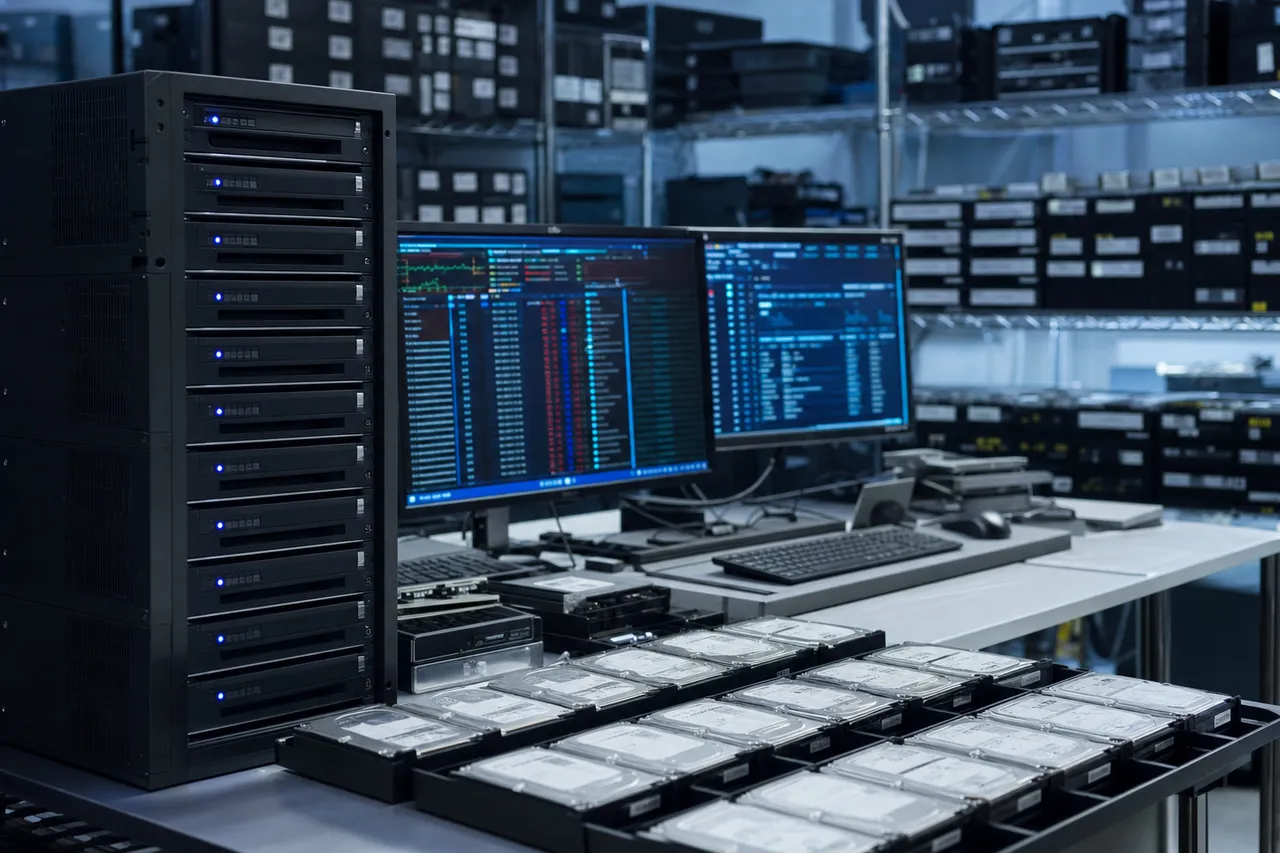
Overall Success Rate. Across all beeping drive cases we process, our overall success rate - defined as recovering the majority of user data in a usable state - is approximately 90 to 95%. This is higher than the industry average for several reasons: we have extensive experience with the most common beeping drive models (WD My Passport and Seagate Backup Plus account for a significant majority of our cases), we maintain a large donor inventory that allows precise matching, and we use the PC-3000 platform with its advanced imaging capabilities for transplanted drives.
Stiction Cases. Pure stiction cases where the drive was not power-cycled extensively before professional recovery have the highest success rates - typically 95% or above. The platter surfaces under the stuck heads may have some localized damage (the area directly under the head slider), but the vast majority of the data area is unaffected. If the drive was power-cycled many times before coming to us, the success rate drops because each spin attempt with stuck heads applies torque that can tear or score the platter surface.
Motor Seizure Cases. Drives with seized motors but undamaged platters also have excellent success rates - 90 to 95%. The platters in a seized motor case are typically in perfect condition because the failure is in the motor itself, not in the head-platter interface. The primary risk factor is the platter transplant procedure itself, where contamination or alignment errors can affect the outcome.
Impact Damage Cases. Drives that started beeping after being dropped have more variable outcomes. If the impact only damaged the motor or spindle, the platters may be fine, and recovery proceeds normally. However, if the impact also caused the heads to crash onto the platters (head slap), bent the spindle shaft, or cracked a glass platter, the recovery becomes significantly more complex. Impact damage cases typically have an 80 to 90% success rate.
Post-DIY Attempt Cases. Drives that arrive at our lab after failed DIY recovery attempts (freezer, tapping, opening in a non-clean environment) have the lowest success rates - typically 70 to 85%. Contamination, corrosion, and additional mechanical damage from amateur handling all reduce the recoverable data.
What "Success" Means. When we report a successful recovery, we mean the recovery of the user's target files in usable condition. For most personal users, this means photos, documents, and videos that open correctly. For business users, this means databases, financial records, and project files that are intact and functional. We always provide a complete file listing before final payment so you can verify that the files you need most are recovered.
When Recovery Is Not Possible. In a small number of cases (approximately 5 to 10%), data recovery from a beeping drive is not possible. Scenarios that can render data unrecoverable include severely scored or scratched platters where the magnetic coating has been removed from large areas, shattered glass platters, fire or water damage that has corroded the platter surfaces beyond magnetic reading capability, and cases where hardware encryption keys (common in WD drives) have been lost due to PCB damage. In these cases, our no data, no charge policy means you pay only the $100 diagnostic fee.
Frequently Asked Questions
Straight answers on beeping drives - why they beep, whether your data is recoverable, what it costs, and what NOT to do.
-
Why is my hard drive beeping?
A beeping hard drive means the spindle motor cannot spin the platters. The most common causes are stiction (read/write heads stuck to the platter surface), a seized spindle motor, damaged motor bearings, or insufficient USB power for portable external drives. The beeping sound comes from the motor repeatedly attempting and failing to spin. Request a free quote or call 732-933-7717. -
Can data be recovered from a beeping hard drive?
Yes. MDrepairs successfully recovers data from beeping hard drives with an overall success rate of 90 to 95%. The data on the platters is magnetically intact - it is simply inaccessible because the platters cannot spin. Through platter transplant, motor swap, or stiction release procedures, we restore physical access to the platters and image the data sector by sector. -
How much does beeping hard drive recovery cost?
Recovery costs range from $650 to $2,500+ depending on the procedure required. PCB repairs (rare for beeping drives) cost $650 to $1,200. Platter transplants and motor swaps - the most common procedures - cost $1,000 to $2,000. Complex multi-platter transplants with secondary platter damage cost $999 to $2,500+. Every case starts with a $100 diagnostic. -
Can I fix a beeping hard drive myself?
No. Beeping drives have mechanical failures that require clean bench conditions, specialized tools, and donor drives to resolve. Opening a hard drive in a normal environment introduces particle contamination that can destroy data on the platter surfaces. DIY attempts - freezer, tapping, opening the drive - typically make the problem worse and can increase recovery costs significantly. -
Should I put my beeping hard drive in the freezer?
No. The freezer trick is a myth that causes real damage. Cooling a modern drive thickens the motor bearing fluid (increasing friction rather than reducing it) and causes condensation on the platters when removed, leading to corrosion of the magnetic coating. We regularly receive drives with condensation damage from freezer attempts. -
What is the difference between a beeping and clicking hard drive?
Beeping means the motor cannot spin the platters - the drive cannot function at all. Clicking means the platters are spinning but the read/write heads are failing and cannot read data. They are fundamentally different failures requiring different repair procedures. Beeping drives need platter transplants or motor work; clicking drives need head swaps. -
What is stiction in a hard drive?
Stiction is when the read/write heads bond to the platter surface through molecular adhesion. It occurs when drives sit unused for extended periods, experience improper shutdowns, or are stored in humid conditions. The stuck heads prevent the motor from spinning the platters, producing a beeping sound. Recovery requires carefully freeing the heads in a clean bench environment. -
How long does beeping hard drive recovery take?
Standard turnaround is 5 to 10 business days from diagnostic approval. Most platter transplants and motor swaps complete within 7 business days. Priority Rush service is available for 2 to 4 business day turnaround. The $100 diagnostic itself is typically completed within 1 to 2 business days of receiving your drive. -
My external hard drive beeps but works on some computers - is it broken?
If the drive works on some computers but beeps on others, you likely have a USB power issue rather than a mechanical failure. Try connecting directly to a rear USB 3.0 port on a desktop computer with a known-good cable. If the drive spins up normally, back up your data immediately - inconsistent spin-up can indicate early motor degradation. -
Why does my WD My Passport beep?
WD My Passport drives are especially prone to beeping because they use small, low-torque motors powered entirely by USB, and they have a compact form factor that makes stiction more likely. Additionally, WD My Passport drives have hardware encryption and a USB-only PCB with no SATA connector, which complicates recovery. They are the most common beeping drive we recover at MDrepairs. -
Is beeping worse than clicking for data recovery?
Neither is inherently worse - both are serious mechanical failures. However, beeping drives often have intact platters (the motor or stiction is the problem, not the data surface), while clicking drives may have progressive platter damage from failing heads scraping the surface. In many cases, beeping drives have slightly better recovery rates than clicking drives, assuming prompt professional attention. -
What does it mean when my external hard drive beeps and is not recognized?
When an external drive beeps and does not appear in your computer's file manager, disk utility, or device manager, the platters are not spinning and no data can be read. The drive cannot communicate its identity to the computer because the heads cannot access the firmware stored on the platters. This confirms a mechanical failure requiring professional recovery. -
Can a bad USB cable cause a hard drive to beep?
Yes. A damaged, low-quality, or incompatible USB cable can fail to deliver adequate power for the motor to spin up, causing beeping. Always test with the original cable or a certified USB 3.0 cable connected directly to a rear USB port. If the drive works with a different cable, the cable was the issue. If it beeps with every cable and port, the drive has a mechanical failure. -
Do you offer mail-in recovery for beeping drives?
Yes. Most of our beeping drive customers ship their drives to our Lincroft, NJ lab through our mail-in program. We provide free insured shipping labels. Pack your drive in a padded envelope or small box with adequate cushioning. We return your recovered data on a new external drive with full insurance. -
What is a platter transplant?
A platter transplant is the process of removing the data platters from a failed hard drive and installing them into a compatible donor drive with a working motor. The procedure is performed in a clean bench environment to prevent particle contamination. Multi-platter drives require precise angular alignment to preserve servo timing. It is the most common repair for beeping drives with seized motors. -
How do I know if my hard drive has a seized motor?
You cannot definitively diagnose a seized motor without opening the drive in a clean bench. However, strong indicators include: the drive beeps regardless of power source (ruling out USB power issues), there is no spinning or whirring sound at all between beeps, the drive was dropped or exposed to extreme temperatures, and the drive previously worked fine with the same cable and port setup. -
Will tapping or hitting a beeping hard drive fix it?
We strongly advise against tapping or hitting a beeping drive. While a gentle tap can occasionally break a stiction bond, the risk of causing additional damage - cracking glass platters, bending the spindle shaft, or damaging the head actuator - far outweighs the small chance of success. Tapping converts recoverable cases into more expensive or unrecoverable cases. -
My Seagate drive is beeping - is this a known issue?
Seagate portable drives (Backup Plus Slim, Expansion Portable) are common beeping drive cases, primarily due to stiction. The slim form factor and single-platter design make them susceptible to head-platter bonding during storage. However, beeping is not a defect specific to Seagate - all portable drive brands experience stiction and motor failures. Seagate drives are common in our lab because they are one of the best-selling portable drive brands. -
Do beeping drives have data loss?
In most beeping drive cases, the data on the platters is fully intact. The beeping indicates a motor or stiction problem - not data corruption. Data loss occurs only if the platter surface has been physically damaged by stiction (where the heads were stuck), repeated power cycling (motor torque tearing the coating), impact damage, or DIY attempts. Prompt professional recovery minimizes data loss. -
What does the $100 diagnostic include?
The $100 diagnostic includes clean bench inspection of the drive internals, identification of the exact failure cause (stiction, motor seizure, bearing damage, PCB failure), assessment of platter condition, donor compatibility evaluation, and a detailed fixed-price recovery quote. The $100 is applied toward the recovery cost if you approve. If you decline, you pay only the diagnostic fee. -
Can a power surge cause a hard drive to beep?
Yes. A power surge can damage the TVS diodes, motor driver chip, or voltage regulators on the drive's PCB, preventing proper power delivery to the spindle motor. It can also cause the heads to fail to park properly, leading to stiction. Use a surge protector or UPS to protect external desktop drives from power events. -
How should I ship a beeping hard drive for recovery?
Place the drive in an anti-static bag if available. Wrap it in bubble wrap or soft padding. Use a small sturdy box with at least 2 inches of cushioning on all sides. Do not use packing peanuts that can shift during transit. Include a note with your name, contact information, and a description of the issue. Ship via a tracked, insured service. We also provide free insured shipping labels through our mail-in program. -
Is data recovery worth it for a beeping hard drive?
That depends on the value of your data. If the drive contains irreplaceable files - family photos, business records, creative work, academic research - professional recovery is almost certainly worth the cost. If the drive contained easily replaceable files like downloaded movies or software installers, it may not be. Our $100 diagnostic gives you a firm price before you commit to recovery. -
Do you recover data from beeping Toshiba drives?
Yes. We recover beeping Toshiba drives including the Canvio Basics, Canvio Advance, Canvio Flex, MQ series internal drives, and P300 desktop drives. Toshiba portable drives are susceptible to both stiction and motor seizure. Toshiba's newer glass platter designs require especially careful handling during platter transplant procedures. -
What happens if you cannot recover my data?
If we cannot recover your data, you do not pay the recovery fee. Our no data, no charge policy means you only pay the $100 diagnostic fee. We return your original drive and provide a detailed explanation of why recovery was not possible. This can happen in cases of severe platter damage, shattered glass platters, or irretrievable encryption keys.
Talk to the engineer who frees the heads - not a call center.
Prevent Future Hard Drive Data Loss
-
The 3-2-1 Backup Rule
Keep 3 copies of your data, on 2 different types of media, with 1 copy stored offsite or in the cloud. This is the industry standard for data protection and guards against drive failure, theft, fire, and ransomware.
-
Monitor Drive Health
Use free tools like CrystalDiskInfo (Windows) or DriveDx (Mac) to check your hard drive's SMART status regularly. Reallocated sectors and pending errors are early warnings that a drive is failing - back up immediately if you see them. Read our complete guide on how to check hard drive health for step-by-step instructions on Windows, Mac, and Linux.
-
Replace Aging Drives
Hard drives have a typical lifespan of 3-5 years under normal use. If your drive is older than 4 years or shows any SMART warnings, replace it proactively and clone your data to the new drive before the old one fails completely.
Already experiencing symptoms? Try our free HDD Diagnostic Tool or call 732-933-7717 .
Talk To A Technician
Ready to Recover Your Hard Drive Data?
Every recovery starts with a free quote and our no data, no charge guarantee. Call us directly at 732-933-7717 or get started online - we provide free insured shipping both ways.
Transparency
Sources & References
The statistics, specifications, and claims on this page are sourced from publicly available data. We cite our sources so you can verify independently.
- Backblaze Hard Drive Stats
Annualized failure rate data from a monitored fleet of 340,000+ drives. Model-level reliability data referenced for general manufacturer failure trends and the ~1.5 - 1.6% average annualized failure rate cited on this page.
- ACE Lab PC-3000 Portable III
Industry-standard data recovery hardware and software used by professional labs worldwide including DriveSavers, Ontrack, and Rossmann Repair Group. Manufacturer specifications referenced for tool capabilities described in our recovery process.
- DeepSpar Disk Imager
Professional sector-level imaging tool with controlled retry and timeout features. Used in conjunction with PC-3000 for forensic-grade imaging of failing drives.
- ISO 14644-1:2015 - Classification of Air Cleanliness
International standard for classifying air cleanliness in cleanrooms and clean zones. ISO Class 5 (max 3,520 particles ≥0.5µm per cubic meter) and ISO Class 4 (max 352 particles) referenced in our clean room vs. clean bench comparison.
- NIST Special Publication 800-88 Rev. 1 - Guidelines for Media Sanitization
U.S. National Institute of Standards and Technology guidelines confirming that a single-pass overwrite is sufficient for modern magnetic media. Referenced in our FAQ on overwritten data recovery.
- Magnuson-Moss Warranty Act, 15 U.S.C. §§ 2301-2312
Federal law prohibiting manufacturers from voiding warranties solely because an independent service provider performed repair or recovery. Referenced in our FAQ on whether data recovery voids your warranty.
- Backblaze Blog - Hard Drive Failure Rates by Model
Quarterly reports breaking down failure rates by manufacturer and model. Referenced for Seagate, WD, Toshiba, and HGST failure trends discussed in our manufacturer sections.