
Professional hard drive recovery service. They recovered all my data from a clicking Seagate drive in under two weeks. Transparent pricing and great communication throughout.
- 4.6 319+ Google reviews
- 2M+ followers
- Serving all 50 states
Laptop Data Recovery
When your laptop stops booting, makes clicking sounds, or simply will not power on, your files are not necessarily gone. MDRepairs is a real data recovery lab in Lincroft, NJ - not a broker or middleman. Our technicians recover data from laptop hard drives and SSDs using professional tools, a certified clean room, and years of hands-on experience with every failure type.
We handle all major brands including Dell, HP, Lenovo, ASUS, Acer, MSI, and MacBook laptops. Whether you need laptop hard drive recovery after a drop, laptop SSD recovery from a failed controller, or need to recover data from a laptop that will not turn on - we diagnose every case in-house for a flat $100 diagnostic fee. No data, no charge.
Reviews
What Our Customers Say
Laptop Models We Recover
MDRepairs recovers data from every laptop brand, model, and generation - whether it uses a traditional hard drive, SATA SSD, NVMe drive, or soldered storage. From ultrabooks to gaming laptops to enterprise workstations, our lab has the tools and expertise to handle them all.
Dell
- XPS 13
- XPS 15
- XPS 17
- Latitude 5430
- Latitude 5530
- Latitude 7430
- Latitude 7440
- Latitude 9430
- Latitude 9440
- Inspiron 14
- Inspiron 15
- Inspiron 16
- Precision 5570
- Precision 5680
- Precision 7670
- Precision 7780
- Vostro 15
- Vostro 16
HP
- Spectre x360 14
- Spectre x360 16
- EliteBook 840 G9
- EliteBook 840 G10
- EliteBook 860 G10
- ProBook 450 G10
- ProBook 640 G9
- Pavilion 15
- Pavilion x360
- Envy x360 15
- Envy 16
- OMEN 16
- OMEN 17
- ZBook Fury 15 G9
- ZBook Studio G10
Lenovo
- ThinkPad X1 Carbon Gen 11
- ThinkPad X1 Carbon Gen 12
- ThinkPad T14 Gen 4
- ThinkPad T16 Gen 2
- ThinkPad L14 Gen 4
- ThinkPad L15 Gen 4
- IdeaPad Slim 5
- IdeaPad Flex 5
- Legion 5
- Legion 7
- Legion 9
- Yoga 9i
- Yoga 7i
- ThinkBook 14 Gen 6
- ThinkBook 16 Gen 6
MacBook
- MacBook Air M1
- MacBook Air M2
- MacBook Air M3
- MacBook Pro 14-inch M3
- MacBook Pro 14-inch M3 Pro
- MacBook Pro 16-inch M3 Max
- MacBook Pro 14-inch M2 Pro
- MacBook Pro 16-inch M2 Max
- MacBook Pro Intel (2015-2020)
- MacBook Air Intel (2017-2020)
ASUS
- ROG Strix G16
- ROG Strix G18
- ROG Zephyrus G14
- ROG Zephyrus G16
- ZenBook 14
- ZenBook Pro 16X
- VivoBook 15
- VivoBook S 14
- TUF Gaming A15
- TUF Gaming F15
- ProArt StudioBook 16
Acer
- Aspire 5
- Aspire 7
- Swift 5
- Swift X 14
- Predator Helios 16
- Predator Helios 18
- Nitro 5
- Nitro 16
- ConceptD 7
MSI
- Raider GE78
- Stealth 16 Studio
- Creator Z16
- Prestige 16
- Katana 15
- Katana GF66
Samsung & Microsoft
- Galaxy Book3 Pro
- Galaxy Book3 Pro 360
- Galaxy Book3 Ultra
- Galaxy Book2 Pro
- Surface Laptop 5
- Surface Laptop 6
- Surface Book 3
- Surface Pro 9
- Surface Pro 10
Razer, Framework & Chromebooks
- Razer Blade 14
- Razer Blade 15
- Razer Blade 16
- Framework Laptop 13
- Framework Laptop 16
- HP Chromebook 14
- Lenovo Chromebook Duet
- Acer Chromebook Spin 714
- ASUS Chromebook Flip
$100 diagnostic · No data, no charge · Free shipping
Common Laptop Data Loss Scenarios
-
Dropped Laptop / Physical Impact Damage
A fall from a desk or bag can cause head crashes on spinning drives or crack solder joints on SSDs. We recover data from impact-damaged laptops using clean room techniques and donor parts.
-
Clicking or Grinding Hard Drive
Clicking or grinding from a laptop HDD usually means failed read/write heads. Our clean room technicians perform head swaps using matched donor drives to recover your files safely.
-
SSD Controller Failure
When a laptop SSD's controller chip fails, the drive becomes invisible to the system. We use specialized firmware tools and chip-off techniques to extract data directly from NAND flash memory.
-
Liquid Damage - Coffee, Water & Spill Recovery
Spills can short-circuit laptop logic boards and corrode drive connectors. We remove and recover data from liquid-damaged laptop drives before corrosion causes permanent loss.
-
BitLocker & FileVault Encryption Issues
Encrypted laptop drives that fail mid-session can lock you out permanently. We work with BitLocker and FileVault recovery keys to decrypt and extract your data from damaged encrypted drives.
-
Overheating & Thermal Damage
Chronic overheating degrades laptop drive components and can cause sudden failure. We recover data from thermally damaged HDDs and SSDs, including drives with heat-warped platters or degraded NAND cells.
-
Operating System Corruption / Boot Failure
A laptop stuck on a blue screen, boot loop, or "no bootable device" error often still has intact data. We bypass the failed OS and extract your files directly from the drive.
-
Power Surge & Electrical Failure
A power surge or faulty charger can fry laptop drive electronics instantly. We replace burned PCB boards and TVS diodes to restore access and recover your data from electrically damaged drives.
-
Accidental Deletion / Lost Partition
Deleted files, formatted drives, or missing partitions on a laptop can often be fully recovered. We use forensic-grade tools to scan and reconstruct lost data before it gets overwritten.
Can I Just Pull the Drive Out of My Laptop Myself?
Sometimes - it depends entirely on what is inside. On an older laptop with a removable 2.5-inch hard drive, pulling the drive and reading it with a USB adapter is reasonable if the drive is healthy and unencrypted. On most laptops sold since 2020, that advice fails: the storage is an NVMe stick silently protected by BitLocker, or NAND soldered directly to the board - and a drive that is already failing can be made permanently worse by DIY read attempts.
-
DIY can work - carefully
Older laptop, removable 2.5" hard drive
Pre-2018 budget and business laptops usually hide a removable SATA drive behind a bottom panel. If the laptop died but the drive is healthy, a cheap USB-SATA adapter will read it. The catch: if the drive itself is failing - clicking, grinding, hanging - every DIY read pass degrades it further. Copy the most important files first, and stop at the first sign of trouble.
-
Usually a dead end
Modern Windows laptop - NVMe + BitLocker
Most Windows laptops sold since 2020 boot from an M.2 NVMe stick with BitLocker enabled silently by default. Pull it, plug it into an adapter, and you get a recovery-key prompt at best - without the key from your Microsoft account, the data is unreadable by design. And if the SSD controller is what failed, no adapter will ever see the drive: that is firmware and chip-level lab work.
-
Nothing to pull
MacBooks & ultrabooks - soldered, encrypted
Every MacBook since 2016 - and many ultrabooks like the XPS, Spectre, and Surface - solders the NAND straight to the motherboard, encrypted by the T2 chip or Apple Silicon. There is physically no drive to remove, and the keys live in the security chip. Recovery means board-level micro-soldering to bring the board up long enough to image it - see MacBook data recovery.
Not sure what's inside yours? Tell us the make and model - whether DIY is worth trying before you ship anything.
How We Recover Your Data
- 01
Contact & Ship
Call 732-933-7717 or submit a free quote. We provide a prepaid shipping label for your laptop or extracted drive.
- 02
Professional Diagnostic
$100 flat diagnostic fee. We identify the failure, assess recoverable data, and provide a detailed quote within 48 hours.
- 03
Data Recovery
Our engineers recover your data using clean room facilities, proprietary tools, and chip-level techniques. No data, no charge beyond diagnostic.
- 04
Data Returned
Recovered files are transferred to a new external drive and shipped back with tracking and insurance. Original device returned.
How Much Does Laptop Data Recovery Cost?
Laptop data recovery costs $300 to $2,500, depending on your laptop's storage type - HDD, removable SSD, or soldered storage (like MacBook and ultrabook models) - and the failure behind it. Every job begins with a $100 diagnostic and a transparent, upfront quote, and you only pay for recovery if we successfully retrieve your data.
- Standard$300 - $800
Logical failures - deleted files, formatting, OS corruption
- Accidentally deleted files
- Formatted drive recovery (HDD or SSD)
- OS corruption / boot failure
- Partition table repair
- Time Machine / backup extraction
- Advanced Most common$800 - $1,500
Mechanical, controller, or firmware-level failure
- HDD head swap (clean room)
- SSD controller / firmware failure
- BitLocker / FileVault encrypted drives
- NVMe / soldered storage recovery
- Liquid damage board-level repair
- Critical$1,200 - $2,500
Chip-off, severe mechanical damage, soldered NAND
- Chip-off / BGA desoldering (soldered SSDs)
- Severely degraded platter imaging
- Fire or crush damage treatment
- Multi-chip NAND reconstruction
- Secure Enclave / T2 chip recovery
All pricing includes the $100 diagnostic fee. No data, no charge. If we can't recover your target files, you only pay the diagnostic fee.
Turnaround Times
Standard laptop data recovery takes 4 - 5 weeks. Priority rush (5 - 7 days) and emergency same-day options are available for critical cases. All timelines begin after diagnostic approval.
- 4-5 Weeks Standard No surcharge
Full assessment with recovery options and pricing.
- 5-7 Days Priority Rush +$250
Jumps to the front of the queue.
- 1-2 Days Urgent Rush +$500
Dedicated technician for time-sensitive cases.
- Same Day Emergency +$1,000
Immediate start. Highest priority, mission-critical.
Free insured shipping nationwide - $100 diagnostic credited - no data, no charge.
Laptop Data Recovery - Real Cases From Our Lab
Watch our technicians recover data from failed laptop drives. Every recovery shown is a real case performed in our Lincroft, NJ lab. See more on our YouTube channel.
-
Clicking Hard Drive?
A clicking or seized laptop hard drive almost always means failed read/write heads. Watch our engineers diagnose the click and perform a clean room head swap with matched donor parts - the same procedure we run on dropped and clicking 2.5-inch laptop drives.
-
Helium Hard Drive Recovery?
Sealed helium drives demand specialized handling - opening one outside a controlled environment ruins the recovery. See how our lab images a failed helium drive intact, the same care we apply to high-capacity laptop and external drives.
-
15 Year Old Hard Drive
Old drives degrade - bearings stiffen, heads weaken, and platters can lose lubrication. Watch a 15-year-old drive brought back to life long enough to image every file, proving age alone does not make data unrecoverable.
-
Heads Stuck on Hard Drive Platters?
When the read/write heads park or stick on the platter surface, powering the drive on can scratch it permanently. See how we free stuck heads in the clean room and recover the data before any damage spreads.
Everything About Laptop Data Recovery
How recovery works for every kind of laptop storage - spinning drives, removable SSDs, and soldered MacBook NAND - plus encryption, liquid damage, gaming and business cases, and exactly how our nationwide mail-in process gets your data back. Written by the team that recovers laptop data every week in our Lincroft, NJ lab.
01Storage Types
Laptop Storage Technologies - HDD, SATA SSD, NVMe & Soldered Storage
Not all laptop storage is created equal. The type of storage inside your laptop directly determines how data recovery is performed, what equipment is needed, and what the final cost looks like. At MD Repairs, we recover data from every laptop storage technology in use today - from legacy spinning hard drives to the latest soldered NAND chips found in modern ultrabooks. Understanding what's inside your machine is the first step toward getting your files back.
2.5-Inch Spinning Hard Drives (HDD)
For years, the 2.5-inch mechanical hard drive was the default storage device in nearly every laptop sold. These drives use spinning magnetic platters and a read/write head assembly to store data. You'll still find them in budget laptops, older machines from 2018 and earlier, and some modern external enclosures.
From a laptop data recovery standpoint, HDDs present a unique set of challenges:
- Mechanical fragility - The head assembly floats nanometers above the platter surface. A single drop can cause a head crash that scores the magnetic coating and destroys data.
- Motor seizure - Laptop drives are especially prone to spindle motor failure due to their compact form factor and lower-quality bearings compared to desktop drives.
- Firmware corruption - The service area (SA) on the platters stores firmware modules. If these become corrupted, the drive won't initialize even though the data is physically intact.
- Bad sectors from aging - Older laptop HDDs develop degraded sectors over time, causing file system corruption and inaccessible partitions.
Recovery from mechanical drives typically requires clean room procedures - opening the drive in a particle-free environment to swap heads, transplant platters, or repair the electronics. Learn more about our hard drive data recovery process.
SATA SSDs - M.2 and 2.5-Inch Form Factors
The transition from HDDs to solid-state drives began in earnest around 2015, and SATA SSDs were the first mainstream replacement. These drives come in two physical form factors:
- 2.5-inch SATA SSDs - Drop-in replacements for traditional hard drives, using the same SATA data and power connectors. Common in mid-range laptops from 2015 - 2020.
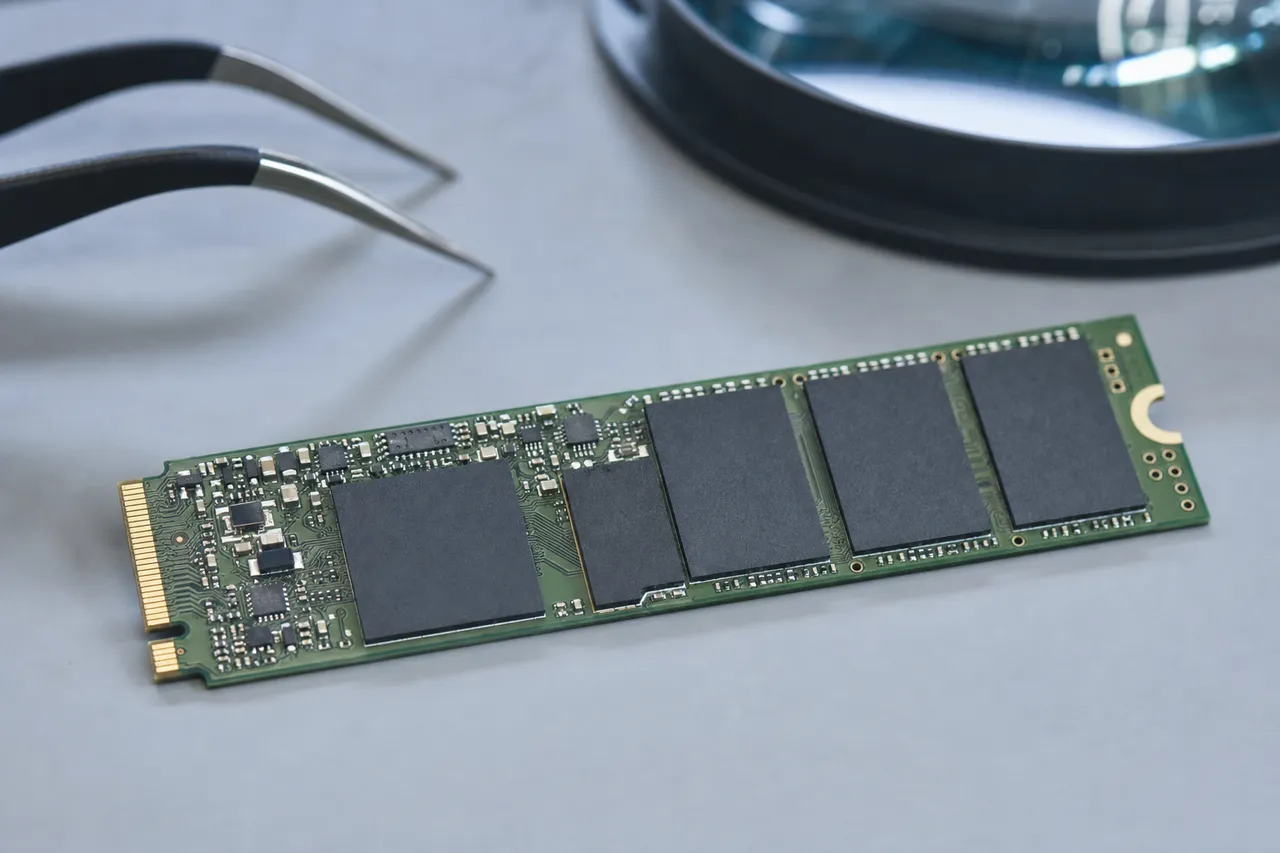
- M.2 SATA SSDs - A smaller card-style form factor that plugs directly into the motherboard. Uses the M.2 connector but still communicates over the SATA protocol, capping speeds around 550 MB/s.
SATA SSD recovery differs fundamentally from HDD recovery. There are no moving parts, so physical damage from drops is rare. Instead, the failure modes are electronic and logical:
- Controller failure - The onboard controller chip manages all read/write operations. When it fails, the drive becomes invisible to the system.
- NAND chip degradation - Flash memory cells have a finite number of write cycles. As cells wear out, the drive's error correction can no longer compensate, and data becomes inaccessible.
- Firmware bugs - Some SATA SSDs (particularly early Crucial and Kingston models) are prone to firmware-level failures that lock the drive into a read-only or completely unresponsive state.
- TRIM and garbage collection - SSDs actively erase deleted data blocks. Once TRIM runs, deleted files may be permanently gone - unlike HDDs where deleted data often lingers on the platter.
NVMe SSDs - PCIe-Based Storage
NVMe (Non-Volatile Memory Express) drives communicate over the PCIe bus rather than SATA, delivering read/write speeds of 3,500 - 7,000 MB/s or higher. Nearly every laptop manufactured after 2020 ships with an NVMe SSD as the primary storage device.
NVMe drives use the M.2 form factor but are not interchangeable with M.2 SATA drives - the key notch is different, and the protocol is entirely separate. From a recovery perspective, NVMe drives introduce additional complexity:
- Advanced controller architectures - NVMe controllers from Phison, Samsung, and Western Digital each handle wear leveling, encryption, and error correction differently. Recovery tools must support the specific controller family.
- Hardware encryption - Many NVMe SSDs implement AES-256 encryption at the hardware level. If the controller fails, the encryption keys may be lost with it, making recovery significantly harder.
- Proprietary firmware - Samsung's PM9A1, for example, requires vendor-specific tools to access the drive at a low level. Generic recovery software won't cut it.
Our lab maintains specialized equipment for NVMe SSD data recovery, including direct NAND readers and controller-specific diagnostic tools that allow us to work with drives that are completely unresponsive to standard interfaces.
Soldered and BGA Storage - MacBooks and Ultrabooks
The most challenging category of laptop data recovery involves storage that is soldered directly to the motherboard. This design is standard on all MacBooks since 2016 and increasingly common in Windows ultrabooks from Dell (XPS line), HP (Spectre), and Lenovo (Yoga and X1 Carbon).
When storage chips are soldered down, there is no removable drive to extract. Recovery requires one of two approaches:
- Board-level repair - If the storage chips are intact but the board has failed, a technician may be able to repair the power delivery or controller circuitry to bring the board back online long enough to extract data.
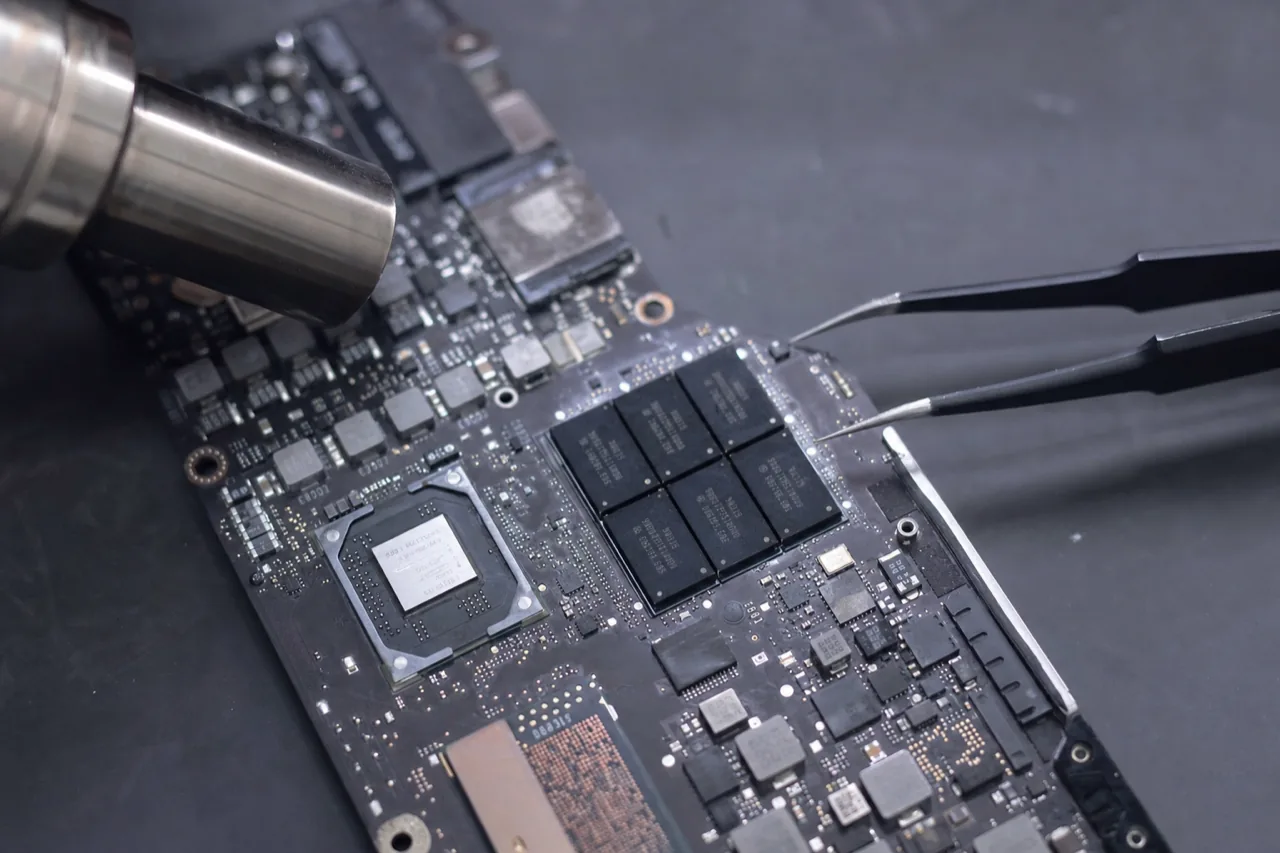
- Chip-off recovery - The NAND flash chips are physically desoldered from the board using specialized rework stations, then read individually with a NAND programmer. The raw data must be reassembled using knowledge of the controller's data interleaving algorithm.
Chip-off is labor-intensive and requires significant expertise, which is why soldered storage recovery costs more than standard SSD or HDD work. It's also why choosing a lab with real chip-off capability matters - many shops that advertise MacBook data recovery simply ship the board to a third-party lab and mark up the price.
Why Storage Type Determines Recovery Cost
The bottom line is straightforward: the more integrated and complex the storage technology, the more specialized the recovery process. A 2.5-inch HDD with a failed head assembly is a well-understood procedure that our engineers perform routinely. A soldered NVMe chip on a dead MacBook logic board requires hours of micro-soldering and custom firmware work. The storage type inside your laptop isn't just a spec - it's the single biggest factor in determining what your recovery will involve and what it will cost.
02Apple Silicon & T2
MacBook Data Recovery - Apple Silicon, T2 & Soldered NAND
Apple's MacBook lineup presents some of the most technically demanding laptop data recovery scenarios in the industry. Starting in 2016, Apple began soldering storage directly to the logic board, eliminating removable SSDs entirely. Combined with hardware encryption, proprietary security chips, and a locked-down software ecosystem, MacBook recovery requires specialized knowledge and equipment that most data recovery shops simply don't have.
The T2 Security Chip - Encryption by Default
Apple introduced the T2 security chip in 2018, first in the iMac Pro and then across the entire MacBook Pro and MacBook Air lineup. The T2 chip serves as a hardware security module that handles:
- Real-time SSD encryption - Every byte written to the internal SSD is encrypted with AES-256 in hardware. The encryption keys are stored inside the T2 chip itself, not on the NAND storage.
- Secure boot - The T2 validates the boot process, ensuring only trusted macOS installations can start.
- Touch ID and Apple Pay - Biometric data is processed within the T2's secure enclave.
For data recovery, the T2 chip creates a critical dependency: the encryption keys are bound to the specific T2 chip on that specific logic board. If the T2 chip is damaged or the logic board is destroyed, the data on the NAND chips becomes cryptographically inaccessible. This is fundamentally different from a standard Windows laptop where you can pull the drive and read it in another machine.
Recovery from T2-equipped MacBooks requires the original logic board to be at least partially functional. Our engineers perform board-level micro-soldering repairs to restore power delivery, replace failed components, and bring the T2 chip back online so it can decrypt the storage. This is painstaking work that demands both the right tools and deep familiarity with Apple's board designs.
Apple Silicon - M1, M2, M3, and M4
Starting with the M1 chip in late 2020, Apple replaced both the Intel CPU and the T2 chip with a single system-on-chip (SoC). The M-series chips integrate the CPU, GPU, Neural Engine, memory controller, and security enclave into one package. The encryption and secure boot functions that the T2 handled are now built directly into the M-series silicon.
From a laptop data recovery perspective, Apple Silicon introduces several complications:
- Unified memory architecture - RAM is part of the SoC package, not a separate module. If the chip is damaged, both compute and memory are lost simultaneously.
- Tighter encryption binding - The encryption keys are managed within the SoC's secure enclave, which is even more tightly integrated than the T2. There is no separate chip to target.
- DFU restore dependency - In some failure scenarios, the MacBook can be placed into Device Firmware Update (DFU) mode using a second Mac. This can sometimes revive a non-booting machine long enough to extract data, but it doesn't work if the SoC itself has failed.
- No third-party boot - Unlike Intel Macs, Apple Silicon machines cannot boot from Linux or other operating systems in a way that bypasses the encryption layer. The SoC must authenticate the boot environment.
Soldered NAND - Chip-Off as a Last Resort
Every MacBook sold since 2016 uses NAND flash storage soldered directly to the logic board. There is no removable SSD module, no M.2 slot, and no way to extract the storage without desoldering.
When the logic board cannot be repaired - due to severe liquid damage, a failed SoC, or catastrophic short circuits - chip-off recovery becomes the only remaining option. This process involves:
- Desoldering the NAND chips - Using a hot air rework station and specialized jigs, each BGA NAND package is carefully removed from the board without damaging the chip or its solder balls.
- Reading the raw NAND - Each chip is placed in a NAND programmer that reads the raw flash data. MacBooks typically use 2 - 8 NAND packages depending on the storage capacity.
- Reconstructing the data - The raw NAND dumps must be reassembled in the correct order, with error correction applied, to produce a usable disk image.
However, there is a critical caveat: if the MacBook had a T2 chip or Apple Silicon, the NAND data is encrypted. Chip-off can recover the raw encrypted data, but without the decryption keys from the security chip, the files cannot be read. Chip-off on encrypted MacBooks is only viable when the user has the password/recovery key and the encryption metadata is intact enough to attempt decryption offline.
FileVault Encryption Recovery
FileVault is Apple's full-disk encryption feature, and it's enabled by default on all modern Macs. On T2 and Apple Silicon machines, FileVault works in conjunction with the hardware encryption - it adds a second layer tied to the user's login password or a recovery key.
For data recovery purposes, FileVault means:
- The user's password or recovery key is required - Without it, even a fully functional logic board cannot decrypt the data. We always ask clients to provide their Mac password before beginning work.
- iCloud recovery key - If the user opted to store their FileVault recovery key in iCloud, it can be retrieved through Apple's account recovery process. This is often the saving grace for clients who've forgotten their password.
- Institutional recovery keys - Businesses using MDM (Mobile Device Management) solutions often have institutional recovery keys that can unlock FileVault-encrypted volumes. If your company laptop failed, check with your IT department before assuming the data is lost.
Why MacBook Recovery Costs More
MacBook data recovery consistently costs more than recovering data from a standard Windows laptop, and the reasons are purely technical:
- No removable storage - Every recovery requires working with the full logic board, not just a swappable drive.
- Board-level repair skills - Micro-soldering under a microscope is required for most hardware failures.
- Encryption complexity - The T2/Apple Silicon encryption layer adds diagnostic time and limits recovery options.
- Apple's parts ecosystem - Donor boards for component harvesting are expensive and model-specific.
At MD Repairs, we handle MacBook data recovery in-house with our own clean room and micro-soldering stations. We don't outsource to third-party labs, which means faster turnaround and lower cost than shops that act as middlemen. If your MacBook has failed and you need your data back, the storage architecture inside your machine will determine the recovery path - and we'll walk you through exactly what's involved before any work begins.
03Dell / HP / Lenovo
Windows Laptop Recovery - Dell, HP, Lenovo, ASUS, Acer & MSI
The Windows laptop ecosystem is enormous and fragmented. Unlike Apple's controlled hardware lineup, Windows laptops span hundreds of models from dozens of manufacturers, each with different storage configurations, security implementations, and hardware quirks. This diversity means that laptop data recovery for Windows machines requires broad expertise across multiple platforms - there is no single playbook that covers every scenario.
Business Laptops - ThinkPad, EliteBook, Latitude
Enterprise-grade laptops from Lenovo (ThinkPad), HP (EliteBook/ProBook), and Dell (Latitude/Precision) are designed for reliability and security, but they still fail. These machines tend to share certain characteristics that affect data recovery:
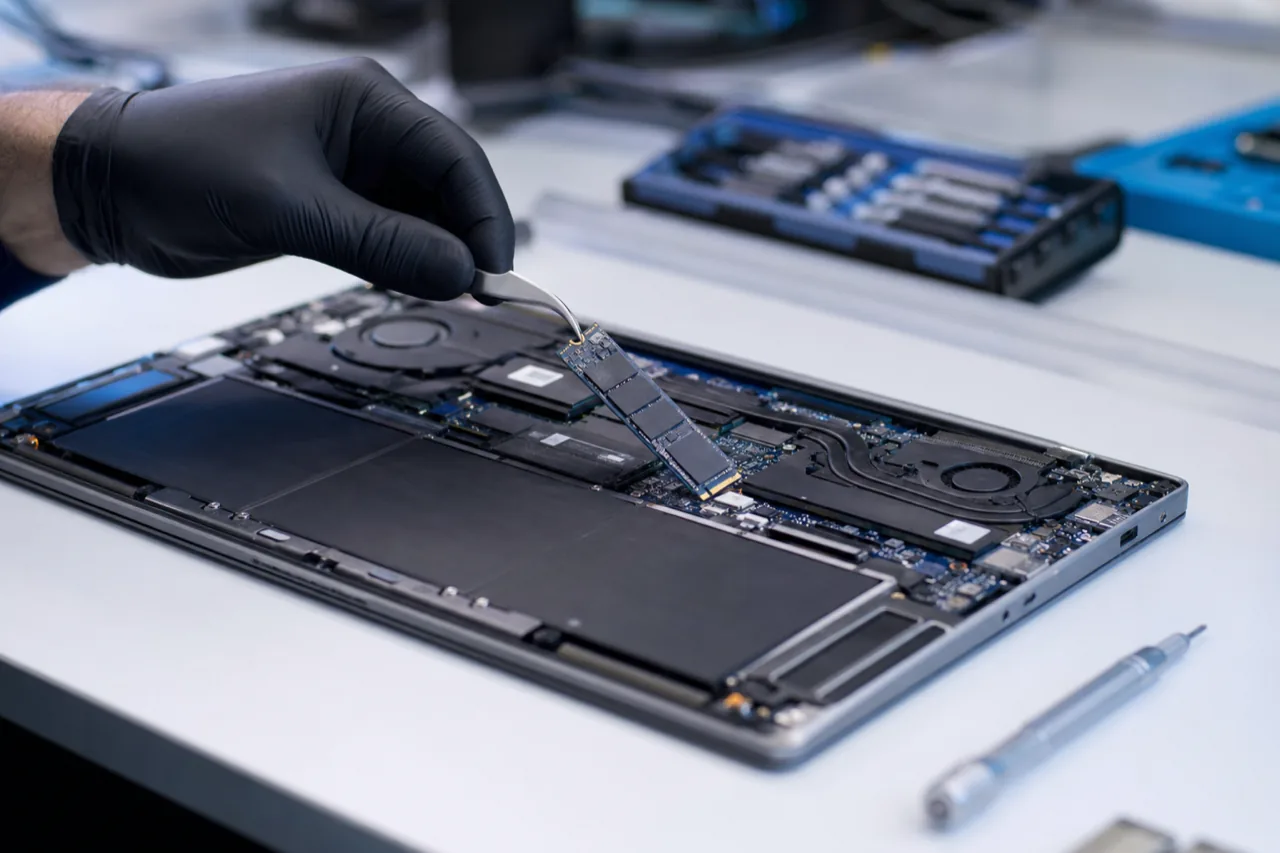
- Standard M.2 NVMe slots - Most business laptops from the last five years use standard 2280 M.2 NVMe SSDs. This is good news for recovery because the drive can usually be removed and connected to diagnostic equipment directly.
- TPM and BitLocker - Business machines almost always have a Trusted Platform Module (TPM) chip and BitLocker encryption enabled by IT policy. The BitLocker recovery key is critical for accessing data (more on this below).
- Self-encrypting drives (SED) - Some enterprise configurations use SSDs with hardware-level encryption (OPAL standard) managed by the BIOS. If the BIOS password is lost, the drive's encryption keys may be inaccessible.
- RAID in workstation laptops - High-end mobile workstations like the Dell Precision 7760 or Lenovo ThinkPad P series can house two NVMe drives in a RAID 0 or RAID 1 configuration. RAID 0 stripes data across both drives, meaning both must be functional for a complete recovery. RAID 1 mirrors data, so a single surviving drive contains the full dataset.
For business laptop recovery, the first question we ask is whether BitLocker was enabled and whether the recovery key is available. Without it, recovery may still be possible at the hardware level, but the data will be encrypted and unreadable.
Consumer Laptops - Inspiron, Pavilion, IdeaPad, VivoBook
Consumer-grade Windows laptops cover the broadest range of hardware configurations. Budget models from Dell (Inspiron), HP (Pavilion/Stream), Lenovo (IdeaPad), and ASUS (VivoBook) use a mix of storage technologies depending on the price point and release year:
- Budget models (under $500) - May still ship with 2.5-inch SATA SSDs or, in some older inventory, spinning hard drives. Some ultra-budget Chromebook-style machines use eMMC storage soldered to the board.
- Mid-range models ($500 - $900) - Typically use a single M.2 NVMe SSD with 256GB or 512GB capacity. The drive is usually removable and accessible through a bottom panel.
- Premium consumer ($900+) - Often mirror ultrabook designs with thinner chassis, and some models solder the SSD to the motherboard for space savings.
Consumer laptops generally don't have BitLocker enabled unless the user activated it manually or Windows automatically enabled Device Encryption (which happens on machines with TPM and a Microsoft account). Many consumers don't realize their drive is encrypted until recovery is attempted and the data comes back scrambled.
Gaming Laptops - ROG, Legion, Predator, Raider
Gaming laptops from ASUS (ROG), Lenovo (Legion), Acer (Predator/Nitro), and MSI (Raider/Stealth) present their own recovery profile:
- High-performance NVMe drives - Gaming laptops typically use PCIe Gen 4 or Gen 5 NVMe SSDs for maximum throughput. These drives run hot under sustained workloads, and thermal stress can accelerate NAND degradation.
- Dual drive configurations - Many gaming laptops have two M.2 slots, allowing users to install a fast NVMe boot drive alongside a larger storage drive. Data may be split across both.
- Aggressive power management - Gaming laptop BIOS configurations sometimes include aggressive power cycling that can contribute to SSD firmware issues during unexpected shutdowns.
- Large datasets - Gamers, streamers, and content creators store large video files, project archives, and game libraries. Recovery jobs from gaming laptops often involve 1 - 4 TB of data, which affects processing time.
BitLocker Encryption - The #1 Complication in Windows Laptop Recovery
BitLocker is Microsoft's full-volume encryption feature, and it is the single most important factor in determining whether a Windows laptop data recovery will succeed. Here's what you need to know:
- TPM-based unlock - BitLocker typically uses the laptop's TPM chip to unlock the volume automatically at boot. If the motherboard fails, the TPM chip on that board holds the unlock key. Moving the SSD to a different machine will trigger BitLocker's recovery mode.
- 48-digit recovery key - When BitLocker is enabled, Windows generates a 48-digit recovery key. This key is your lifeline. It's usually saved to your Microsoft account (check account.microsoft.com/devices/recoverykey), printed, or saved to a USB drive.
- Without the recovery key - If the motherboard has failed and you don't have the recovery key, the data on the SSD is encrypted with AES-128 or AES-256 and cannot be decrypted. No data recovery lab can break BitLocker encryption.
- Device Encryption - Windows 10 and 11 automatically enable a lighter version of BitLocker called Device Encryption on machines with TPM and a Microsoft account. Many users don't know it's active. If your laptop died and you used a Microsoft account to sign in, check for a recovery key online before contacting any recovery service.
We always recommend that clients check for their BitLocker recovery key before shipping their laptop. It takes two minutes and can mean the difference between a successful recovery and an encrypted brick.
Brand-Specific Hardware Quirks
Years of working on Windows laptops from every major manufacturer have taught us that no two brands are identical under the hood:
- Dell - Some Dell models (particularly XPS and certain Latitude generations) use proprietary M.2 SSD form factors or custom connector brackets. The Dell XPS 13 9300, for example, uses a shorter 2230 M.2 SSD that requires a specific adapter for bench testing.
- HP - HP's business line occasionally uses proprietary SSD connectors, and some models integrate the SSD under a shielded EMI cover that's glued down. Disassembly requires care to avoid board damage.
- Lenovo - ThinkPad models are generally the most repair-friendly, with documented hardware maintenance manuals and standard M.2 slots. IdeaPad and Yoga lines vary more in accessibility.
- ASUS - ROG gaming laptops and ZenBook ultrabooks use standard connectors, but some ZenBook models solder the SSD to the motherboard, requiring chip-off techniques.
- Acer - Budget Acer models (Aspire, Swift) occasionally use eMMC storage in lower-end configurations, which is soldered and requires board-level work for recovery.
- MSI - Gaming laptops from MSI generally use standard M.2 NVMe slots and are straightforward to disassemble, making them among the easier gaming laptops to recover data from.
Regardless of the brand, our approach is the same: identify the storage type, check for encryption, extract the drive (or work with the board if soldered), and apply the appropriate recovery technique. The diversity of Windows hardware is a challenge, but it's one our lab handles every day.
04Mechanical Drives
Laptop Hard Drive Recovery - 2.5-Inch Clean Room Procedures
Despite the industry's shift toward solid-state storage, 2.5-inch mechanical hard drives remain one of the most common sources of laptop data recovery jobs we handle. Millions of laptops manufactured between 2005 and 2019 shipped with spinning hard drives, and many of those machines are still in daily use or sitting in drawers with irreplaceable photos, documents, and business files trapped on a failed drive.
Why 2.5-Inch Laptop Drives Fail More Often Than Desktop Drives
Laptop hard drives are inherently more fragile than their 3.5-inch desktop counterparts, and the reasons are both mechanical and environmental:
- Thinner platters - 2.5-inch drives use platters that are typically 0.635mm thick, compared to the sturdier platters in 3.5-inch drives. Thinner platters are more susceptible to warping from heat and more easily damaged during a head crash.
- Closer head-to-platter clearance - The read/write heads in a laptop drive fly even closer to the platter surface than in desktop drives, sometimes as little as 2 - 3 nanometers. This leaves almost no margin for error.
- Constant movement - Laptops are carried, bumped, jostled, and occasionally dropped. Every impact while the drive is spinning introduces the risk of a head strike against the platter.
- Heat exposure - Laptop chassis have limited airflow. Hard drives operating in a hot laptop compartment experience accelerated bearing wear and lubricant breakdown in the spindle motor.
- Flex cable fragility - The flex cables connecting the head assembly to the PCB are thinner in 2.5-inch drives and more prone to fatigue cracking from thermal cycling.
The combination of these factors means that laptop HDDs have a higher mechanical failure rate per operating hour than desktop drives. A 3.5-inch drive in a stationary desktop tower might run for a decade without issue. The same brand's 2.5-inch laptop drive, subjected to daily transport and occasional bumps, often fails within 4 - 7 years.
Head Crash From Drops - The #1 Laptop HDD Failure
The single most common cause of catastrophic laptop hard drive failure is a head crash caused by a physical drop or impact. Here's what happens:
- Impact while spinning - The laptop is knocked off a desk, dropped from a bag, or struck while the lid is open. The shock force drives the read/write heads into the spinning platter surface.
- Head contact - The heads scrape across the magnetic coating, gouging a circular arc into the platter. This is called a head crash, and the debris generated can contaminate the entire drive interior.
- Cascading damage - The debris from the initial crash gets caught between the heads and platters on subsequent rotations, widening the damaged area. Every second the drive continues to spin after a head crash causes additional data loss.
- Drive seizure or clicking - The damaged heads can no longer read data, producing the characteristic clicking or beeping sound that signals a mechanical failure. In severe cases, the heads may stick to the platter surface (stiction), preventing the drive from spinning entirely.
Critical advice: if your laptop drive is clicking, beeping, or making grinding sounds, power it off immediately. Every additional second of operation risks destroying more data. Do not attempt to run recovery software on a mechanically failed drive - software cannot fix broken heads, and forcing the drive to operate will extend the platter damage.
Clean Room Head Swap Procedures
Recovering data from a laptop hard drive with a head crash requires opening the drive and replacing the damaged head assembly. This work must be performed in a certified clean room environment - specifically, an ISO Class 5 (Class 100) or better clean room where the particle count is controlled to prevent contamination of the exposed platters.
The head swap procedure for a 2.5-inch laptop drive involves:
- Donor drive sourcing - A compatible donor drive must be found with the same model number, firmware revision, and head map. Laptop drives are particularly sensitive to donor matching - even drives with the same model number may use different head assemblies depending on the manufacturing batch.
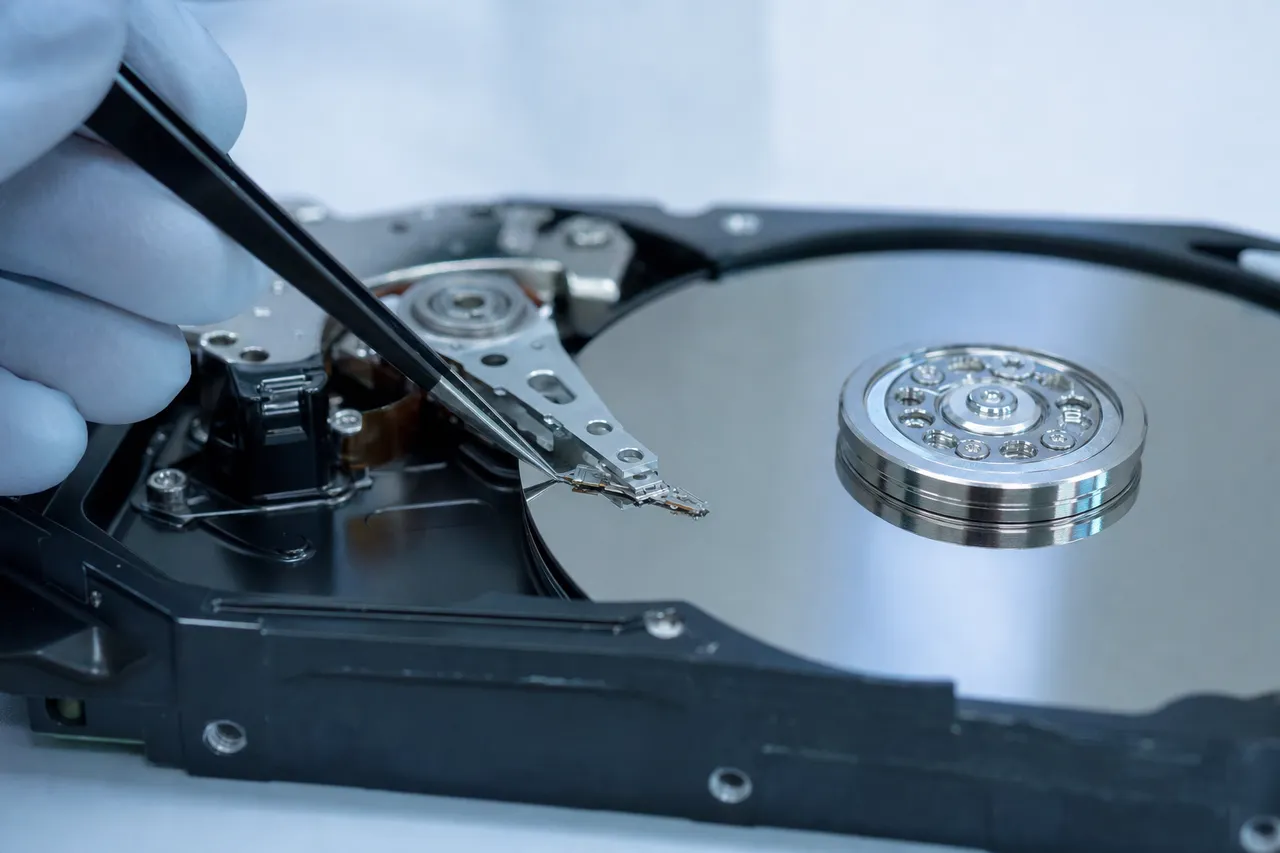
- Drive disassembly - The patient drive is opened inside the clean room. The top cover is removed, and the damaged head assembly is carefully extracted using specialized tools that grip the actuator arm without touching the platters.
- Platter inspection - Before installing new heads, the platter surfaces are inspected under magnification for scoring, debris, and contamination. If the platters have heavy circular scoring (called rings), the prognosis depends on whether the damaged area overlaps with critical file system structures.
- Head installation - The donor head assembly is transplanted into the patient drive. This requires precise alignment of the actuator arm, head preload, and flex cable connection. On 2.5-inch drives, the tolerances are tighter than on 3.5-inch drives due to the smaller form factor.
- Imaging - With new heads installed, the drive is connected to a specialized imaging platform (such as a PC-3000 or DeepSpar) that reads the data sector by sector, skipping bad areas and retrying damaged sectors with adjusted parameters. Imaging a damaged laptop drive can take anywhere from 4 hours to several days depending on the extent of platter damage.
Our lab at MD Repairs performs head swaps on 2.5-inch drives daily. We maintain an inventory of donor drives across all major manufacturers - Seagate, Western Digital, Toshiba, Hitachi/HGST, and Samsung - to minimize turnaround time.
Platter Damage Assessment and Recovery Outlook
Not all head crashes are equal. The extent of platter damage determines how much data can be recovered:
- Minor scoring (single ring, outer zone) - If the head crash only damaged a small area on the outer tracks, the majority of user data may be intact. File system metadata (MFT on NTFS, catalog on HFS+) often resides in specific platter locations, and if those areas are undamaged, a near-complete recovery is possible.
- Moderate scoring (multiple rings, mid-zone) - Wider damage zones mean more lost sectors. Recovery may return 70 - 95% of files, with some files partially corrupted. Photos and documents are often recoverable; large video files that span many sectors may have gaps.
- Severe scoring (full-surface damage) - Heavy concentric scoring across the entire platter surface indicates the drive was operated for an extended period after the initial crash. In these cases, recovery may be limited to fragments, and some data may be permanently lost.
For cases involving significant platter damage, we use advanced imaging techniques including multi-pass reads with head repositioning, where the imaging software makes repeated attempts to read marginal sectors using different head offsets and read retry parameters. Learn more about severe cases on our scratched platter recovery page.
Cost Expectations for Laptop HDD Recovery
Laptop hard drive recovery pricing depends on the failure type and severity:
- Logical failures (corrupted file system, accidental deletion, partition loss) - These are the simplest cases. The drive is mechanically healthy, and recovery involves software-based extraction. This is the lowest-cost tier.
- Firmware issues (drive not recognized, stuck busy, slow response) - Requires specialized tools to access and repair the drive's service area. Mid-range pricing.
- Mechanical failures (head crash, motor seizure, stiction) - Clean room work with donor parts. This is the most common category for laptop drives and falls in the mid-to-upper price range.
- Severe platter damage - Extended imaging time, multiple donor attempts, and reduced recovery percentage. Upper price range, and we provide an honest assessment of expected recovery before proceeding.
At MD Repairs, we evaluate every laptop hard drive that comes through our lab and provide a detailed assessment before any paid work begins. You'll know what's wrong, what the recovery will involve, and what it will cost - with no obligation to proceed. We don't charge if we can't recover your data.
05Solid State Drives
Laptop SSD Recovery - Controller Failure, NAND Reading & Chip-Off
Most laptops sold in the last five years ship with solid-state drives rather than traditional hard drives. While SSDs deliver faster performance and better shock resistance, they introduce an entirely different set of failure modes that demand specialized laptop data recovery techniques. Understanding how SSDs fail is the first step toward getting your files back.
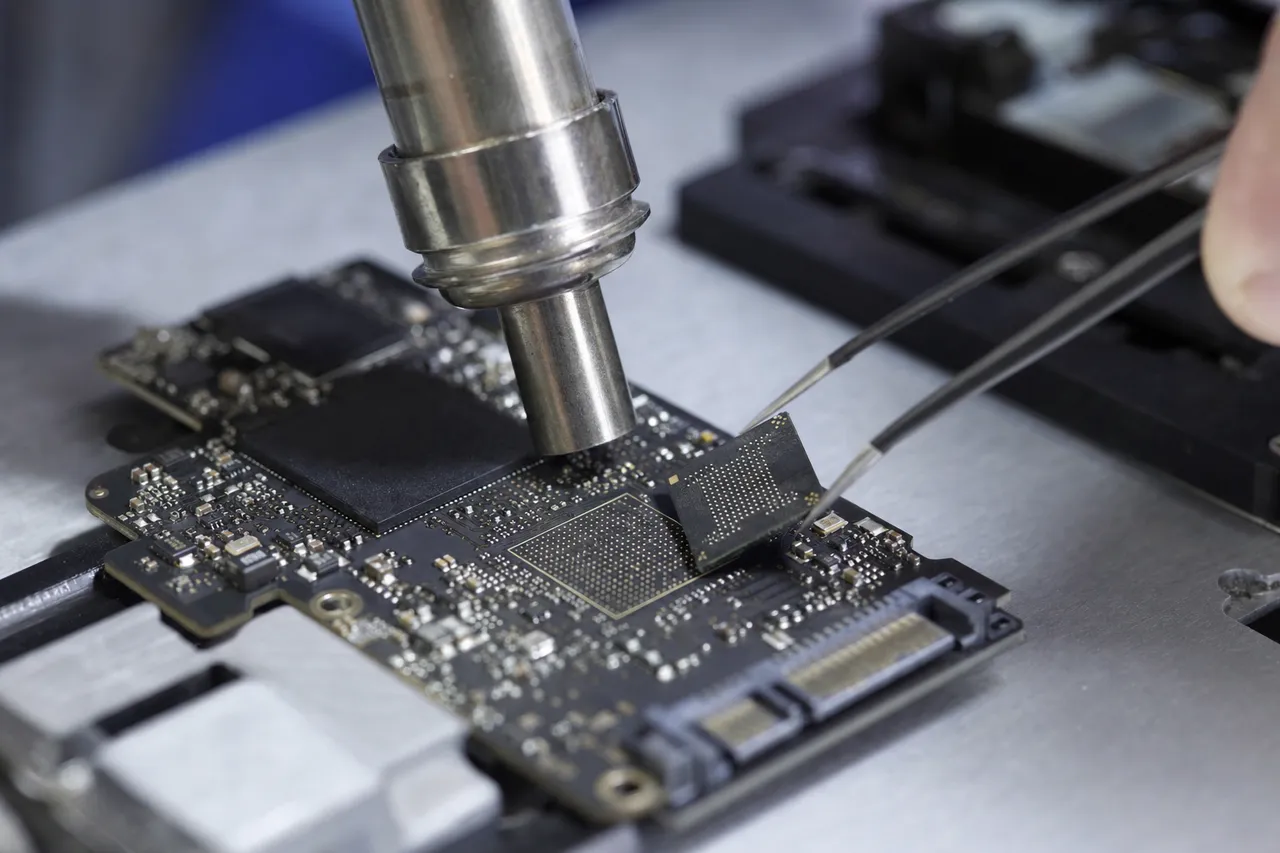
How SSDs Fail Differently Than Hard Drives
Hard drives fail mechanically - heads crash into platters, motors seize, bearings wear out. SSDs have no moving parts, so mechanical failure is off the table. Instead, SSD failures are almost entirely electronic and firmware-driven:
- Controller failure - The controller chip is the brain of every SSD. It manages wear leveling, error correction, garbage collection, and the translation layer between your operating system and the raw NAND flash. When the controller dies, the drive disappears from your system entirely - even though every byte of your data may still be intact on the NAND chips.
- Firmware corruption - SSD firmware is far more complex than HDD firmware. A corrupted firmware module can cause the drive to enter a locked state, report the wrong capacity, or simply refuse to initialize. Some firmware bugs are manufacturer-specific and require vendor-level tools to resolve.
- NAND degradation - Every NAND flash cell has a limited number of program/erase (P/E) cycles. Consumer TLC and QLC drives are rated for roughly 500 - 1,500 cycles per cell. As cells wear out, the drive's error correction overhead increases until it can no longer compensate, leading to sudden data loss.
- Power loss corruption - SSDs with incomplete write operations during sudden power loss can suffer from mapping table corruption. The drive may appear blank or unformatted even though the data is physically present.
NAND Flash Chip Reading
When an SSD's controller is dead but the NAND flash chips are intact, we bypass the controller entirely. Using specialized NAND readers, our technicians desolder individual NAND packages from the SSD's PCB and read the raw data directly. This is where laptop SSD recovery gets complicated - the raw data from NAND chips is not stored sequentially. It is scrambled across pages and blocks according to the controller's proprietary algorithms. Reconstructing usable files requires:
- Reading every NAND chip in the array
- Identifying the page size, spare area layout, and ECC algorithm
- Reconstructing the logical-to-physical mapping (the FTL - Flash Translation Layer)
- Reassembling the file system from the reordered data
This process is painstaking and requires deep knowledge of specific controller families - Phison, Silicon Motion, Marvell, Samsung Elpis, and others each use different scrambling and interleaving schemes.
Chip-Off Recovery for BGA and Soldered SSDs
Many modern ultrabooks and thin laptops use BGA (Ball Grid Array) NAND packages soldered directly to the motherboard rather than using a removable M.2 or 2.5-inch drive. Apple's MacBook lineup, Microsoft Surface devices, and many premium Ultrabooks fall into this category. Chip-off recovery involves:
- Carefully desoldering BGA NAND chips using a hot-air rework station with precise temperature profiling
- Cleaning solder residue and reballing if necessary for adapter compatibility
- Reading chips through BGA adapters connected to programmers like the PC-3000 Flash system
- Reconstructing data using the same FTL reverse-engineering process described above
Chip-off is a last-resort technique, but when the motherboard or controller is destroyed - from liquid damage, fire, or electrical surge - it may be the only path to recovering your data.
NVMe vs. SATA SSD Recovery Differences
The recovery approach differs based on the SSD interface. SATA SSDs (both 2.5-inch and M.2 B-key) use the older AHCI protocol and are generally better supported by forensic tools. NVMe SSDs (M.2 M-key, using PCIe lanes) are faster but present additional recovery challenges because many NVMe controllers use more aggressive data scrambling and hardware-based encryption by default. For dedicated NVMe SSD data recovery, we maintain an inventory of donor drives and controller-specific toolsets.
If your laptop uses a Samsung SSD or a Crucial SSD, we stock donor boards and have controller-level access for both families.
Wear Leveling, TRIM, and Sudden Data Loss
SSDs use wear leveling to distribute writes evenly across all NAND cells, extending the drive's lifespan. However, this means deleted files get physically scattered in unpredictable ways. The TRIM command makes things worse for recovery - when your OS issues a TRIM command to deleted sectors, the SSD's garbage collector may erase those NAND blocks proactively. This is why SSD data recovery should be attempted as quickly as possible after data loss, and why you should never continue using a failing SSD.
Cost Expectations
Laptop SSD recovery typically falls into two tiers. Logical and firmware-level repairs - where the NAND chips do not need to be removed - range from $300 to $800. Chip-off and NAND reconstruction cases are more labor-intensive and typically range from $800 to $2,000+, depending on the number of chips, the controller family, and the complexity of the FTL reconstruction. At MDRepairs, we provide a firm quote after our evaluation - no surprise charges.
06Spills & Corrosion
Laptop Liquid Damage Data Recovery - Spills, Floods & Humidity
Liquid damage is one of the most common and most urgent reasons people need laptop data recovery. A single coffee spill can destroy a motherboard in minutes, and the corrosion that follows can spread to storage components within hours. The difference between recovering your data and losing it permanently often comes down to what you do - and don't do - in the first 60 minutes.
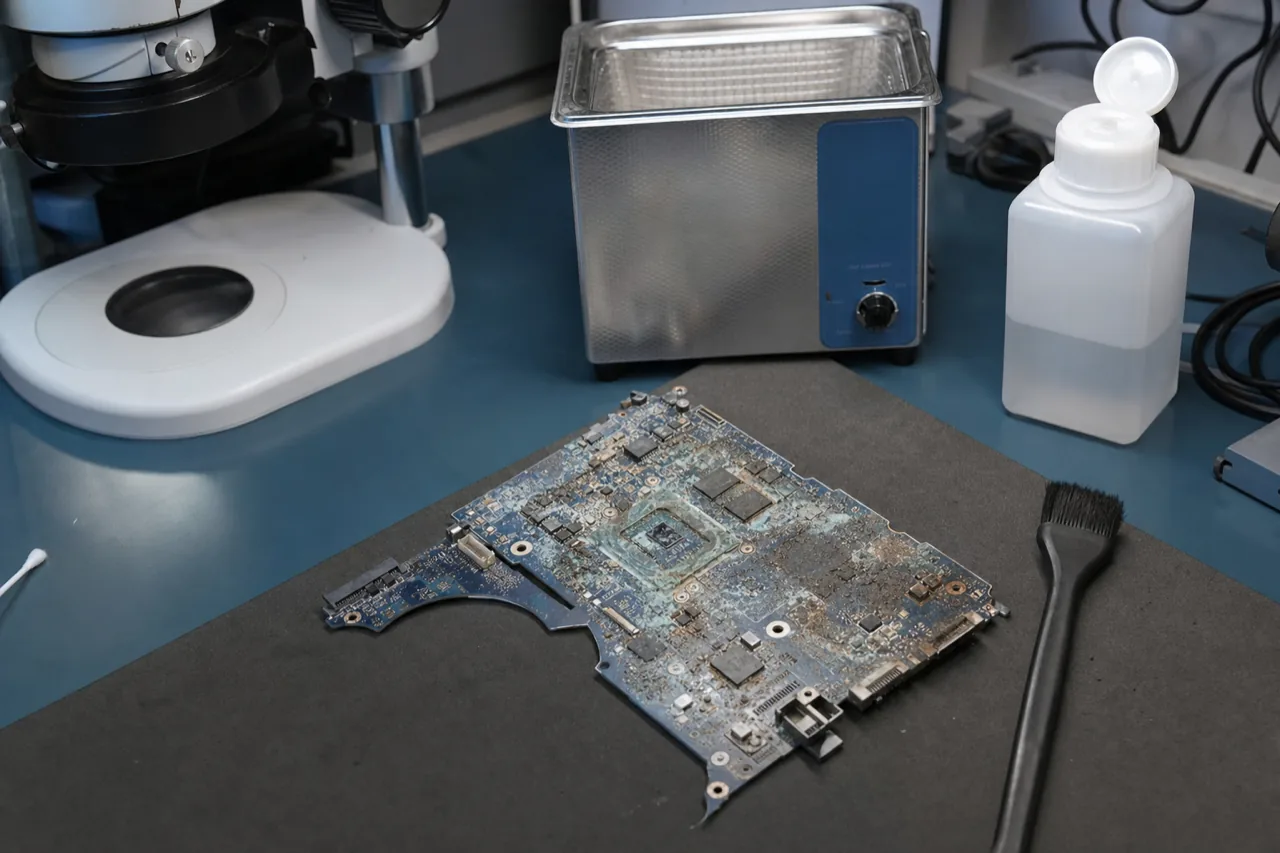
What Happens When Liquid Enters a Laptop
Modern laptops pack dense circuitry into impossibly thin enclosures. When liquid breaches the keyboard deck or port openings, it flows across PCBs carrying dissolved minerals and ions. Here is the chain of destruction:
- Immediate short circuits - Liquid bridges connections between components that should never be connected. If the laptop is powered on, these shorts can destroy voltage regulators, the CPU, GPU, or storage controller within seconds.
- Electrochemical corrosion - Even after the liquid dries, residual moisture and dissolved salts create galvanic cells between dissimilar metals on the PCB. Copper traces, solder joints, and component leads begin corroding. This process accelerates in humid environments and can render a board unrecoverable within 48 - 72 hours.
- Underfill wicking - On BGA components (including many SSD controllers and NAND packages), liquid can wick under the chip through capillary action. Once corrosion starts beneath a BGA, the component must be removed and the pads cleaned - or the chip itself may be compromised.
Why Time Is Critical
Corrosion is a chemical reaction that accelerates with time, heat, and humidity. If your laptop suffers a spill:
- Power off immediately - Hold the power button for 10 seconds. Do not attempt a graceful shutdown.
- Do not plug it in - Applying power to a wet board guarantees further short-circuit damage.
- Do not attempt to dry it with heat - Hair dryers and ovens can warp components and accelerate corrosion in areas you cannot see.
- Get it to a professional quickly - The sooner we can open the laptop, remove the storage drive (if possible), and clean affected boards with ultrasonic cleaning and isopropyl alcohol, the better the chances of successful laptop liquid damage data recovery.
Coffee, Soda, Water, and Salt Water - Different Threats
Not all liquids cause the same damage. The type of liquid dramatically affects the corrosion pattern and recovery difficulty:
- Plain water - Causes short circuits when wet but leaves minimal residue after drying. Recovery prospects are generally good if the laptop was powered off quickly.
- Coffee and tea - Acidic, often with sugar and cream. Sugar residue is hygroscopic (attracts moisture from the air), keeping the corrosion process active long after the initial spill seems dry. Cream and milk proteins leave sticky films that trap moisture against component leads.
- Soda and energy drinks - Extremely corrosive. High sugar content combined with phosphoric or citric acid creates aggressive corrosion that can eat through copper traces within hours. These are among the worst spills we see.
- Salt water or ocean spray - The most destructive liquid for electronics. Sodium chloride accelerates galvanic corrosion exponentially. Salt water exposure often requires board-level intervention within hours to have any chance of data recovery.
Our Recovery Approach for Liquid-Damaged Laptops
When a liquid-damaged laptop arrives at MDRepairs, our process follows a specific sequence designed to maximize data recovery potential:
- Immediate disassembly - We open the laptop and assess the extent of liquid penetration. We photograph all affected areas for documentation.
- Storage drive removal - If the laptop has a removable M.2 or 2.5-inch drive, we extract it and connect it to a known-good system. In many cases, the drive itself is undamaged and all data can be recovered immediately.
- Board cleaning - Affected PCBs are cleaned using ultrasonic baths with specialized cleaning solutions, followed by isopropyl alcohol rinses and controlled drying. This halts active corrosion.
- Component-level assessment - We test individual components - voltage regulators, storage controllers, NAND packages - to determine what survived and what needs repair or replacement.
- Data extraction - Depending on findings, we either image the drive directly, perform firmware repairs, or proceed to chip-off recovery if the storage controller is destroyed.
Soldered Storage - The MacBook Problem
Apple MacBooks from 2016 onward (and many from 2015) use soldered NAND flash storage that cannot be removed as a standard drive module. When liquid damages a MacBook's logic board, you cannot simply pull the SSD and plug it into another machine. Recovery requires either repairing the logic board sufficiently to boot and extract data, or performing chip-off recovery on the individual NAND packages. MacBooks with the T2 security chip or Apple Silicon add another layer of complexity - the data is hardware-encrypted, and the decryption keys are tied to the T2/Secure Enclave. If the T2 chip or Apple Silicon SoC is destroyed by liquid damage, and the user does not have their FileVault recovery key or Apple ID credentials, the data may be permanently inaccessible.
What NOT to Do
We regularly receive laptops where well-intentioned first-aid attempts made the damage worse:
- Do not put your laptop in rice - Rice does not absorb moisture from inside electronics. It introduces starch dust into ports and connectors, and it gives people a false sense that something productive is happening while corrosion continues unchecked.
- Do not shake or tilt the laptop to drain liquid - this can spread the liquid to areas that were previously dry.
- Do not attempt to power on the laptop to see if it still works - applying power to corroded or wet circuits causes immediate additional damage.
- Do not wait - Every hour of delay allows corrosion to progress. Bring the laptop to a data recovery specialist as soon as possible.
Cost Expectations for Liquid Damage Cases
Liquid damage recovery costs vary widely based on the extent of damage and the laptop's storage configuration. If the drive is removable and undamaged, recovery can be as straightforward as a standard drive imaging - typically $300 - $500. If board-level repair or chip-off work is required, costs range from $800 to $2,500. MacBook T2/Apple Silicon cases with soldered storage represent the high end due to the encryption and chip-off complexity involved.
07BitLocker / FileVault
Encrypted Laptop Recovery - BitLocker, FileVault & LUKS
Full-disk encryption is now enabled by default on most new laptops. Windows 11 activates BitLocker automatically on supported hardware, macOS enables FileVault during setup, and Linux users frequently deploy LUKS (Linux Unified Key Setup) for full-disk encryption. While encryption is excellent for protecting your data from theft, it adds significant complexity to laptop data recovery. Here is what you need to know.
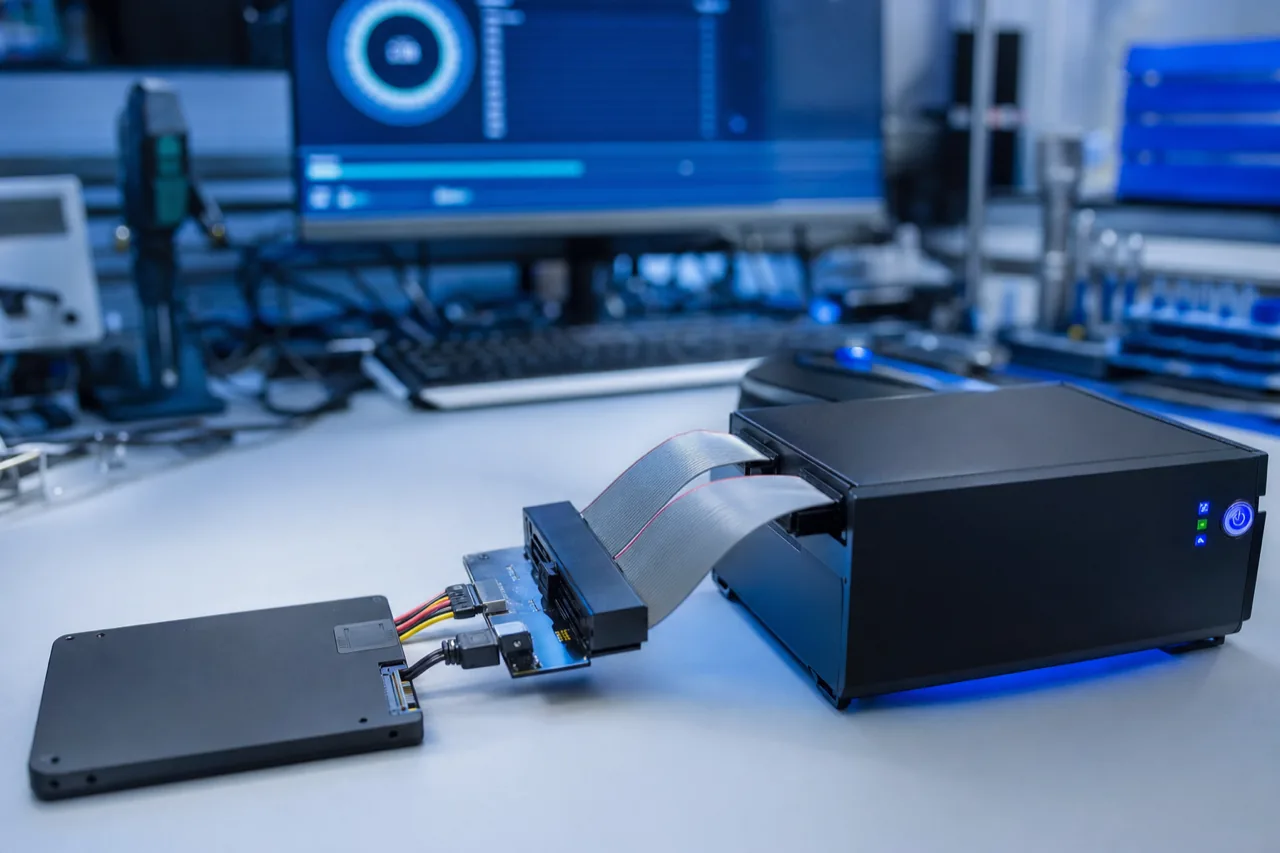
BitLocker - Windows Laptop Encryption
BitLocker is Microsoft's full-volume encryption feature, available on Windows Pro, Enterprise, and Education editions. On modern laptops with a TPM (Trusted Platform Module), BitLocker operates transparently - the TPM chip stores the encryption key and releases it automatically during a normal boot sequence. You may not even realize BitLocker is active until something goes wrong.
When a BitLocker-encrypted drive fails or is removed from its original laptop, the TPM will not release the decryption key. To recover data, you need one of the following:
- 48-digit BitLocker recovery key - Microsoft prompts you to save this during setup. It may be stored in your Microsoft account (account.microsoft.com/devices/recoverykey), printed on paper, saved to a USB drive, or stored in Active Directory if the laptop is domain-joined.
- BitLocker password or PIN - If you configured a password-based unlock instead of TPM-only.
- Startup key on USB - Some configurations use a USB key as an additional authentication factor.
With the recovery key in hand, our team can decrypt the drive after imaging and extract your files normally. Without any form of authentication, BitLocker's AES-128 or AES-256 encryption is computationally unbreakable - no legitimate data recovery company can bypass it.
FileVault - macOS Laptop Encryption
Apple's FileVault 2 uses XTS-AES-128 encryption with a 256-bit key to encrypt the entire startup volume. On Macs with the T2 chip or Apple Silicon (M1/M2/M3/M4), FileVault integrates with the hardware Secure Enclave, which handles encryption at the hardware level - meaning all data is encrypted at rest by default, even before you enable FileVault in System Settings.
For FileVault recovery, you need:
- Your Mac login password - FileVault derives its encryption key from your user password.
- FileVault recovery key - A 24-character alphanumeric key generated when you enable FileVault. Apple gives you the option to store it in your iCloud account or write it down.
- Institutional recovery key - Organizations using MDM (Mobile Device Management) may have an institutional recovery key that can unlock any enrolled Mac.
On T2 and Apple Silicon Macs, the situation is more nuanced. The Secure Enclave handles encryption independently, and the data is always encrypted on the NAND chips. If the T2 chip or Apple Silicon SoC is damaged (from liquid, electrical damage, or board failure), the encryption keys stored in the Secure Enclave may be lost. In these cases, even with your FileVault password, recovery requires the original functioning security chip. This is one reason why MacBook data recovery is among the most complex work we perform.
LUKS - Linux Full-Disk Encryption
LUKS is the standard for disk encryption on Linux distributions. Unlike BitLocker and FileVault, LUKS is purely passphrase-based by default - there is no TPM integration in most configurations (though systemd-cryptenroll can bind LUKS to a TPM on newer setups). LUKS stores the encryption header at the beginning of the partition, containing up to 8 key slots, each protected by a different passphrase.
For LUKS recovery:
- Passphrase - At least one of the configured passphrases is required.
- LUKS header backup - If the LUKS header is damaged (the first ~2MB of the partition), and you have a header backup created with
cryptsetup luksHeaderBackup, we can restore it and proceed with recovery. Without a header backup and with a corrupted header, the data is permanently lost.
LUKS header damage is particularly dangerous because it sits at the very beginning of the partition - exactly where bad sectors, accidental overwrites, and partition table corruption are most likely to occur.
When Encryption Does NOT Block Recovery
There is a common misconception that encrypted drives cannot be recovered. In reality, encryption and data recovery are not mutually exclusive. If you have the correct credentials, the recovery process works like this:
- We create a forensic image (bit-for-bit clone) of the failing drive using tools that handle read errors gracefully.
- We apply your decryption key/password/recovery key to the image.
- Once decrypted, we extract files using standard file system tools.
The physical recovery - dealing with bad sectors, firmware issues, or mechanical failure - happens at the hardware level, below the encryption layer. Encryption only comes into play when we need to read the recovered data. Having your encryption key does not make the physical recovery harder, and physical damage does not make the encryption harder to decrypt (assuming the key material is available).
When Encryption DOES Block Recovery
There are scenarios where encryption makes recovery impossible, regardless of how skilled the recovery team is:
- Lost BitLocker recovery key with no Microsoft account backup - If the TPM is damaged or the drive is moved to another machine, and no recovery key exists, the data is gone.
- T2/Apple Silicon Mac with destroyed security chip and no FileVault key - The encryption keys die with the Secure Enclave. No amount of NAND reading or chip-off work can recover the data.
- LUKS with corrupted header and no backup - The master key is stored only in the LUKS header. If it is destroyed and no backup exists, decryption is impossible.
- Hardware-encrypted SSDs with lost ATA/NVMe passwords - Some enterprise SSDs support hardware-level passwords that lock the drive independently of OS-level encryption. If both the password and PSID (Physical Security ID) are lost, the drive cannot be unlocked.
MDRepairs' Approach to Encrypted Laptop Recovery
When you contact us about an encrypted laptop, we walk you through identifying which encryption system is in use and help you locate your recovery credentials before we begin physical work. Our process:
- Identify the encryption type - We determine whether BitLocker, FileVault, LUKS, or hardware encryption is in play.
- Verify key availability - We help you check your Microsoft account, iCloud account, Active Directory, or personal records for recovery keys. There is no point in performing expensive physical recovery on a drive whose data will remain encrypted and unreadable.
- Physical recovery - Once key availability is confirmed, we proceed with imaging, repair, or chip-off as needed.
- Decryption and extraction - We decrypt the recovered image and extract your files to a return drive.
We handle encrypted laptop data recovery cases daily and understand the nuances of every major encryption platform. Encryption is not a barrier to recovery - lost keys are.
Legal and Compliance Considerations
Data recovery on encrypted drives can intersect with legal requirements. We follow strict chain-of-custody procedures for cases involving litigation holds, law enforcement requests, or regulatory compliance (HIPAA, SOX, GDPR). We only perform recovery for the verified owner of the device or with documented legal authorization. Our lab maintains confidentiality for all clients, and we can provide documentation of our recovery process for legal or compliance purposes upon request.
08After Recovery
Preventing Laptop Data Loss - Backup Strategies & Best Practices
The best laptop data recovery scenario is the one you never need. Every data recovery job we perform at MDRepairs represents a preventable situation - a backup that was not configured, a warning sign that was ignored, or a risk that was underestimated. This section covers practical strategies to protect your laptop data so you never have to call us in the first place.
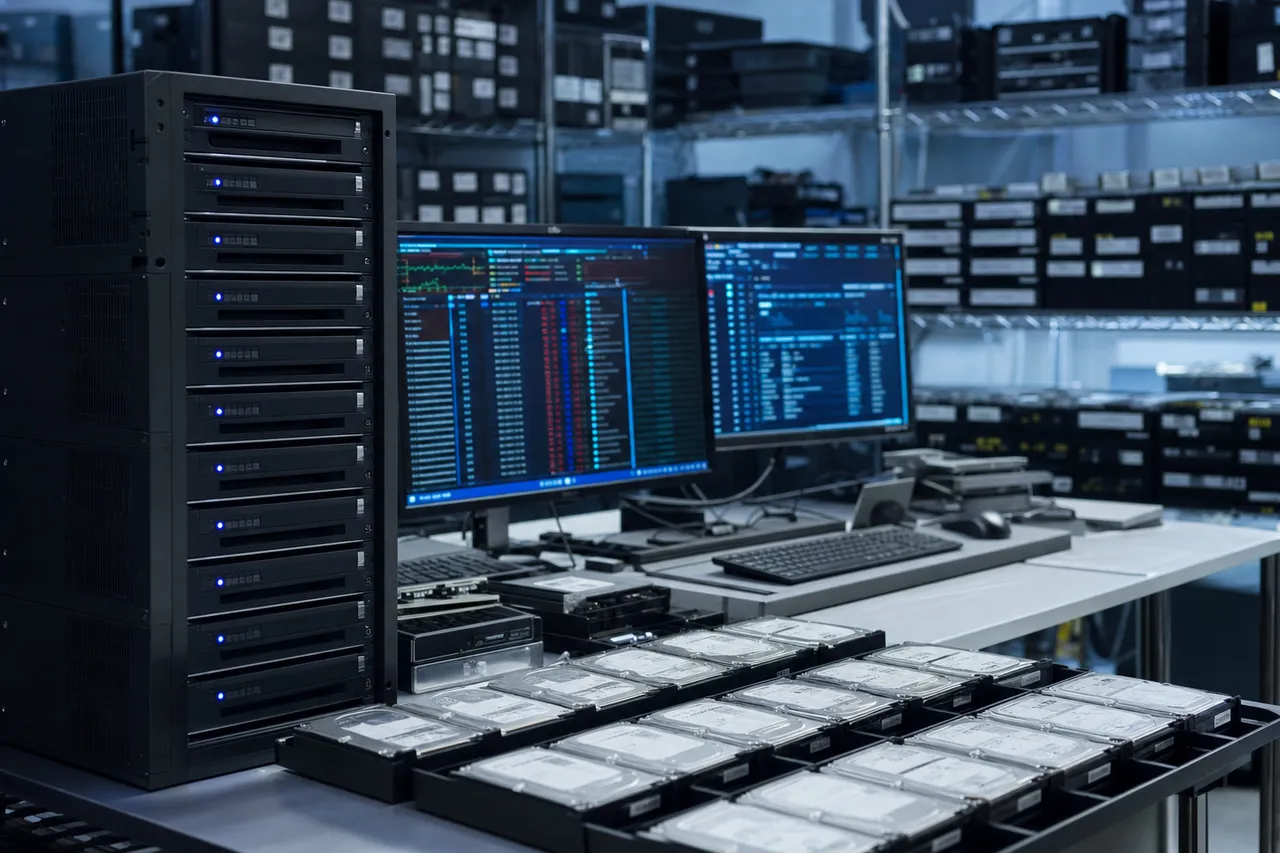
The 3-2-1 Backup Rule
The 3-2-1 rule is the gold standard for data protection, and it applies to laptops just as much as it does to enterprise servers:
- 3 copies of your data (the original plus two backups)
- 2 different types of media (e.g., your laptop's internal SSD plus an external hard drive)
- 1 copy offsite (cloud storage or a backup drive kept at a different physical location)
Most people have zero backups. Having even one puts you ahead of the majority. But a single backup stored on a USB drive that lives in the same bag as your laptop is not real protection - if the bag is stolen, both copies are gone. The offsite component is what separates a backup strategy from a false sense of security.
Cloud Backup Solutions
Cloud backup is the easiest way to maintain an offsite copy of your critical data. The right service depends on your operating system and how much data you need to protect:
- Microsoft OneDrive - Integrated into Windows 10/11 with 5GB free (1TB with Microsoft 365). OneDrive's Known Folder Backup automatically syncs your Desktop, Documents, and Pictures folders. For most Windows laptop users, this is the single most impactful backup to enable.
- Apple iCloud - 5GB free (50GB for $0.99/month, 200GB for $2.99/month). iCloud integrates with macOS Desktop and Documents sync. Combined with Time Machine for local backup, this provides a solid 3-2-1 setup for Mac users.
- Google Drive - 15GB free, available across all platforms. Google's desktop client can sync any folder you designate. A good option for cross-platform users.
- Backblaze - $99/year for unlimited backup of one computer. Unlike the sync services above, Backblaze is a true backup solution - it backs up your entire drive (including files you do not sync to the cloud) with versioning and 1-year retention. For comprehensive laptop backup, Backblaze is hard to beat.
Important distinction: Sync is not backup. If you delete a file on your laptop and it syncs that deletion to the cloud before you notice, the file is gone from both locations. True backup services like Backblaze maintain versioned copies and retention periods that protect against accidental deletion, ransomware, and file corruption.
External Drive Backups
Local backups to an external drive provide fast, complete protection and do not require an internet connection:
- Time Machine (macOS) - Connect an external drive, enable Time Machine, and macOS handles everything automatically. It creates hourly backups for the past 24 hours, daily backups for the past month, and weekly backups beyond that. Time Machine is one of the best consumer backup tools ever built - use it.
- File History (Windows) - Windows' built-in backup tool. It is less comprehensive than Time Machine (it backs up Libraries, Desktop, Contacts, and Favorites by default) but provides versioned file backup with minimal setup. For full system image backups on Windows, use the older Backup and Restore (Windows 7) tool still included in Windows 10/11, or third-party tools like Macrium Reflect or Veeam Agent.
- Manual copies - Better than nothing, but manual backups rely on discipline. Most people do it once, intend to do it monthly, and never do it again. Automated solutions are always preferable.
SSD Health Monitoring
Modern laptop SSDs fail differently than hard drives - they rarely give gradual warnings. However, monitoring S.M.A.R.T. (Self-Monitoring, Analysis, and Reporting Technology) data can catch some issues early:
- CrystalDiskInfo (Windows) - Free, lightweight tool that reads S.M.A.R.T. attributes from your SSD. Watch for Reallocated Sector Count, Wear Leveling Count, and Media Wearout Indicator. Any yellow or red warnings warrant immediate backup and drive replacement.
- DriveDx (macOS) - The macOS equivalent, providing detailed S.M.A.R.T. monitoring with notifications when drive health declines.
- smartctl (Linux) - Part of the smartmontools package. Use
smartctl -a /dev/nvme0to check NVMe drive health from the command line. - Manufacturer tools - Samsung Magician, Crucial Storage Executive, and Western Digital Dashboard provide SSD-specific health monitoring and firmware updates for their respective drives.
Key S.M.A.R.T. attributes to watch on SSDs:
- Percentage Used - On NVMe drives, this shows cumulative wear. At 100%, the drive has exceeded its rated endurance and should be replaced immediately.
- Available Spare - The percentage of spare NAND blocks remaining. Below 10% is a warning sign.
- Media and Data Integrity Errors - Any non-zero value indicates the drive is experiencing uncorrectable read errors. Back up immediately.
- Critical Warning - NVMe drives report critical warnings for temperature, reliability degradation, and read-only mode. Any critical warning means the drive needs attention now.
Physical Protection for Laptops
Data loss is not always a software or hardware failure - physical damage is a leading cause of laptop data recovery needs:
- Use a padded laptop bag or sleeve - Drops are the number one cause of hard drive failure in laptops that still use HDDs. Even SSDs can suffer board-level damage from impacts.
- Use a surge protector - Power surges from lightning strikes or unstable power sources can destroy laptop chargers and, in worst cases, damage internal components including the storage controller. A quality surge protector costs less than any data recovery job.
- Avoid extreme temperatures - Do not leave your laptop in a car in summer (temperatures inside a parked car can exceed 150 degrees F/65 degrees C). High temperatures accelerate SSD wear and can cause immediate failure. Cold temperatures can cause condensation when the laptop warms up.
- Keep liquids away - As covered in the liquid damage section, even a small spill can be catastrophic. Use lidded containers near your laptop and keep drinks on a separate surface.
- Transport carefully - Close your laptop before moving it. Walking with a laptop open and running - especially one with an HDD - is a common cause of head crashes and data loss.
Why Prevention Is Cheaper Than Recovery
Consider the math. A 2TB external hard drive for Time Machine or File History costs $60 - $80. Backblaze costs $99/year. A Microsoft 365 subscription with 1TB of OneDrive storage costs $70/year. The average data recovery job costs $300 - $1,500, and complex cases involving chip-off or encrypted drive recovery can exceed $2,000. One backup drive pays for itself the first time it saves you from a recovery bill. More importantly, backup guarantees your data is recoverable - no data recovery process can guarantee that.
When to Seek Professional Help vs. DIY
Not every data loss situation requires a professional. Here is a decision framework:
DIY is appropriate when:
- You accidentally deleted files and have not written new data to the drive
- You need to recover files from the Recycle Bin or Trash
- Your drive is recognized by the computer and you want to try software recovery tools (Recuva, PhotoRec, R-Studio)
- You have a backup that you need help restoring
Seek professional help when:
- The drive makes clicking, grinding, or beeping noises
- The laptop does not detect the drive at all (no BIOS recognition)
- The drive was exposed to water, fire, or electrical damage
- You have already tried DIY software and it did not recover your files
- The drive is encrypted and you are unsure about your recovery key situation
- The data is business-critical or irreplaceable (family photos, legal documents, financial records)
DIY recovery attempts on a physically failing drive can make the problem significantly worse. If a hard drive is clicking, every minute of power-on time causes additional platter damage. If an SSD has firmware corruption, running consumer recovery software can trigger further write operations that overwrite recoverable data. When in doubt, power off the laptop, remove the battery if possible, and contact a professional data recovery lab for guidance before attempting anything on your own.
09High-Performance Drives
Gaming Laptop Data Recovery - High-Performance Drive Recovery
Gaming laptops push hardware to the absolute limit - and that includes the storage drives holding your data. Between thermal throttling, RAID 0 NVMe configurations, and constant heavy read/write operations, gaming laptops experience drive failures that most consumer recovery shops simply aren't equipped to handle. At MDRepairs, we specialize in gaming laptop data recovery for every major brand and drive configuration on the market.
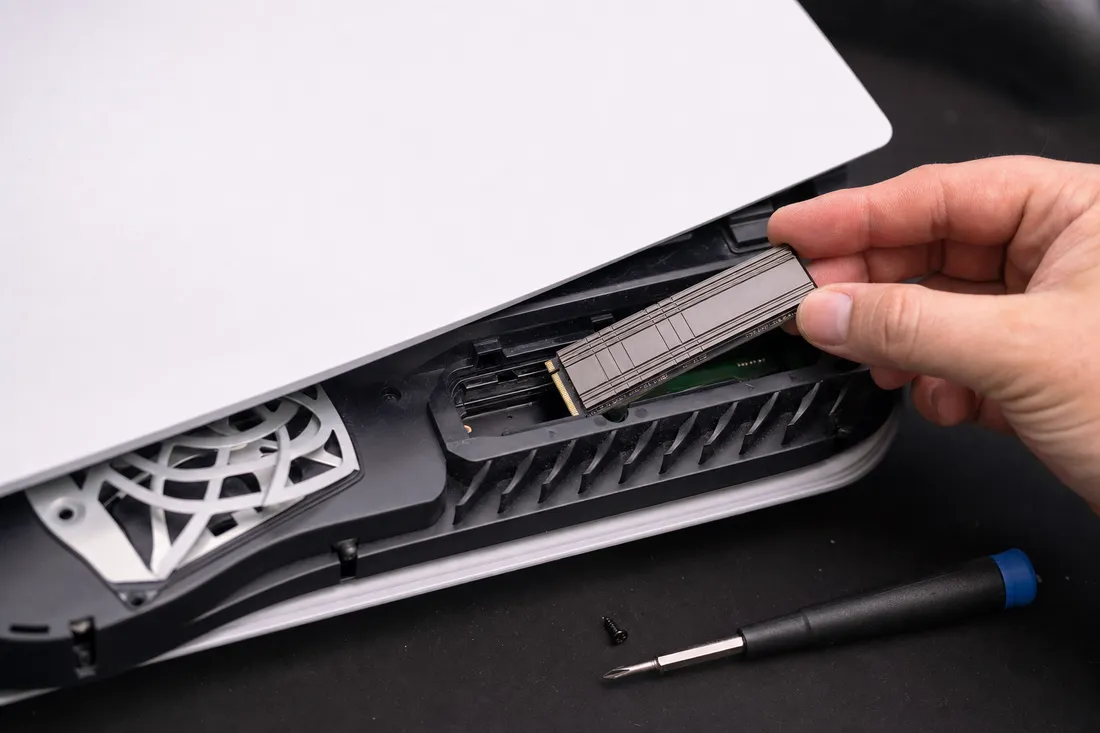
Why Gaming Laptops Are Prone to Drive Failure
Gaming laptops generate significantly more heat than standard notebooks. Extended gaming sessions push CPU and GPU temperatures well above 90 degrees C, and that thermal stress radiates directly to nearby NVMe SSDs. Over time, this leads to:
- NAND flash cell degradation - heat accelerates electron leakage in flash memory cells, causing premature wear even on drives with low write counts
- Controller failure - the SSD controller chip itself can overheat and fail, making the entire drive unresponsive
- Solder joint fatigue - repeated thermal cycling (heating up during gaming, cooling down overnight) weakens solder joints on M.2 connectors and BGA chips
- Firmware corruption - unexpected shutdowns during thermal throttling events can corrupt the drive's firmware translation tables
These aren't theoretical risks. We see gaming laptops with failed NVMe drives on our bench every week, many of them less than two years old.
RAID 0 Configurations - Double the Speed, Double the Risk
High-end gaming laptops from MSI, ASUS ROG, Razer, and Alienware often ship with dual NVMe SSDs configured in RAID 0 for maximum read/write speed. While this delivers impressive benchmark numbers, it also means that if either drive fails, all data across both drives becomes inaccessible. There's no redundancy - RAID 0 stripes data across both drives without any parity or mirroring.
Laptop data recovery from a RAID 0 array requires rebuilding the stripe configuration, which demands specialized tools and deep knowledge of how each manufacturer implements their RAID controller. We've recovered data from RAID 0 arrays where one drive was completely dead and the other had partial firmware corruption - situations that most shops would call unrecoverable.
Brand-Specific Quirks We Handle Daily
Every gaming laptop manufacturer has design decisions that affect data recovery. Here's what we see on our bench:
- MSI Stealth & Raider series - often use proprietary thermal pad layouts that can shift during shipping, causing hot spots on NVMe drives. Some models solder the Wi-Fi card directly next to the primary M.2 slot, adding extra heat
- ASUS ROG Zephyrus & Strix - later models use PCIe Gen 4 drives that run hotter than Gen 3. The compact Zephyrus chassis provides minimal airflow over the SSD, accelerating thermal wear
- Razer Blade - the unibody aluminum chassis acts as a heat sink, but the drive placement near the battery can cause issues. We've seen multiple Razer Blades with swollen batteries that physically damaged the M.2 SSD
- Alienware m-series & x-series - Dell's RAID implementation uses Intel RST or VMD controllers, which require specific driver-level access during recovery. Standard imaging tools won't see the array without proper configuration
- Lenovo Legion - dual-drive models sometimes use different SSD brands for each slot, creating mismatched RAID arrays that are harder to reconstruct if the configuration metadata is lost
Dual-Drive Configurations
Many gaming laptops use a dual-drive setup: a fast NVMe SSD as the boot drive and a larger 2.5-inch HDD or SATA SSD for game storage. This means a single laptop can require two completely different recovery approaches - chip-level SSD recovery for the boot drive and mechanical hard drive recovery for the storage drive. MDRepairs handles both under one roof with no need to ship your laptop to multiple facilities.
What's at Stake - Irreplaceable Gaming Data
People outside the gaming community don't always understand just how much irreplaceable data lives on a gaming laptop:
- Hundreds of hours of save files - many games don't use cloud saves, or cloud sync was disabled. RPGs, strategy games, and simulation titles often have save files that represent months of progress
- Mod collections and custom configurations - curated mod setups for games like Skyrim, Fallout, or Minecraft can take dozens of hours to build and configure
- Streaming and content creation archives - OBS recordings, edited videos, Twitch VODs, and YouTube project files that haven't been uploaded or backed up
- Creative project files - many gamers are also digital artists, musicians, or 3D modelers. Blender projects, Photoshop files, and FL Studio sessions stored locally
- Competitive gaming profiles and replays - tournament replays, practice footage, and ranking data that can't be re-downloaded
Our Recovery Approach for High-Performance Storage
Gaming laptop recovery at MDRepairs starts with a thorough diagnostic of the drive's condition - controller health, NAND integrity, and firmware status. For RAID 0 arrays, we image each drive independently, then reconstruct the stripe map using our proprietary tools. For thermally damaged NVMe drives, we use controlled chip-off techniques when the controller is non-functional, reading data directly from the NAND flash chips.
Every recovery is performed in our professional data recovery lab - no outsourcing, no shipping your drive to a third party. If you've lost data on a gaming laptop, contact MDRepairs for a straight answer on what's recoverable.
10Enterprise & Legal
Business Laptop Data Recovery - Enterprise, Legal & Medical Compliance
When a business laptop fails, the stakes go far beyond lost files. Depending on your industry, a drive failure can trigger compliance violations, disrupt legal proceedings, or put protected health information at risk. Business laptop data recovery requires more than technical skill - it demands strict chain of custody procedures, encryption expertise, and an understanding of regulatory frameworks like HIPAA, SOX, and legal discovery rules. MDRepairs provides all of this from our professional recovery lab.
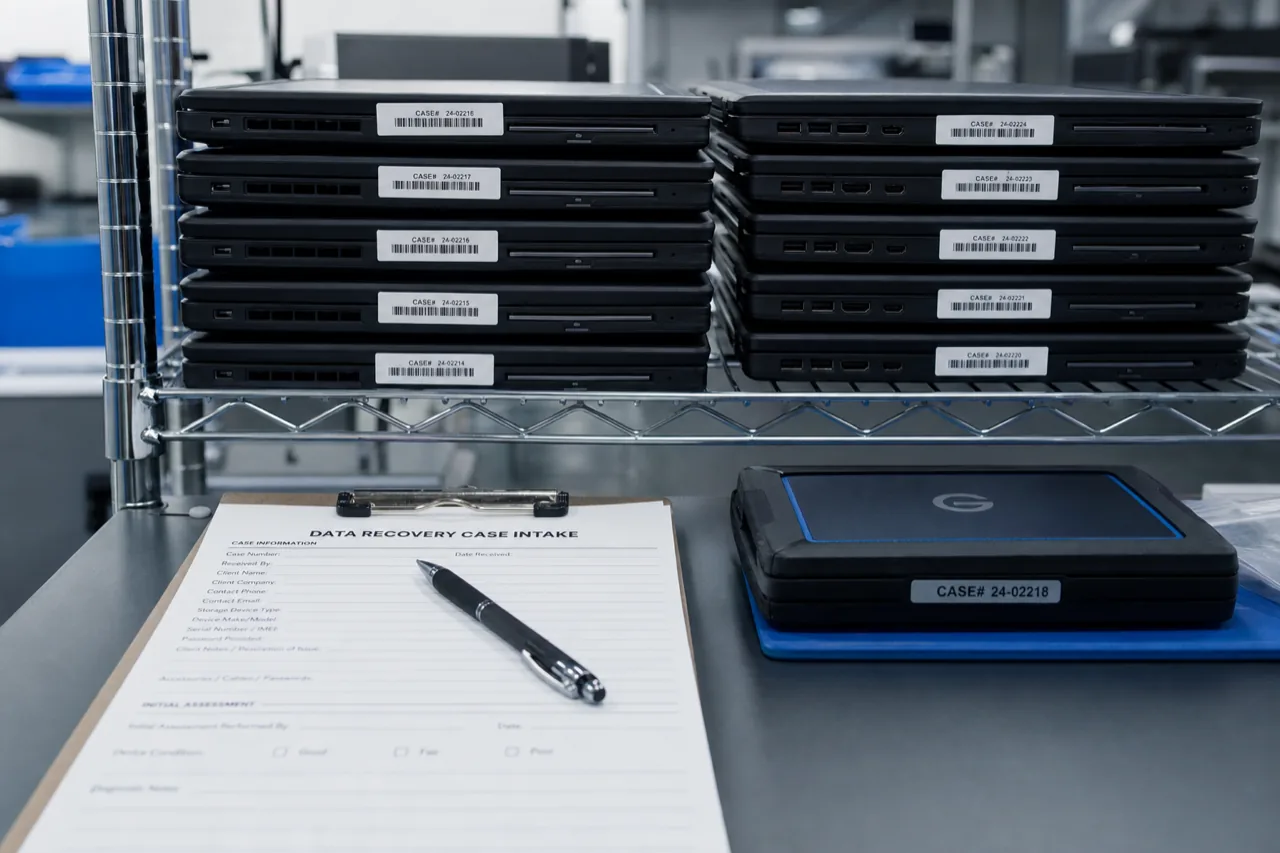
Chain of Custody for Legal & Forensic Recovery
If your laptop data may be used as evidence in litigation, an insurance claim, or a regulatory investigation, chain of custody documentation is non-negotiable. A break in the chain can render recovered data inadmissible in court, no matter how critical it is to your case.
At MDRepairs, our chain of custody process includes:
- Documented intake - every device is logged with serial numbers, physical condition notes, and photographs upon arrival
- Tamper-evident storage - drives are stored in sealed, labeled containers when not actively being worked on
- Access logging - we track who handles the drive and when, with timestamps at every stage of recovery
- Forensic imaging - we create bit-for-bit images of the drive before any recovery work begins, preserving the original evidence
- Signed documentation - you receive a complete chain of custody report with your recovered data
This level of documentation is something consumer recovery shops and DIY software simply cannot provide.
HIPAA-Compliant Recovery for Medical Professionals
If you're a doctor, dentist, therapist, or healthcare administrator whose laptop contained protected health information (PHI), a drive failure creates an immediate HIPAA compliance concern. You need to know exactly what data was on that drive, whether it's recoverable, and whether it was exposed.
MDRepairs handles HIPAA-compliant laptop data recovery with the appropriate safeguards:
- All recovered data is handled under strict confidentiality protocols
- We do not access, browse, or view file contents beyond what is necessary to verify recovery integrity
- Recovered data is returned via encrypted transfer methods
- Source drives can be securely destroyed after recovery upon request, with a certificate of destruction provided
If your practice management software, patient records, or imaging files were stored locally on a laptop that failed, we can recover that data without compromising your compliance posture.
Legal Discovery & Litigation Hold
Attorneys and law firms face unique challenges when a laptop drive fails during active litigation. If the device is subject to a litigation hold, you're legally obligated to preserve that data - and a failed drive doesn't release you from that obligation. Courts have sanctioned parties for failing to recover data from failed drives when recovery was technically feasible.
Laptop data recovery for legal discovery requires forensic-grade imaging that preserves metadata, timestamps, deleted files, and file system artifacts. MDRepairs produces recovery images that are compatible with standard e-discovery platforms like Relativity, Nuix, and EnCase.
BitLocker, MDM & Enterprise Encryption
Corporate laptops almost always have some form of drive encryption - and that encryption is the single biggest variable in whether data can be recovered. Here's what we deal with regularly:
- BitLocker (Windows) - if you have the recovery key (stored in Active Directory, Azure AD, or printed), we can decrypt the drive after imaging. Without the key, recovery from a BitLocker-encrypted drive is not possible - no legitimate lab can bypass it
- FileVault (macOS) - similar to BitLocker. Recovery requires the FileVault recovery key or the iCloud account credentials linked to the Mac
- MDM-managed devices - laptops enrolled in Microsoft Intune, Jamf, or other MDM platforms may have additional encryption layers or remote wipe commands pending. We work with your IT department to ensure the drive isn't wiped during recovery
- Self-encrypting drives (SED) - some enterprise SSDs use hardware-level AES encryption. If the authentication key is lost, the data is permanently inaccessible regardless of recovery technique
The critical takeaway: locate your encryption recovery keys before contacting us. It can mean the difference between a full recovery and no recovery at all.
Enterprise Laptop Brands We Recover From
Business laptops have their own hardware-specific challenges:
- Lenovo ThinkPad - T-series and X-series models often use soldered SSDs in ultralight configurations. Recovery requires chip-level techniques when the drive can't be removed
- HP EliteBook & ProBook - HP's Sure Start BIOS recovery system can sometimes interfere with drive access after firmware corruption. We know how to work around it
- Dell Latitude & Precision - Dell's enterprise models frequently use Intel Optane memory as a caching layer alongside a larger SSD. Recovery requires handling both storage devices correctly
- Microsoft Surface Pro & Surface Laptop - these devices have fully soldered storage that cannot be physically removed. Recovery requires board-level techniques and specialized tooling
Bulk & Fleet Recovery for IT Departments
If your organization has multiple failed drives from a fleet refresh, a batch of returned employee laptops, or a widespread hardware issue, MDRepairs offers bulk recovery services for IT departments. We can process multiple drives simultaneously, provide consolidated reporting, and work with your IT team on secure data transfer protocols.
Whether it's a single executive laptop with critical deal files or a stack of drives from a decommissioned fleet, MDRepairs delivers enterprise-grade recovery with the documentation and security your business requires. Get in touch to discuss your situation directly - no sales pitch, just a straight assessment of what we can recover.
11All 50 States
Nationwide Mail-In Laptop Data Recovery - How It Works
You don't need to live near our lab to get professional laptop data recovery. MDRepairs serves all 50 states through our nationwide mail-in recovery program. We've recovered data from laptops shipped from every corner of the country - from Manhattan apartments to rural Montana ranches. The process is straightforward, secure, and designed to get your data back with minimal hassle.
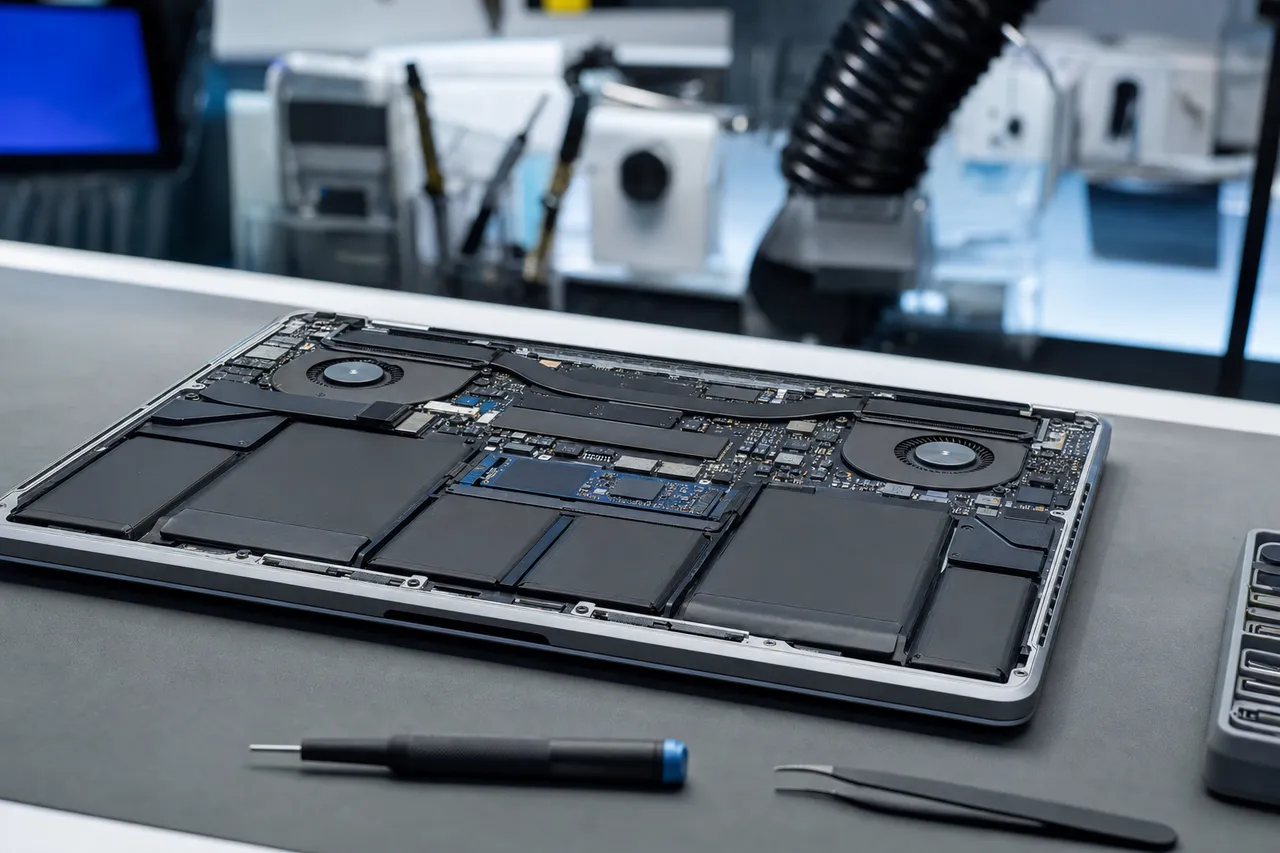
How Mail-In Laptop Data Recovery Works - 5 Simple Steps
- Contact MDRepairs - Call us at 732-933-7717 or submit a quote request through our website. Tell us what happened to your laptop, what data you need recovered, and any details about the make and model. We'll give you an honest assessment of the situation before you ship anything
- Ship your laptop or extracted drive - We provide a prepaid shipping label so you can send your laptop or drive to our lab at no cost. You can ship the entire laptop or just the drive - whichever is easier for you. If you're not comfortable removing the drive yourself, ship the whole laptop and we'll handle extraction
- $100 diagnostic evaluation - Once your device arrives, our technicians perform a thorough diagnostic to determine the exact cause of failure and assess what data is recoverable. You'll receive a detailed diagnostic report explaining the condition of the drive, the type of failure, and our recommended recovery approach
- Recovery quote - approve or decline - Based on the diagnostic results, we'll provide a firm recovery quote. You decide whether to proceed. If you decline, or if we determine the data is unrecoverable, you owe nothing beyond the diagnostic fee. No data, no additional charge
- Data returned on a new external drive - Once recovery is complete, we transfer your recovered files to a new external drive and ship it back to you with tracking. You can verify every file before we securely destroy the original media (or we'll return it - your choice)
The entire process is designed around transparency. You'll never be surprised by a bill or left wondering what's happening with your laptop. We communicate at every stage.
How to Package Your Laptop for Shipping
Proper packaging is critical - a laptop with a failing drive can go from recoverable to unrecoverable if it takes a hard impact during shipping. Follow these guidelines:
- Power off completely - don't put it to sleep. Hold the power button for a full shutdown. If the laptop won't turn off normally, that's fine - just don't try to force it on again
- Remove the battery if possible - for laptops with removable batteries, take it out and ship it separately. This prevents accidental power-on during transit
- Wrap in anti-static material - use an anti-static bag if you have one. If not, wrap the laptop in a clean, dry cloth or towel
- Use a box within a box - place the wrapped laptop in a snug inner box, then put that box inside a larger outer box with at least 2-3 inches of padding (bubble wrap, packing peanuts, or crumpled paper) on all sides
- Don't include chargers or accessories - we don't need them, and they add weight and potential impact points. Just the laptop (or extracted drive)
- Seal and label clearly - mark the package as "FRAGILE - ELECTRONIC EQUIPMENT" on multiple sides
If you're shipping just the extracted drive instead of the full laptop, wrap it in anti-static material and cushion it thoroughly. Hard drives and SSDs are more fragile than they look, especially when already in a failure state.
Insurance & Tracking
Every shipment to and from MDRepairs includes full tracking so you can monitor your package at every step. We recommend adding shipping insurance through your carrier - while our prepaid labels include standard coverage, adding declared value coverage for high-value data gives you extra peace of mind.
Once your laptop arrives at our lab, we'll confirm receipt and send you a notification with your case number. You can check the status of your recovery at any time by calling or emailing us.
Turnaround Times
Our standard laptop data recovery turnaround is 4-5 weeks from the time we receive your device. This includes the diagnostic phase, recovery work, and quality verification of recovered files. Most cases fall within this window, though particularly complex recoveries (severe physical damage, RAID arrays, encrypted drives) may take longer.
Need it faster? We offer rush recovery options for time-sensitive situations. Rush service prioritizes your case in our lab queue and can significantly reduce turnaround time. Call us at 732-933-7717 to discuss rush pricing and availability for your specific situation.
All 50 States - Same Professional Service
Whether you're in New York, California, Texas, or anywhere in between, you get the exact same lab, the exact same technicians, and the exact same recovery process. We don't outsource to regional partners or franchise locations. Every drive that arrives at MDRepairs is handled by our team in our facility.
We've built our mail-in data recovery program to be as seamless as dropping your laptop off in person. The only difference is a few days of shipping time. For most people, that tradeoff is well worth getting access to a professional recovery lab instead of settling for whatever local computer shop is nearby.
Ready to get started? Call 732-933-7717 or request a quote online. We'll tell you exactly what to expect - no runaround, no upsells, just honest data recovery from a real lab.
What You Receive After Recovery
Every recovery is performed in-house at our Lincroft, New Jersey lab - we never outsource your device to a third party. Each device is photographed at intake, its serial and model recorded, and every action tracked against a unique case number. We never browse your files; integrity is confirmed through checksums and file structure only.
-
Your Recovered Data
Your files are delivered on a new external drive shipped directly to you, or via a password-protected download link for secure retrieval. We include a file listing so you can verify everything before we purge our copies.
-
Your Original Device
After recovery, you choose what happens to your original laptop or drive - we can return it, hold it for a specified period, or securely destroy it with a certificate of destruction. All copies on our systems are purged after you confirm receipt.
-
Ongoing Support
Need help accessing your recovered files, transferring data to a new device, or setting up backups to prevent future loss? Our team is available after delivery to help you get back on track.
Talk to the engineer who does the work - not a call center.
Frequently Asked Questions
Straight answers on cost, turnaround, brands, encryption, and how we recover data from laptop HDDs, SSDs, and soldered storage.
-
How do I recover data from a laptop that won't turn on?
Stop powering it on and off, and get the storage to a lab. A laptop that will not power on usually has a motherboard or power delivery failure, not necessarily a storage failure. We extract the hard drive or SSD from the laptop and work on it directly in our lab - or work at board level when the storage is soldered. In most cases the data is fully recoverable even if the laptop itself is dead. -
Can files be recovered from a dead laptop?
Yes, in most cases. A dead laptop usually means the motherboard, power circuitry, or screen has failed - the storage inside is often untouched. We remove the drive and read it directly, or work at board level on machines with soldered storage. Even when the drive itself has also failed, clean room and chip-off techniques recover the data in the majority of dead-laptop cases we see. -
How much does laptop data recovery cost?
Laptop data recovery at MDRepairs ranges from $300 to $2,500 depending on the failure type. Logical issues like deleted files or OS corruption fall in the $300 - $600 range, while physical failures requiring clean room work run $1,200 - $2,500. Every job starts with a $100 diagnostic so you get an exact quote before we proceed. Request a free quote or call 732-933-7717. -
Can Geek Squad recover data from a laptop?
Geek Squad can copy files off a healthy drive and handle simple software-level recoveries in-store. Best Buy stores are not data recovery labs, though - clicking drives, dead SSDs, liquid damage, and soldered storage get shipped out to a third-party lab, which adds a middleman markup and shipping time. Sending your laptop straight to a real lab skips that step: our $100 diagnostic produces a firm quote from the engineers actually doing the work, and if we cannot recover your data you owe nothing beyond the diagnostic. -
Can you recover data from a laptop with a broken screen?
Yes - a broken screen has no effect on the data itself. If the laptop still runs, we connect it to an external display or remove the drive and copy your files directly. On soldered or encrypted machines like MacBooks and many ultrabooks, we image the storage at board level, so even a completely shattered laptop is usually a straightforward recovery. -
How long does laptop data recovery take?
Standard laptop data recovery takes 4 - 5 weeks from the time you approve the diagnostic quote. We offer priority rush service (5 - 7 days) and emergency same-day options for critical situations. Call 732-933-7717 to discuss turnaround times for your specific case. -
Can you recover data from a laptop with a failed SSD?
Yes, we recover data from failed laptop SSDs including SATA, M.2, and NVMe drives. SSD recovery often requires firmware-level repair or chip-off techniques where we desolder the NAND flash chips and read them directly. Our lab has the specialized equipment and software needed for these advanced recoveries. See our SSD data recovery page for details. -
Do you recover data from MacBook laptops?
Yes, we recover data from all MacBook models including MacBook Air and MacBook Pro with M1, M2, and M3 chips, as well as older Intel-based models. Apple Silicon MacBooks with soldered storage require chip-level techniques that most shops cannot handle - our lab is equipped for these recoveries. Learn more on our MacBook data recovery page. -
Can you recover data from a water-damaged laptop?
Yes, liquid damage is one of our most common laptop recovery cases. Water, coffee, and other spills can corrode the drive's circuit board or damage internal components. We clean and repair affected parts in our lab, and in severe cases perform component-level swaps to regain access to your data. -
Can you recover data from an encrypted laptop drive?
We can recover data from BitLocker (Windows) and FileVault (Mac) encrypted drives as long as you have the encryption key or recovery key. Without the key, the data is cryptographically inaccessible by design. If you have the key and the drive has failed, we recover the raw data and then decrypt it using your credentials. -
Can you recover data from a laptop hard drive that's clicking?
A clicking hard drive typically indicates a head crash or failed read/write heads. We perform head transplants in our clean room using donor parts matched to your exact drive model. Stop using the laptop immediately if you hear clicking - continued use can cause platter damage and make recovery harder. See our hard drive data recovery page. -
What happens if you can't recover my data?
If we cannot recover your data, you only pay the $100 diagnostic fee. We operate on a no data, no charge policy for the recovery portion of the bill. Your original device and any extracted components are returned to you regardless of the outcome. -
Do I need to send the whole laptop or just the hard drive?
You can send either the whole laptop or just the extracted drive. If you are not comfortable removing the drive yourself, ship the entire laptop and our technicians will handle the extraction. We provide prepaid shipping labels for all mail-in recoveries. -
Is my data kept confidential during recovery?
Absolutely. All recoveries are performed in-house at our Lincroft, NJ lab - we never outsource or send your drive to a third party. Your data is handled only by our engineers, stored on encrypted workstations, and securely wiped from our systems after your recovered data is returned. -
What laptop brands do you service?
We recover data from every laptop brand including Dell, HP, Lenovo, Apple, ASUS, Acer, MSI, Samsung, Microsoft Surface, Razer, and more. The brand and model do not matter - what matters is the type of storage device inside, and we handle all of them: SATA HDDs, SATA SSDs, NVMe drives, and soldered storage. -
How do I send my laptop for data recovery?
Call 732-933-7717 or submit a free quote on our website. We will email you a prepaid FedEx shipping label so you can ship your laptop or drive at no cost. Pack it securely in a box with cushioning material. -
Can you recover files that were accidentally deleted from a laptop?
Yes, accidentally deleted files are one of the simplest recovery cases. As long as the deleted data hasn't been overwritten by new files, recovery is straightforward. On traditional hard drives the chances are very good; on SSDs with TRIM enabled, deleted file recovery is more time-sensitive because the drive actively erases freed blocks. -
What's the difference between laptop HDD and SSD recovery?
Hard drive recovery often involves mechanical repairs like head swaps or motor replacements in a clean room. SSD recovery is electronic - it involves firmware repair, controller chip replacement, or chip-off NAND reading. SSDs have no moving parts so they do not suffer head crashes, but their failures can be more complex to resolve. -
Can you recover data from a laptop that was dropped?
Dropped laptops are one of our most common cases. A drop impact can cause a head crash in a spinning hard drive or crack the circuit board of an SSD. We assess the physical damage during the $100 diagnostic and provide a detailed quote for the recovery work required. -
Do you recover data from Chromebooks?
Yes, we can recover data from Chromebooks that use eMMC or SSD storage. Most Chromebook data is synced to Google Drive, but locally stored files, downloads, and Linux containers can be recovered from the internal storage. Chromebook storage is often soldered, which may require chip-off techniques. -
Can you recover data from a laptop with a corrupted operating system?
Yes. OS corruption, blue screens, and boot loops are typically logical failures that don't affect your actual data files. We mount the drive in our lab environment, bypass the corrupted OS, and extract your files directly. This is usually a standard-tier recovery in the $300 - $600 range. -
What is chip-off data recovery for laptops?
Chip-off recovery is a technique where we desolder the NAND flash memory chips from a failed SSD or soldered laptop storage using specialized BGA rework stations. The raw data is then read from each chip and reconstructed using our proprietary software. This is used when the SSD controller has failed or the drive is physically damaged beyond board-level repair. -
Is it worth recovering data from an old laptop?
That depends entirely on the value of the data. If the laptop contains irreplaceable family photos, business documents, or research data, recovery is almost always worth the cost. Our $100 diagnostic gives you a clear picture of what is recoverable and what it will cost before you commit to anything. -
Can you recover data from a laptop with a beeping hard drive?
Beeping in a laptop hard drive usually means the motor is seized or the heads are stuck on the platter surface. This requires clean room work - our technicians free the heads or replace the motor using matched donor parts. Do not attempt to power on a beeping drive repeatedly as it can score the platters. -
Do you offer local drop-off for laptop data recovery?
Yes, you can drop off your laptop at our lab located at 644 Newman Springs Road, Suite A, Lincroft, NJ 07738. Walk-ins are accepted during business hours. Call 732-933-7717 to confirm availability or schedule a drop-off time. -
Can you recover data from a laptop SSD that's not detected by BIOS?
Yes. An SSD not detected in BIOS typically indicates a controller failure or firmware corruption. We use specialized tools to communicate with the NAND flash directly, bypassing the failed controller. In some cases we perform chip-off recovery to read the data at the hardware level. -
How is laptop data recovery different from desktop data recovery?
The recovery techniques are largely the same - the difference is in the hardware form factors. Laptops use 2.5-inch drives, M.2 SSDs, or soldered storage, while desktops typically use 3.5-inch drives. Laptop drives are more susceptible to drop damage because the device is portable, but the actual recovery process follows the same principles. -
Can you recover data from a laptop after a factory reset?
It depends on the storage type. A factory reset on a laptop with a traditional hard drive often leaves data recoverable because the files are not immediately overwritten. On SSDs, a factory reset combined with TRIM usually erases the data permanently. Contact us as soon as possible after a reset - the sooner you act, the better the chances.
Laptop Data Recovery Across All 50 States
Our secure mail-in program serves laptop data recovery customers in every state. Free prepaid insured shipping both ways - from anywhere in the country to our Lincroft, NJ lab.
Free prepaid insured shipping both ways
- New Jersey
- New York
- Pennsylvania
- Connecticut
- Delaware
- Florida
- Georgia
- Maryland
- Massachusetts
- North Carolina
- Ohio
- Virginia
- Alabama
- Alaska
- Arizona
- Arkansas
- California
- Colorado
- Washington DC
- Hawaii
- Idaho
- Illinois
- Indiana
- Iowa
- Kansas
- Kentucky
- Louisiana
- Maine
- Michigan
- Minnesota
- Mississippi
- Missouri
- Montana
- Nebraska
- Nevada
- New Hampshire
- New Mexico
- North Dakota
- Oklahoma
- Oregon
- Puerto Rico
- Rhode Island
- South Carolina
- South Dakota
- Tennessee
- Texas
- Utah
- Vermont
- Washington
- West Virginia
- Wisconsin
- Wyoming
Related Resources
Ready to Recover Your Data?
Get your laptop data back from a real lab.
$100 professional diagnostic on every case. No data, no charge. Free insured shipping nationwide.